
The best iPad apps for designers and creatives. Draw in apps with markup on iPad
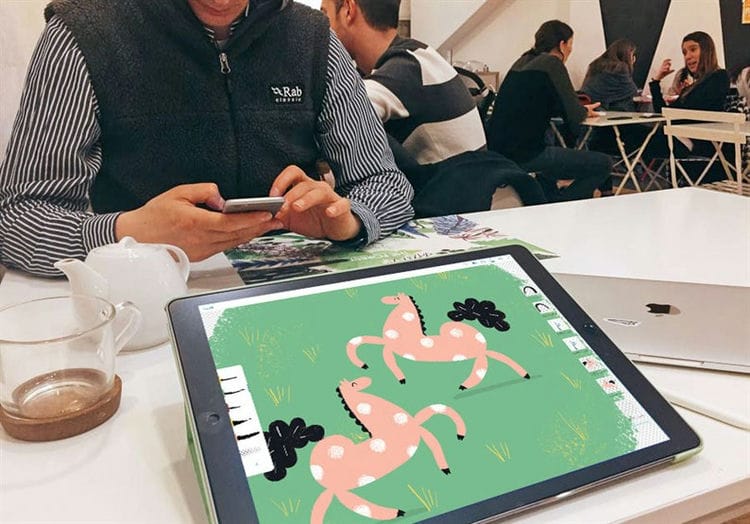
How to choose an electronic tablet? iPad or Wacom?
Illustrators generally fall into two camps: Wacom advocates and iPad Pro advocates. Both tablets have their pros and cons, and a few major differences:
When buying an iPad Pro, you can draw and see a picture right on the tablet screen. This effect is only possible on the Wacom Cintiq, which costs more than the iPad Pro.
Portability
If you buy a Wacom Intuos or Cintiq, you can only use it by connecting it to a computer or laptop, so portability and ease of movement are out of the question. To have a truly standalone tablet from a PC, you will need to purchase the Wacom Mobile Studio Pro, which will also cost you much more than the iPad Pro.
When you buy Wacom, you are limited to the applications you use on your computer, usually Photoshop and Illustrator. On iPad Pro, you can choose from a variety of dedicated drawing apps. Now there are many applications suitable for animation, which is also very useful for illustrators.
Multifunctionality
You don't have to use iPad Pro just for drawing. It can be useful to you in other life situations, for example, to check e-mail, post a picture on social networks, edit a movie, etc. You can't do this through Wacom.
Ease of drawing with a stylus
Wacom tablets are renowned for providing a very believable and accurate drawing feel. All the same, this company has been specializing in tools for artists for many years. However, how justified is this, and is the iPad Pro surface really that much different from the Wacom surface? According to my feelings – not much. If you try iPad Pro for the first time, you will notice that its surface is more slippery. But! You can get a very cheap matte screen sticker (I use this one) that will make it look rougher like paper. It should also be noted that Apple is very rapidly developing iPad Pro technology, improving the properties of the pencil. Therefore, when you buy a new iPad Pro, you get a tool that is no less professional than Wacom. That's why he is, in fact, iPad “PRO”.
Software
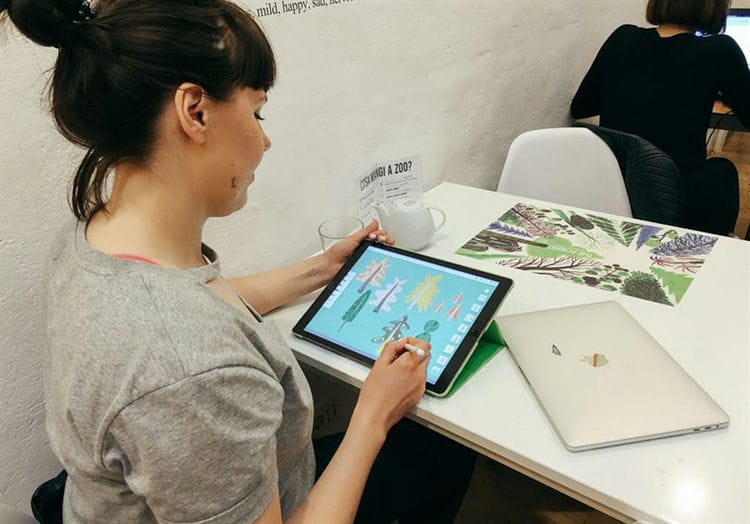
The second argument of Wacom supporters is usually that Wacom works through professional programs such as Photoshop, which provide file sizes and resolutions (over 300 dpi) suitable for professional work. Indeed, in the early days of the iPad Pro, there were few apps on the market that provided good resolution. But at the moment, the situation is not at all the same. Firstly, the popular Procreate application allows you to choose any resolution and materials for drawing. Secondly, the giant of creative software itself Adobe has released two professional drawing applications for the iPad, these are Adobe Photoshop Sketch and Adobe Illustrator Draw. They integrate perfectly with computer Photoshop and Illustrator through the Creative Cloud service. In them you can draw in vectors and raster graphics.
Note! Often people say that they lack a full-fledged Photoshop on the iPad, like on Wacom or on a PC. To do this, there is a special Astropad application that displays all the contents of your screen on the iPad, thereby turning it into a Wacom Cintiq. You can choose between the free and the paid version of the service (the free version is enough for me). Drawing with Astopad is slightly slower than drawing with Cintiq, but cheaper.
Show, move and hide the markup toolbar
To display the Markup toolbar in supported applications, tap  or tap the Markup option, then do any of the following:
-
Move the markup toolbar. Drag the toolbar to any edge of the screen.
(Drag from the edge of the toolbar closest to the center of the screen.)
-
Automatically collapses the toolbar while drawing or typing. Tap the button
![The best iPad apps for designers and creatives. Draw in apps with markup on iPad]() , then turn on Automatically hide in Dock.
, then turn on Automatically hide in Dock.To display the entire toolbar again, tap its collapsed version.
-
Hiding the toolbar. Tap the
 Done button or option.
 , then turn on Automatically hide in Dock.
Drawing with markup
In the markup toolbar, tap a pen, highlighter, or pencil, then write or draw with your finger or Apple Pencil (supported models).
Note. If the Markup toolbar does not appear in a supported application, tap or Markup. If the toolbar is collapsed, tap it.
You can do any of the following while drawing.
-
Change line thickness. Tap a drawing tool in the toolbox, then choose an option.
-
Changing transparency. Tap a drawing tool in the toolbox, then drag the slider.
-
Color change. Select the desired color in the color bar located in the toolbar.
-
Bug fix. Touch the button
 .
. -
Drawing a straight line. Tap the ruler in the toolbar, then draw a line along the edge of the ruler.
-
To change the angle of the ruler, touch and hold the ruler with two fingers, then rotate your fingers.
-
To move the ruler without changing the angle, drag it with one finger.
-
To hide the ruler, tap it again.
-
Erasing errors
In a supported app, tap the eraser in the markup toolbar, then do one of the following:
-
Erasing with the pixel eraser. Use a zig-zag motion with your finger or Apple Pencil over the error.
-
Erasing objects with the eraser. Place your finger or Apple Pencil on the item.
-
Switch between pixel eraser and object eraser. Tap the eraser again, then choose the Pixel Eraser or Object Eraser option.
Note. If the Markup toolbar is not visible, tap or the Markup option. If the toolbar is collapsed, tap it.
Move picture elements
-
In the markup toolbar, tap the lasso tool (between the eraser and the ruler), then slide your finger around the items to select them.
Note. If the Markup toolbar does not appear in a supported application, tap
or Markup. If the toolbar is collapsed, tap it. -
Lift your finger or Apple Pencil, then drag the selection to a new location.
Advice. You can take a screenshot and start marking it up right away with Apple Pencil. To do this, swipe up from the bottom-left corner of the screen. If you don't have an Apple Pencil, to add a note to the screenshot you just took, tap the thumbnail that momentarily appears in the lower-left corner of the screen.
Adding a picture
In Pages, you can draw and add illustrations and diagrams to documents.
- To draw with Apple Pencil, tap with the tool on the page. To draw with your finger, or if Select and Scroll is enabled, click the Insert button
![The best iPad apps for designers and creatives. Draw in apps with markup on iPad]() , then the Media button, and then the Picture.
, then the Media button, and then the Picture. - If the Picture option at the bottom of the screen isn't already enabled, tap it.
- Start painting.
- If you don't see an orange drawing area in a word processing document, tap anywhere on the page with the Apple Pencil and start drawing in that area. If you are drawing with your finger, click the Insert New Picture button to add a drawing area. You can resize the drawing area by dragging the edges. The text flows around the drawing area.
- In documents with page layout, you can draw in any area.
- To replace the drawing tools, select the tool at the bottom of the screen. You can also use the tools below to add various effects and functions.
- To draw a new filled shape, click the Paint Bucket tool and start painting. To fill an area, click the Paint Bucket tool, then click the area you want.
- To erase what you have drawn, click the Eraser tool, then drag over the drawing.
- To edit part of a drawing, click the selection tool, then click the desired part of the drawing, or drag around it while holding down the mouse button.
- To paint with a different color, click the colored circle and select a color. Swipe left to adjust the color.
- To change the pen size and opacity, double-click the desired tool, then click the new pen size. Or drag the slider to change the opacity.
- To undo the last action, click the Undo button.
- When finished, click Finish.
 , then the Media button, and then the Picture.
To continue drawing with Apple Pencil, simply start drawing on the page. If you don't remember which mode you last used, tap the page with your Apple Pencil (it won't leave a mark), then check which button is selected at the bottom of the screen.
Resizing and moving a picture
After adding a picture, you can resize it or move it to another location.
- To resize the picture, touch the picture with your finger and drag the handles in the frame.
- To move the picture, touch and drag the picture with your finger.
Editing part of a drawing
- If necessary, tap the picture with your finger, and then choose Edit Picture from the pop-up menu.
- Click the selection tool at the bottom of the screen, then click or drag around the part of the drawing that you want to edit. An outline appears around the selected area.
- Select one of the following from the pop-up menu.
- To resize the selection, click Resize and drag the handles in the frame around the picture.
- To split one picture into two, click Divide from the pop-up menu.
- You can also cut, copy, paste, delete, and duplicate the selected area.
Drawing animation
You can animate a drawing in a Pages document so that the drawing appears in front of your eyes.
Follow these steps to animate a drawing on your iPhone, iPad, or iPod touch.
- If you are in drawing mode, click Finish. If not, go to the next step.
- Tap a picture to select it.
- Click the Format button
 , then click Picture.
 - Turn on Animate Drawing, then adjust other options such as duration.
- To play the animation, click Play or Play Drawing.
On your Mac, you can animate a drawing you've added to a Pages document for iPhone or iPad.
- Select the picture in your Pages document.
- Click the Format button
![The best iPad apps for designers and creatives. Draw in apps with markup on iPad]() , choose Animate Drawing, then adjust other options such as duration.
, choose Animate Drawing, then adjust other options such as duration. - To play the animation, click Play in the Format sidebar or Play Drawing on the page.
 , choose Animate Drawing, then adjust other options such as duration.
Sending or saving a drawing
You can send or save a drawing from your document as an image file (.png) or, if the drawing is animated, as an image or movie file (.m4v).
Follow these steps to send or save a drawing on your iPhone, iPad, or iPod touch.
- If you are in drawing mode, click Finish. If not, go to the next step.
- Click the picture to select it, then choose Share. If the drawing is animated, select Send As Image or Send As Movie.
- Choose how you want to send the picture or movie (for example, using Mail or Messages). Or select Save Image (or Save Video for animated drawings) to save the file to Photos.
On your Mac, you can save or share a picture you've added to a Pages for iPhone or iPad document.
- Control-click a picture in your Pages document.
- Select Share. If the drawing is animated, select Send As Image or Send As Movie.
- Choose how you want to send the picture or movie (for example, using Mail or Messages). Or choose To Photos to save the picture or movie to Photos.
Adding annotation
You can add annotations to your document. Annotations added to text, objects, or table cells in a document move with text and objects as you edit the document. To insert illustrations into your document, add a picture.
- To annotate with Apple Pencil, tap anywhere on the page. To use your finger, or if Select and Scroll with Apple Pencil is turned on, press the More button
 and then Smart Annotation.
 - If the Smart Annotation button is not already selected at the bottom of the screen, press it.
- Add the notes you want.
- To switch between tools or change the color of the tool used to annotate, select the tool or color at the bottom of the screen.
- To erase annotation, click the Eraser tool at the bottom of the screen, then click the annotation. To erase all annotations, click Erase All at the top of the screen.
- To show or hide tools, click Toggle Drawing Tools.
- To scroll while using Apple Pencil, swipe with one finger. If you are annotating with your finger, swipe with two fingers.
- When finished, click Finish.
Added annotations can be removed. Click the annotation, then click Delete. When you delete an annotated text or object, the annotation will also be deleted.
To hide annotations:
- On iPad, tap View Options, then turn off Smart Annotations.
- On iPhone or iPod touch, tap More
![The best iPad apps for designers and creatives. Draw in apps with markup on iPad]() , tap Smart Annotation, then tap Hide Smart Annotations.
, tap Smart Annotation, then tap Hide Smart Annotations.
To continue annotating with Apple Pencil, just start writing on the page. If you don't remember which mode you last used, tap the page with your Apple Pencil, then check which button is selected at the bottom of the screen.
Exporting Annotated Document
If you export your document to PDF with annotations enabled, they appear in the PDF file. Annotations are not displayed in documents exported in Word, RTF, EPUB, or Pages '09 format.
Work with annotations on Mac
If you sync Pages documents to your devices using iCloud, annotations will appear in documents across all your devices. On a Mac, you can remove, show, and hide annotations while editing a document.
- To remove an annotation, select the annotation and click the Remove button.
- To remove all annotations, choose Edit> Remove Smart Annotations.
- To show or hide all annotations, choose View> Show / Hide Smart Annotations.
Top graphic editors for iPad
In today's world, the need for people with artistic skills and experience with graphic editors, especially on the iPad, is growing at an inexorable rate. Especially in the field of design. A specialist in our field is considered a good staff if he is ready to perform all tasks quickly and efficiently. But most of all it is valued for its mobility – the ability to implement the most complex graphic tasks “here and now”. Over the years of the existence of the design profession, a huge number of various functional tools and devices have been tried, but at the moment everyone has the same standard – the iPad in conjunction with the graphic editors presented in this top.
So let's go!
iPastels
Cost: Free
Apple Pencil Support: Yes
Vector / Raster: Vector
App Store Rating: 4.7 (390 ratings)
Supported formats: PNG, JPEG
An interesting application that allows you to feel like a Renaissance artist, creating funny pictures with pastel colors.
In addition to the usual set of a huge number of brushes, colors, and other very useful tools, iPastels boasts realistic canvas textures and paint overlay simulation “like in real life.”
Vectornator X
Cost: Free
Apple Pencil Support: Yes
Vector / Raster: Vector
App Store rating: 4.7 (3.2k ratings)
Supported formats: AI, PDF, SVG, PNG, JPG
If you're an illustrator, you'll love the range of tools and features here. With shapes, paths, symbols, and templates, you can quickly edit your designs.
Extensive import / export capabilities allow the application to become a notebook for ideas that can be further developed on the desktop.
Assembly: Graphic Design & Art
Cost: Free
Apple Pencil Support: No
Vector / Raster: Vector
App Store rating: 4.6 (6.3k ratings)
Supported formats: SVG, PDF, PNG, JPEG
A simple application for creating icons, logos and illustrations using already created shapes. On board it has about 2000 ready-made figures and about 25 fonts (with the ability to add your own). You can create your own stickers and share them in iMessage.
Adobe Fresco
- Price: Free, there is a premium version with a subscription
Photoshop or Illustrator are top-notch painting tools, but Fresco is marketed as a program that tries to sit on two chairs, providing the ability to work in both vector and bitmap mode. At the same time, it has unique drawing functions.
And unlike Photoshop, the Fresco app is only available for Apple tablets. While Adobe is more focused on the Photoshop iPad app, it remains focused more on photo editing than digital painting.
Fresco's interface has been “copied” from Photoshop, and files can be easily exported to PS (although users in the free version won't be able to export in high resolution).
Fresco is a set of artificial intelligence brushes created by Kyle Webster, especially the watercolor work. Apple Pencil works well with Fresco, the depth of the watercolor changes depending on the pressure you put on the stylus.
Clip Studio Paint
- Price: Free
The app is aimed at manga artists, although great for any illustrator.
It is a universal app for sketches, illustrations, drawings, comics and animation. It is provided free of charge on your iPad for 6 months (but only if you subscribe to Expert).
The latest version 1.8.6 added the ability to extract poses from photos for 3D models – just import the photo or take a photo using the iPad camera.
Also in the update are several new realistic watercolor and gouache brushes, which again show that Clip Studio is more than manga and anime.
Adobe Photoshop Sketch
- Price: Free
Adobe Photoshop Sketch gives artists familiar drawing tools, just like Photoshop. These include a lead pencil, ink pen, blending markers, an eraser, and brushes (acrylic and pastel). Brushes saved in Adobe Capture CC can also be used.
The latest version allows you to customize the double-tap function of Apple Pencil, which is convenient if you want to switch between, say, a brush and an eraser.
Photoshop Sketch is free, but there is a paid Creative Cloud subscription for you to share your work.
Sketch line
Price: 4.99 $ || 125 ₴ || 342₽
Apple Pencil Support: Yes
Vector / Raster: Vector
App Store rating: 4.3 (133 ratings)
Supported formats: PNG, JPEG, PSD
The simplest, in our opinion, graphic editor for iPad. Thanks to an extremely clear and minimalist interface, even a child can make friends with the application, and auto-correction of curves makes drawing even easier.
In addition, Linea Sketch has the ability to import / export via Slack, Dropbox, and AirDrop. And also the image from the application can be broadcast to the TV using AirPlay.
Clip Studio Paint
Cost: Free
Apple Pencil Support: Yes
Vector / Raster: Vector
App Store rating: 3.1 (908 ratings)
Supported formats: PNG, JPEG, MP4, GIF
This app is a good example of porting desktop software to the iPad. Moreover, literally this is exactly the same program as on a PC, which can be understood from the tab bar in the image above.
Clip Studio Paint is especially appreciated by manga creators for its user-friendliness. Right here you can draw the animation frame by frame, edit it, and export it to DropBox.
Concepts
Cost: Free
Apple Pencil Support: Yes
Vector / Raster: Vector
App Store rating: 4.8 (158 ratings)
Supported formats: PNG, PSD, SVG, DXF, CPT
A great application for creating mockups, concepts and sketches. Basically, the toolbox is the same as everywhere else, but there are a few distinctive features: export directly to your email, AirPlay support, infinite canvas, and fine-tuning everything from gallery to gestures.
Thanks to the intuitive interface and selector, even a beginner can understand the application, and saved projects can be opened both in the iPad application and on the iPhone.
Artstudio Pro
Price: 11.99 $ || 300 ₴ || 820₽
Apple Pencil Support: Yes
Vector / Raster: Vector
App Store rating: 4.7 (1.2k ratings)
Supported formats: PNG, JPEG, PSD, HEIC, TIFF, GIF, PDF
A redesigned version of the well-known ArtStudio, which is now capable of Apple Pencil and supports iCloud Drive.
The main feature of the redesigned version is the new powerful graphics engine ArtEngine, which, according to the statements, works 5-10 times faster than the previous one. It allows you to work with multiple documents at the same time, supports large canvas resolution (64 megapixels) and can work with an unlimited number of layers.
Autodesk SketchBook
Cost: Free
Apple Pencil Support: Yes
Vector / Raster: Vector
App Store rating: 4.6 (318 ratings)
Supported formats: PSD, TIFF, PNG, PDF, JPEG
Recently, the fully functional version of Autodesk Sketchbook is completely free. In connection with this event, an update was released for the application, including support for the Apple Pencil.
Traditionally, as in all other editors of this type, there are a huge number of brushes, access to which is carried out through a simple interface and the ability to pin your favorite tools to the panel. With Dropbox integration and the ability to import and export files that are Photoshop friendly, it's a great solution for working outside the home.
Affinity Designer
Price: 19.99 $ || 490 ₴ || 1283₽
Apple Pencil Support: Yes
Vector / Raster: Both
App Store rating: 4.0 (545 ratings)
Supported formats: PSD, AI, PDF, EPS, SVG, JPG, TIFF, EXR
Not a bad editor for iPad with a huge number of tools, which makes it possible to use it in anything: from illustrations to UI design. The main feature is switching between raster and vector in one click.
The app works great with both Apple Pencil and your fingers. With the help of the latter, you can use an intelligent system of gestures that can group layers, create a mask, etc. Due to the abundance of various tools, a beginner can get confused, which is why the application is more suitable for experienced artists and designers.
Procreate
Price: 9.99 $ || 248 ₴ || 662₽
Apple Pencil Support: Yes
Vector / Raster: Raster
App Store rating: 4.6 (318 ratings)
Supported formats: PSD, TIFF, PNG, PDF, JPEG, GIF, MP4
Like Photoshop, only on iPad. The raster mastodon in the world of painting apps that offers literally everything imaginable. It has its own graphics engine, hundreds of handmade brushes, revolutionary QuickShape, keyboard support, and even 16k canvases!
At first glance, the application may seem very messy and difficult for a beginner to start working with. But you just need to understand a little about the basic tools and capabilities, and you will not notice that you simply cannot come off!
22 best art apps for iPad for painting and sketching
Create stunning art on iPad with these tools! Powerful art and graphics apps help you create on iPad today!
When the iPad was first launched, it was positioned as a media device. To create professional designs, you still need a complete laptop or desktop system equipped with a Mac OS or Windows operating system. It was considered a crazy idea to create on the iPad. Is not it?
Not this way. The best iPad digital art apps on this list prove that Apple's tablet has gone beyond the media consumer and is quickly becoming a media creation tool. Whether you are an illustrator, artist or graphic designer, you can work effectively on the go: sketch, draw, prototype or annotate photographs. Get a good quality stylus and try one of these amazing iPad art apps …
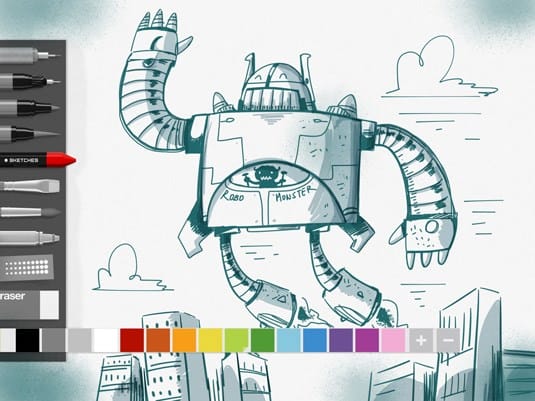
Tayasui Sketches is a highly capable iPad app for drawing and painting
Tayasui Sketches is one of the most adorable, simple iPad drawing and painting apps we've found. At your service on the left side are the tools: from pencil and charcoal to felt-tip pen and watercolor, and in the professional version there are two additional ones.
Each has its own shiny characteristics, so you just need to pick up a brush and start sketching. While the editing options are limited in time, they are fun to use, and in the pro version you can at least change the size and blend mode.
ASKetch is a simple black and white sketching program developed by Andrew Kern. Use the charcoal drawing experience on your iPad, and this app is great for beginners as well as advanced artists.
An easy-to-use tool, ASKetch, helps you create everything from sketch drawings to cartoons and abstract masterpieces.
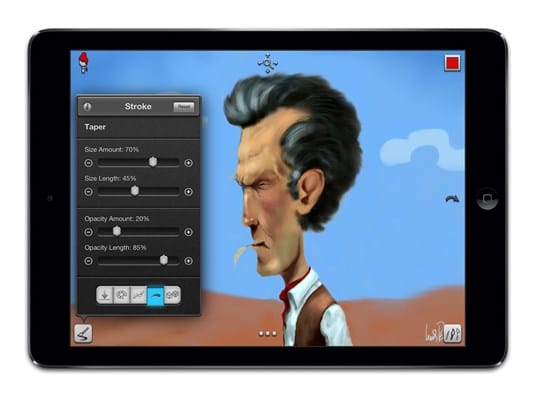
Choose from 60 high quality brushes with the Inspire Pro
Draw, sketch and sketch on your iPad with the Inspire Pro. Suitable for artists of all skill levels, it includes 60 high quality brushes to choose from, divided into 6 sets: oil, airbrushes, basic shapes, graphite, wax and felt-tip pens. All of them can be used with a wet, dry brush or float.
The KiwiPixel development team states that “Inspire Pro creates amazing paintings, drawings and sketches on your iPad. While wet oil brush strokes look beautiful on their own, the breathtaking effects of blending with a dry brush are absolutely stunning. “

Create short, hand-drawn animations with Loop
Inspired by the work of its founder and creative director Matt Pike, design studio Universal Everything created Loop, a drawing app that lets you create short, hand-drawn animations and share them via email, Tumblr, or the Loop gallery.
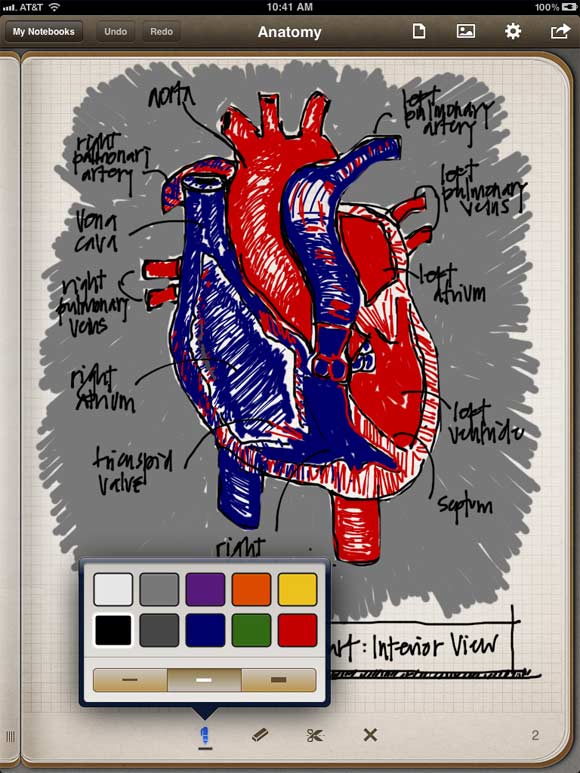
Penultimate may sound like a trash can superhero, but it's actually a fancy note-taking app for iPad.
While we're lacking a natural feel in the Paper app, Penultimate is great for sketching and taking notes. The feel of the instrument is really tactile, and you can add new types of paper (for games, sheet music, etc.) in conjunction with the IAP or set your own design.
6 Art Set
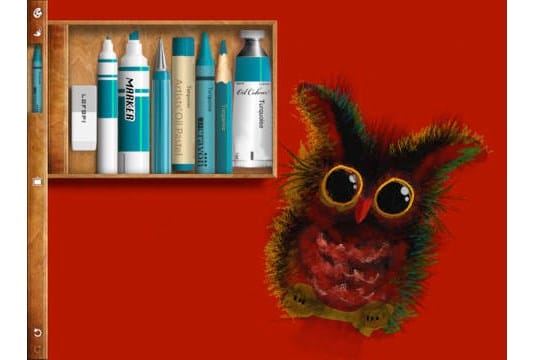
This cool app is like a virtual art set on your iPad.
This cool app is like a virtual art set on your iPad. Number one on the list of paid iPad apps, available in 30 countries since its release, Art Set has all the tools an artist can dream of, including crayons, charcoal, oil pastels, wax crayons, graphite, colored pencils and felt-tip pens.
See also: iPadOS isn't just a name. It's a new path for Apple
Multi-touch and zoom make it easy to add fine details. You can choose from paper of different colors and textures, as well as import your own photos.
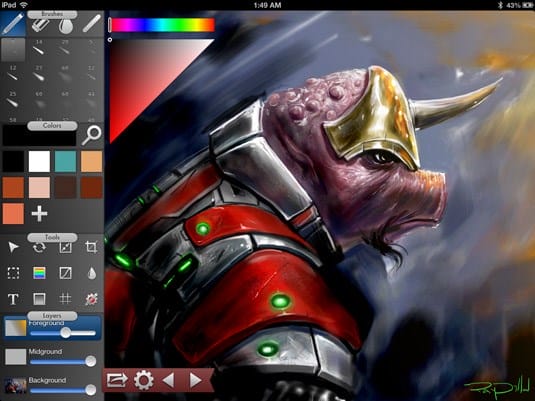
This digital iPad app is currently available free of charge.
Inkist benefits from a simple yet stylish interface that has been designed with flexibility and user-friendliness in mind. The app is “free for a limited time”, so hurry up!
In the app, which is based on the Mac sibling, you create layers of color and smooth them against the background, rather than relying on multiple layers. While traditional artists may not like it, the benefits are there!
Pressure-sensitive stylus support is available out of the box, and Inkist has a number of simple, customizable brushes. Pressure-sensitive stylus support is available natively (via the toolbar), so you can be more flexible with strokes, whereas with a simple stylus, regular, quick strokes are ineffective.
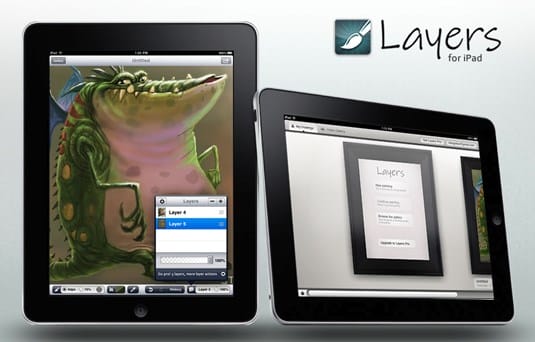
Layers has all the qualities you need to help you create your digital masterpiece.
The developers behind Layers say “it includes everything you need to create on the go. An art studio in your pocket. ” There is no doubt that having a large selection of tools will help you create a masterpiece.
As the name suggests, layers come standard, with the ability to add up to five layers to your drawing. In addition to the brush and grater, Layers contains the Smudge tool, with adjustable texture, size and pressure. The standard version includes 5 brush options, while the advanced version offers 15.
The app also includes an easy-to-use color picker and eyedropper, giving you access to the full range of colors.
9 Bamboo Paper
From Wacom, the developer of Bamboo Stylus, came this great app that lets you draw as you like and then organize your work into notes.
Bamboo Paper also has the ability to import photos, use different types of paper and colors. It features a wide selection of nibs for precise writing, highlighting and more.
With a clear and simple UI navigation, Bamboo Paper is a wonderful little sketching tool that's perfect for working with concepts.
10 Adobe Ideas
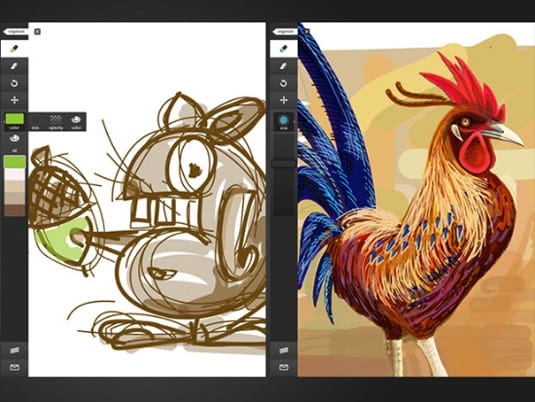
Express ideas in vector format with Adobe Ideas, wherever you are
Adobe Ideas is a digital sketchbook that lets you express ideas in vector format, no matter where you are. The app has a simple UI designed to quickly sketch your ideas and concepts.
It offers a wide range of features, including simple vector drawing tools with separate layers for drawings and photos, and the ability to sync with Adobe's Creative Cloud. With this in mind, you can download and work with Adobe Illustrator-compatible files.
The latest update allows you to choose among three new drawing tools, quickly work with color, duplicate or merge layers, arrange them horizontally or vertically. The advanced eyedropper also makes it easy to compare and contrast colors in different parts of your work.
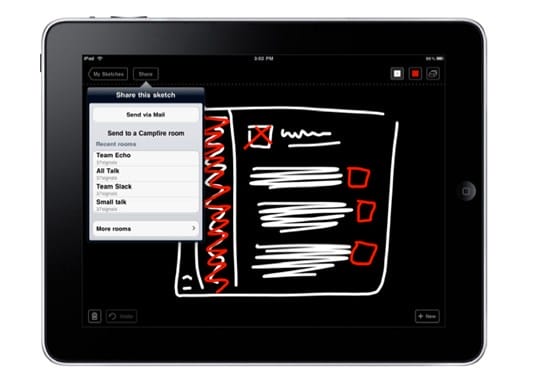
Draft can instantly record and share your early sketches
Draft is not a visual art tool. Featuring a single pen (which is important for Sharpie) and black, red and white, it was designed with the goal of “damn it, easy to draw and share fast.”
The team behind it was tired of creating original sketches and then scanning them and emailing them. After creating Draft, they and the rest of the world had the opportunity to make simple sketches and immediately share them with colleagues.
See also: Video course on building perspective
A great tool for brainstorming new ideas and in the early stages of project development.
12 SketchBook Pro
SketchBook Pro from Autodesk is one of the most popular iPad art apps for digital artists. A small screen version, SketchBook Mobile, is available for iPhone and iPod.
As you'd expect from Autodesk, SketchBook Pro has all the features of an advanced graphics program with an experience designed for those looking to create art on the iPad. A wide range of digital pencils, pens, markers and airbrushes are available through a simple, intuitive UI that allows you to pin the toolbar to the screen for quick access.
It is flexible and fast, allowing you to work with layers, transparency options, annotations and advanced blending modes. Integration with Dropbox, as well as the ability to import and export Photoshop files, makes this iPad app ideal for working on the go.
With a good nib, a good digital artist can create a range of works on the iPad, from quick sketching to more detailed digital painting.
13 SketchBook Ink
SketchBook Ink is a fresh release from the team that gave us Sketchbook Pro. However, this is by no means a replacement, but rather a simplified iPad app with a minimalist interface.
Consequently, SketchBook Ink lacks some important features of Sketchbook Pro. For example, existing brushes are not edited separately from their size, and there are no layers (except for the ability to add a photo as a background layer).
Plus SketchBook Ink in high resolution on output. You can export images to iTunes up to 101.5 megapixels (8727×11636 pixels) or to the Photo app up to 4096×3072 pixels. Although the exported files are flat PNG, non-editable vector files, the images remain in high resolution.
However, it only seems that there are so many limitations, especially the lack of layers, however, additional features will be added along the way for those who create art on the iPad.
If you're looking for something to sketch without a lot of fuss, check out Paper by Fiftythree.
The clean interface – no menu bar or buttons – brings back the sketching experience to essentials and transforms your iPad into a set of virtual magazines with pages that are easy to flip through.
Designed exclusively in landscape mode, this iPad app is not suitable for creating polished diamonds, but allows for quick concept sketches that are definitely worth looking at.
Procreate is an unobtrusive interface with lightweight sliders that allows you to quickly adjust brush / opacity for your work. It saves you time and allows you to concentrate on your work instead of being distracted by a pop-up menu.
Like other iPad art apps, there is a simple color palette (with custom swatches), layers, fast and responsive zoom, good smudging and blending options, and great undo capabilities.
Twelve brushes provided include paint loading and wetness settings for a more realistic image. Plus there's a built-in brush editor for creating custom bones that can define shape and grain. Procreate is a powerful tool. In the right hands, it lets you create truly stunning digital artwork on the iPad.
Like the PC and Mac versions, the ArtRage iPad app is chock full of options. A range of canvases and paper, as well as a wide range of brushes, pencils, crayons, rollers and pastels.
In the pursuit of realistic art on iPad, you can paint directly on the screen, or use one tool to paint a blob of paint and then mix it with another. ArtRage has a special watercolor brush tool that allows you to create amazing effects.
Read also: Public Art. Rooftop works. Part II
Once you're familiar with the interface, it's easy to resize the brush to open the color picker, work with layers, and blend / feather various elements together.
Unfortunately, there is some lag when moving or scaling your artwork. However, this does not interfere with the incredible flexibility of this program in painting on the iPad.
Although the interface of this application is not as intuitive as other iPad add-ons, ArtStudio rewards the user with other features. And there are plenty of them.
More than 20 brushes, canvases of different sizes and options that include layers, masks, filters and effects. ArtStudio also includes step-by-step drawing lessons, tutorials, and the ability to export your work to Photoshop.
Auryn Ink is a specialized watercolor painting app for iPad with a limited set of options compared to other bold apps on the list.
That said, it has all the basics for watercolor art on the iPad. You can choose from different brush tip shapes to create a variety of effects. You can also tweak the canvas textures and the amount of water.
The end result of using this app on the iPad is a lifelike watercolor paint that fades away as you paint, simulating the effect of the paper absorbing ink.
Legendary artist David Hockney has been spotted using the Brushes app on his iPad. Old, but proven, designed specifically for Apple tablets.
Using the standard toolbar at the bottom of the screen, you can work with the color palette, layers and switch between different brushes. Perhaps best of all, Brushes responds quickly to touch, making it easier to work with.
A useful feature of Brushes is the ability to remember each brush stroke, which allows you to reproduce how you created a particular piece of work on the iPad through the Brushes view.
20 Zen Brush
Designed to be used with a stylus with brush extensions such as the Nomad Brush Stylus, PSofthouse's Zen Brush lets you create strokes on your iPad that mimic traditional Japanese calligraphy brushes.
It's perfect for calligraphy, but any artist who prefers brushwork should appreciate it. Zen Brush is minimalistic when it comes to performance, but what it does is good.
At first glance, it's hard to figure out what the Inspire Pro has that the competition doesn't. But play around with it and you will find that it is one of the more intuitive iPad apps.
Before you know it, adjust the paint load and brush setting (by rotating the bristles) and it will become a habit.
What we like the most is the dynamic color picker. Just press and hold on a color you've already used and the Inspire Pro will switch the current color to a new one. These are UI design elements that are built for a quick work experience.
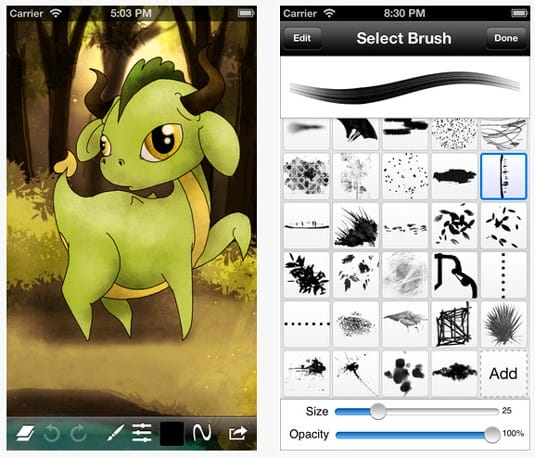
Create cool digital artwork with the excellent Sketch Club toolbox
Sketch Club has an excellent set of tools for creating beautiful digital artwork. The app consists of a unique range of flexible digital brushes (44 in total, but more could be done), pens, vector tools, old school pixel art and other fun tools.
Sketch Club has a concise user interface with a lot of settings that will allow you to customize the application for your unique preferences.
A great feature of this application is the integration of the online community. There you can upload your sketches, allowing others to rate and comment on the work, as well as discuss daily issues and have fun competitions every week.
Sources used and useful links on the topic: https://illustrator-uroki.com/risovanie-kak-vibrat-planshet-obzor/ https://support.apple.com/en-us/guide/ipad/ipad6350b8dc/ipados https: //support.apple.com/ru-ru/HT208459 https://vc.ru/design/112292-top-10-graficheskih-redaktorov-dlya-ipad https://saipainttool.ru/risuem-na-ipad .html https://say-hi.me/podborki/22-luchshix-xudozhestvennyx-prilozhenij-na-ipad-dlya-zhivopisi-i-eskizov.html
Post source: lastici.ru