
How to switch between open windows in Windows 10. How to switch between windows

Why switch between windows and tabs
When we work over the Internet or on a computer, it becomes necessary to open tabs, both in the browser and on the computer. There can be several or a lot of them. For example, you open one tab in Google Chrome, and start Skype. It can also be a Word document.
How to open two windows on a computer at the same time
With this method, you can open two windows at the same time on your computer. It works on all Windows operating systems. To open them press and hold the keys on the keyboard – “ALT + TAB” (tabulation key).
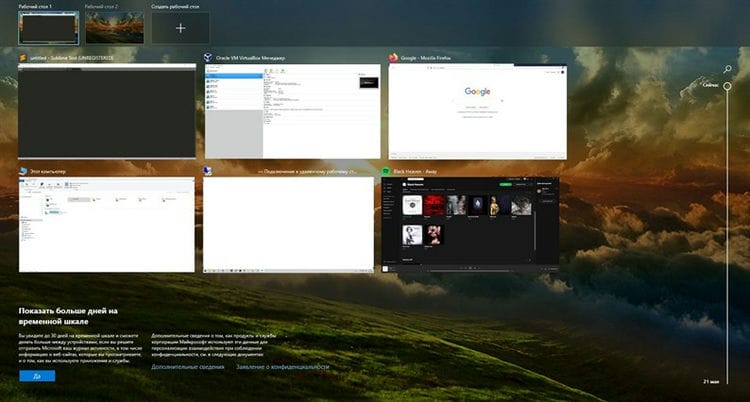
After that, a scoreboard will appear in the very middle of the computer screen, which will display the windows that you opened earlier. You can also use other keys to open windows at once. For example, in Windows 10, the W (Windows) + TAB (tab) keys work. When you press them, you can start the three-dimensional mode of the window, which will contain all previously open tabs and windows on the computer.
There is another option for opening several windows at once. Using a computer mouse, we rearrange the windows close to each other.
Or we use the Windows system key + left and right buttons so that this or that window is located next to another. After you open the windows at the same time, they will look like this (Screen 1).
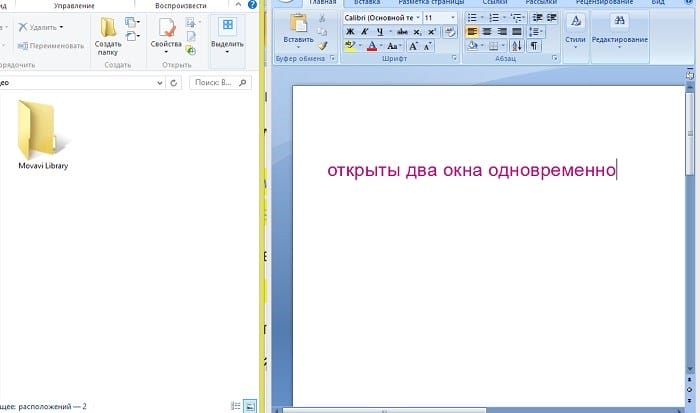
Thus, you can work at the computer quickly.
Beginner's set
Let's start with the basics. When working with moving, copying and pasting files or symbols, you can use the keyboard shortcuts Ctrl + X, Ctrl + C and Ctrl + V, completely ignoring the right mouse button and similar items in it. And if you need to undo the last actions – Ctrl + Z is at your service. You can also create a folder using hotkeys – to do this, press Ctrl + Shift + N, and to rename it, just press F2. This feature is available for any file. To view the clipboard at the moment, press Win + V – this function is especially useful when the clipboard is synchronized with your smartphone. Oh yes, you can quickly open Explorer by running the Windows combination(hereinafter Win) E, and close – Ctrl + W, and this function works with absolutely any window, in addition to the usual Alt + F4. And pressing Win + D at the same time minimizes all open windows on the desktop.
For those who empty the trash after each deletion, there is a Shift key. Hold it down before deleting, thereby ignoring the movement of files to the trash. And for the forgetful, the F3 key may be useful – press it in the explorer window to use the search. Ctrl + P serves as a universal command to go to the print window of the selected file, text or page in the browser.
| Ctrl + Х | cut file or text to move |
| Ctrl + C | copy file or text |
| Ctrl + V | pasting a cut or copied file |
| Ctrl + Z | undo action |
| Ctrl + Shift + N | create a folder |
| F2 | rename folder |
| Win + V | open clipboard |
| Win + E | open explorer |
| Ctrl + W, Alt + F4 | close the current window |
| Shift | permanently deleting files |
| Ctrl + P | print window |
| Win + D | minimize all windows on the desktop |
Task bar
The easiest and most obvious way to switch between windows in Windows is to use the taskbar. The taskbar is a panel located by default at the very bottom of the screen, which also contains the Start menu button, various taskbars, icons of pinned and running applications. To switch between open windows, simply click on the icon of an open application – after that, you will switch from the previous window to this program.
How to open a program on the desktop.
If the program you want to launch has a shortcut on the desktop, you can get to the desktop by pressing the Tab ↹ key on your keyboard. Pressing the Tab ↹ button will navigate between the taskbar and desktop shortcuts. You can determine which area you are currently in by the appearance of the icons and shortcuts. The one that is currently selected will be highlighted.
In some cases, you may have to press Tab ↹ several times before getting to the icons on the desktop. As soon as one of the icons on the desktop is highlighted, you can navigate the shortcuts using the arrow keys.
When you find the shortcut to the program you want to launch, press the Enter key to open that program.
How to close windows.
Press the key combination Ctrl, and F4 to close the currently open program or window.
You can also press the Alt Spacebar combination, thereby calling the system menu of the program, then, using the down arrow, select the Close menu item and press Enter.
How to minimize a window.
To minimize the window, press Windows and the down arrow (sometimes twice).
How to maximize the window to full screen.
To maximize the window, press the Windows key and the up arrow.
How to move a window without using a mouse.
Before moving the window, make sure it is not maximized to full screen. To move the window, press Alt Spacebar, select the Restore menu item, and press Enter. Then press Alt again spacebar and select move, this will change the cursor (it will be in the form of four multidirectional arrows). Then you can move the window using the cursor keys.
How to close tabs.
In most programs that support tabs (for example: browsers), pressing Ctrl + F4 closes the active tab.
How to switch between tabs using the keyboard
To move from left to right between tabs in the current window, press Ctrl + Tab ↹.
To navigate, from right to left press Ctrl + Shift + Tab ↹.
Alt + Tab keyboard shortcut
If you consistently hold down the Alt button, and then press the Tab button, you will switch from one open window to another. If you press the Tab button again, you will switch to the next window – and so, each time until the open windows are over, and the switch will go in a new circle.
In addition to switching windows, a window with a list of windows to be switched between will also be displayed.

Browser alert
How often do you use your browser all the time? Well, for you, of course, there are also some very useful combinations. First of all, the most important combination, Ctrl + Shift + T, opens the last closed tabs – a salvation for accidentally closed, important pages. If, on the contrary, you need to close the active tab – with Ctrl + W this can be done much faster. To create a new tab, use a combination of the Ctrl + T. When working with a large number of open tabs, a pleasant find may be the ability to move between them by pressing Ctrl + 1-9, depending on the number of the desired tab in sequential order. The search on the page can also come in handy, which can be quickly invoked by pressing a key.F3. Using Ctrl + N, you can open a new browser window, and when you click on a link while holding down Ctrl or Shift, you will open the page in a new window or a new tab, respectively. You can also open and a new incognito window by doing a combination of the Ctrl + the Shift + of N. If, however, forget to go incognito – clear history can be quickly and easily by pressing the Ctrl + H. Press Ctrl + J to view the downloads window. All of the above hotkeys are relevant for any Windows browser.
| Ctrl + Shift + T | open last closed tabs |
| Ctrl + W | close tab |
| Ctrl + T | create a new tab |
| Ctrl + 1-9 | move between tabs |
| F3 | page search box |
| Ctrl + N | new browser window |
| Ctrl + Shift + N | new window in incognito mode |
| Ctrl + H | clear the history |
| Ctrl + J | downloads window |
The shortcut keys Win + Tab
One of the innovations in Windows Vista was the ability to switch between open windows in “3D” mode, using the Win + Tab keys. In Windows 10, this keyboard shortcut has slightly changed its action, and works similarly to the taskbar button called “Task View.”
View tasks
In Windows 10, there is a button on the taskbar called “View Tasks” that looks like this:

When you click on this button, all open windows, a list of desktops, as well as the “Timeline” will be displayed.
How to create a shortcut to switch between windows?
Now let's talk about how to create a shortcut to the window flip function.
To do this, right-click on an empty space on the desktop and select “create” in the context menu, then “shortcut” in the drop-down submenu.
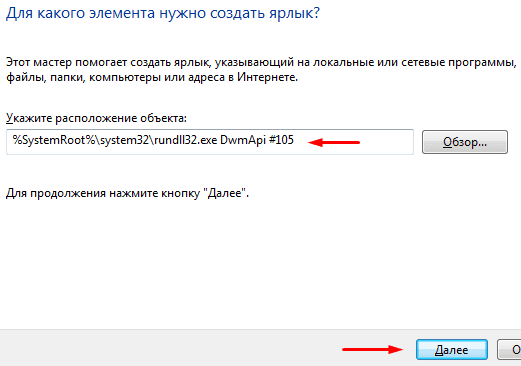
Using the Ctrl + C hotkey command, copy this path:% SystemRoot% system32rundll32.exe DwmApi # 105 and use the Ctrl + V command to paste it into the “Specify the location of the object” field and click next.
Now specify the name of the created shortcut, by default it will be called “rundll32”, you can leave it as it is and click the “done” button.
After that, the following shortcut will appear on the desktop:

When you click on which, the function of switching between windows will open. To scroll through the windows, you will need to press “Tab” and to make a choice “Enter”.
At this point, I want to thank you for your attention and wish you a good day.
Task Manager
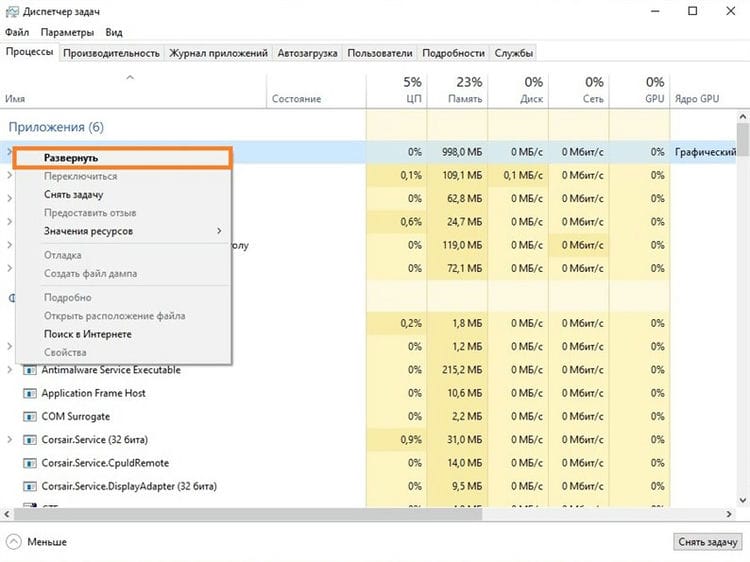
This method can be very useful if you need to switch to some application that is not shown in the taskbar, but you know that its window is definitely hanging somewhere behind all applications open on your screen.
To do this, just open the Task Manager, select the required application on the Processes tab, right-click on it and select the Expand item in the context menu that appears.
Thunderstorm of documents
Let's finish the material with the coolest hotkeys for working with Microsoft Office, Google Docs and their analogues. Also, these teams work in WEB-versions of the necessary office tools. It is always important to save an important project on time, and if in online versions this almost always happens automatically, then in the same Microsoft Word you risk completely losing an unsaved manually document in the event of a power outage, for example. Perform a fast save by pressing Ctrl + S. This command, by the way, works in almost any application with the ability to save the project. When working with text, you can switch between bold, italic and underlined fonts using the Ctrl + B, Ctrl + I and Ctrl + U combinationsrespectively. You can decrease or increase the font by one point by pressing the Ctrl + [or Ctrl +] keys. Of course, these functions are also relevant for already typed text – just select the desired part of the characters and perform the required keyboard shortcut. Also, using hot keys you can instantly switch between the text alignment mode: to the left – the Ctrl + of L, to the right, as easy to guess – the Ctrl + the R, and for the middle – the Ctrl + E. And finally – moving the cursor to the beginning or end of the line by using the Home and End keys. But some do not even know about them.
| Ctrl + S | quick document saving |
| Ctrl + B | bold font |
| Ctrl + I | italics |
| Ctrl + U | underlined font |
| Ctrl +[, Ctrl +] | decrease / increase font |
| Ctrl + L | align text to the left |
| Ctrl + R | right-align text |
| Ctrl + E | align text in the middle |
Conclusion
So, we looked at the question of how to switch between windows using the keyboard on the computer and tabs.
Sources used and useful links on the topic: https://biz-iskun.ru/kak-pereklyuchatsya-mezhdu-oknami-s-pomoshhyu-klaviatury.html https://club.dns-shop.ru/blog/t-115 -klaviaturyi / 22596-40-goryachih-klavish-dlya-windows / https://sysadmin.ru/articles/pereklyuchenie-mezhdu-otkrytymi-oknami-windows http://komp.site/windows/navigatsiya-v-windows- s-pomoshhyu-klaviatury-ili-kak-rabotat-bez-myshki.html https://yrokicompa.ru/2015/10/funkciya-pereklyucheniya-mezhdu-oknami-v-windows-7.html/
Post source: lastici.ru