
KeyNote: what is it? Keynote Purpose and How to Use It
Content
Keynote is not Powerpoint, which is good
Most of the iWork apps pale in comparison to Microsoft Office, but Keynote is an exception. The app is increasingly being used by modern corporate presentation makers and it means a lot.
While Keynote and Powerpoint are designed with a single purpose in mind, they share many features in common, and if you've used Powerpoint on a PC or Keynote on a Mac, you'll have no difficulty getting to grips with Keynote for iPhone and iPad.
In any case, the design and control in iOS is even more intuitive than in the desktop version of the software. Once you've mastered the basics, you can create and share amazing presentations with just a few clicks.
Create presentations in Keynote
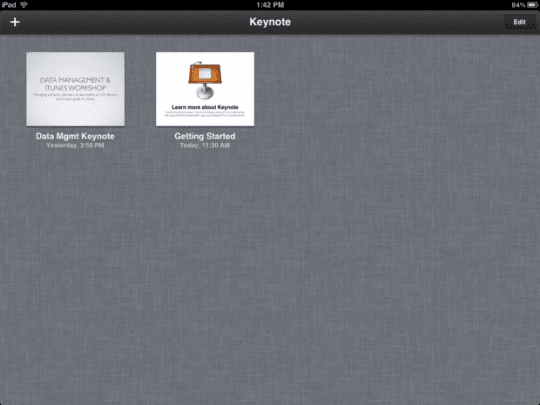
From the main Keynote screen, you can open, edit, delete, and create presentations. To create a new one, just click on the “+” symbol in the upper right corner of the screen and select Create Presentation (create a presentation).
Apple hasn't added anything new to the app since the first release of Keynote, but it offers a fairly large selection and will satisfy the most demanding user. Keynote's user interface is simple and streamlined, with four icons in the upper right corner of the screen:
– formatting brush: it is used to change various properties of text and objects (font style, size, color, etc.);
– insert button: to add content to the slide set. You can add different objects, including images from the camera, screenshots, graphs, in different forms;
– tools: this menu will allow you to add various transitions to slides, share presentations, add comments to slides and other features;
– Play button: it is she who launches the desired slideshow. If you want to stop playback mode, just pinch the screen and return to edit mode.
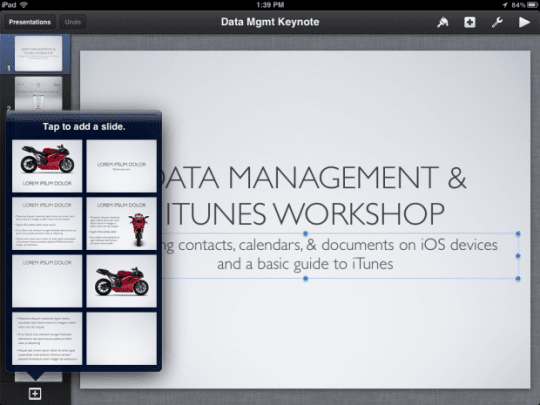
To add a slide to the project, you need to click on the add slides button in the lower left corner. You will be offered several types of slides – for example, title pages, bullet slides, and more. You can also select a blank slide and create your own custom content.
To change the order of the slides in the created presentation, you need to swipe down on the slide you want to move and drag it up or down to the selected position. The tool menu has a good selection of built-in transitions. After selecting Transitions and Builds, the slide will be marked in the queue, then you need to click on the “+” to add a transition to it.
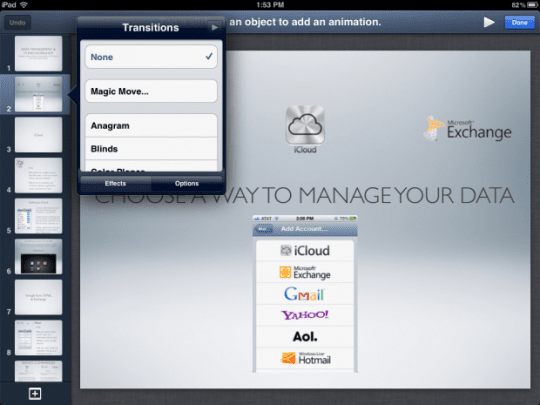
You can also choose in the options to configure the time intervals of transitions. In addition, you can add photos, tables, charts, shapes directly to your presentation from your iPhone or iPad. To do this, you need to click on the insert button in the upper right corner and select the media object you want to add.
Inserting a chart, by double clicking on it, you can open the editing menu. Here you can edit the data presented in a tabular format, change the chart labels, etc.
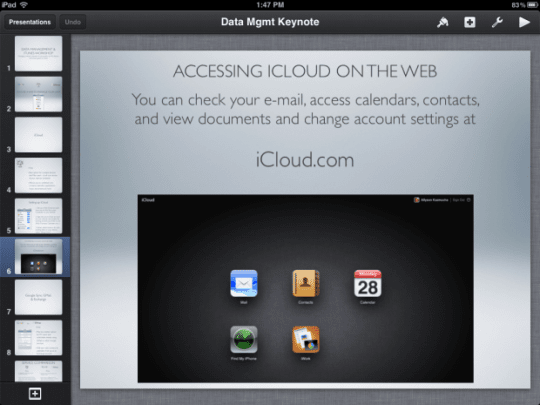
After adding the object, you can continue to further manipulate it with the formatting brush. Select an object, choose a brush format, and Keynote will offer several formatting options (depending on the look of the selected object). If you select a graph or table, then you will be offered the opportunity to change the color, size of the graph, and other elements.
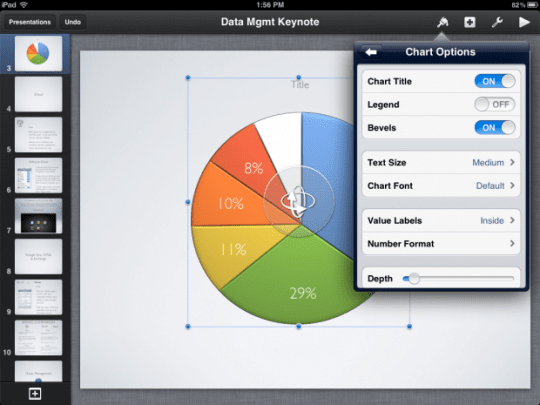
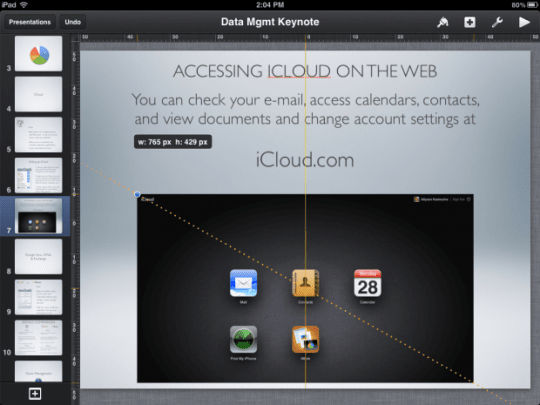
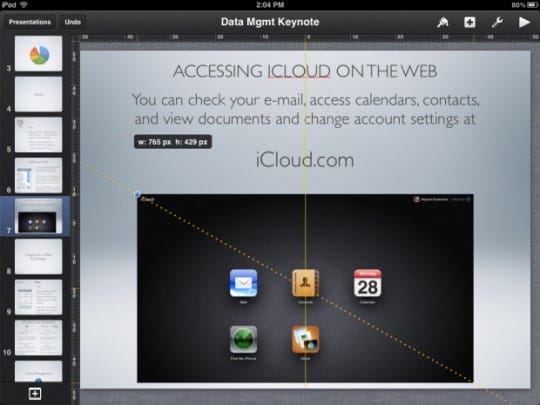
Changing the size of an object is also very simple – you need to click on it, a blue mark will appear, you can use the grid lines to resize, align the object, center it, etc. To move an object, you need to click on it and move it while holding it. Yellow lines of the same grid will appear to help position the object in relation to the rest of the text and other content.
Keynote offers several ways to share your presentation directly from your iPhone or iPad. You can send the project by e-mail, you can use iTunes, you can print.
Today, all iWork for iOS apps offer the ability to share projects via iWork.com or iDisk. But given that iDisk and iWork.com will be canceled this summer, it is worth considering a full transition to iCloud now, so as not to be caught off guard when Apple disables these features. If you have data stored on iWork.com or iDisk, you should send it to iCloud before summer.
You can also use Apple VGA or HDMI dongles to link your presentation to a projector, or AirPlay to show your presentation on a large TV screen via Apple TV.
ICloud sync
When you launch any application from the iWork for iOS suite on your iPhone or iPad, the program will ask you if you want to sync with iCloud. You must agree if you plan to edit and view documents from several different iOS devices. Thus, when you make changes to a document from an iPad, for example, the changes will be synchronized with other devices.
However, this system also has its drawbacks. Not everyone will enjoy logging into iCloud from a browser to download files and then re-upload them to work on their computer. Hopefully Apple comes up with a better solution soon.
If you have a need to edit documents in iWork on the go, then a cloud product would be a good solution, but it would not hurt to add practicality – for sure, many would like the opportunity to work with documents on a computer in iWork or in Microsoft Office without unnecessary problems. Integration loses its meaning if you have to download a document from iCloud, edit, re-upload to synchronize the current version with other devices.
Full sync and deeper document integration with iCloud will probably be an important part of the new OS X Mountain Lion. Keynote today lets you download presentations to your computer in Keynote, PDF, and Powerpoint formats.
Benefits
Keynote advantages over Power Point:
- Integration with popular services: Dropbox, iCloud, Gmail.
- The possibility of collective editing.
- Remote control.
- Run on Mac and Windows.
- Create a presentation even on a mobile phone.
Keynote compatibility
The program is used on:
- Mac computers;
- iPad;
- iPhone.
Oddly enough, but this program is compatible with Power Point. Presentations can be saved in both extensions, i.e. Keynote can be saved as PowerPoint and Point can be re-saved as Point.
How to use keynote?
For those of you who have ever made a presentation, Keynote should be easy to master. The interface in the product is straightforward. The service has the following features:
- Design with 30 unique themes.
- Insert texts, photos, videos, tables, graphs, diagrams.
- Choosing a layout to structure your slide content.
- Animation effects to emphasize important points.
- Transitions between slides.
- Record and edit audio in the application itself.
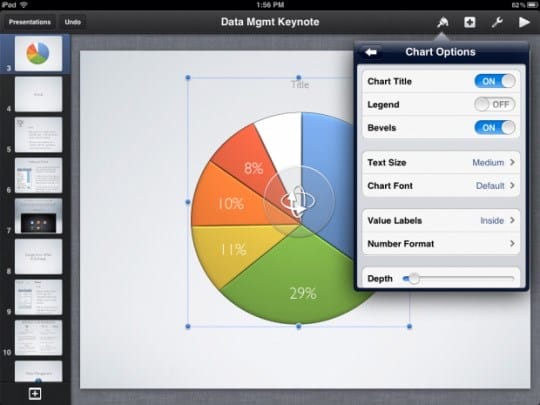
Photo: Format Brush
iPad comes with a dedicated Apple Pencil. With its help, comments, notes, drawings and more are instantly added to slides.
The service is powerful enough for demonstration, but at the same time it is mastered without much difficulty. Differs in speed of action, does not freeze even in the case of “heavy” displays, overloaded with voluminous inserts like photographs.
Keynote Chips
Zoom in and out on a slide
You can zoom in and out of the slide image on the screen. Zooming in allows you to focus on, for example, the cells in a table, while zooming out allows you to work on the overall slide layout.
-
Click
 on the toolbar and select one of the following options.
-
Interest. The slide is scaled up or down by a specified percentage.
-
Fit to window. The slide is scaled so that the slide fills the window.
-
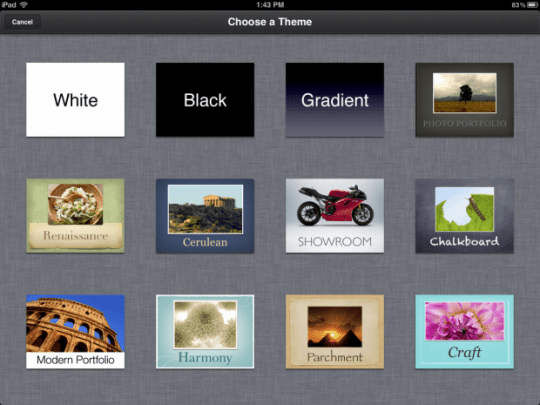
Choosing a theme and adding content
Change the look of a slide
To quickly change the look of a slide, you can apply another wizard to it. When you change the slide master, the content you added is displayed in the new layout.
- Select one or more slides.
- Click the format button
![KeyNote: what is it? Keynote Purpose and How to Use It]() , then click Wizard.
, then click Wizard. - Swipe to display all wizards, then tap one of them to apply.
 , then click Wizard.
You can also change the background of the slide.
Resize slide
Change the look of your entire presentation
To quickly change the look of your entire presentation, you can select a new theme at any time. If content has already been added, it will appear on slides with a new theme. Any custom settings such as text color will appear in the new theme.
- Click More
 > Document Design.
 - Select a topic or swipe left to view more topics.
- Click Finish.
Editing master slides
Editing Master Slides allows you to quickly make changes to multiple slides in your presentation at once. You can change the layout of the master slide, and add text, images, and any other objects. Changes to a master slide are reflected in all slides in your presentation that use the master.
- Click the slide background and choose Edit Slide Master from the menu that appears.
- In the sidebar, click the master slide you want to edit.
- Select the action you want. You can change the position of the content, and add text, an image, and any objects to the slide.
- When you are finished editing the master slides, click Done in the upper right corner.
Combining objects
Everyone who made a presentation probably faced the task of describing the organizational structure of the company, telling about the team's interaction or stages of some processes, and drawing a Mindmap.
The main problem: if you need to change or move something, then you have to change the entire structure. But when you create your presentation in Keynote, you can use the Connect feature. It automatically joins objects with a line, linking them to each other.
You need to select two objects from the Insert menu: Line – Connecting Line.
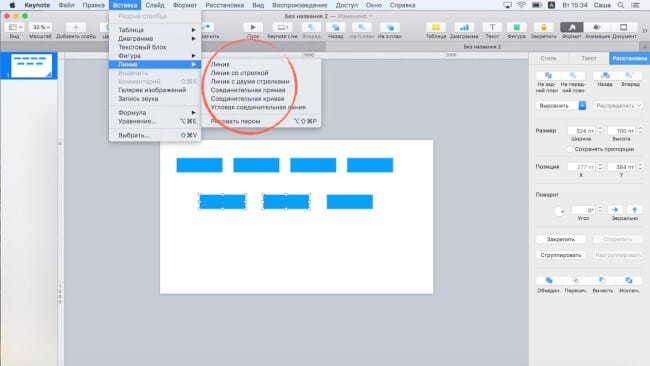
click on the image to enlarge it
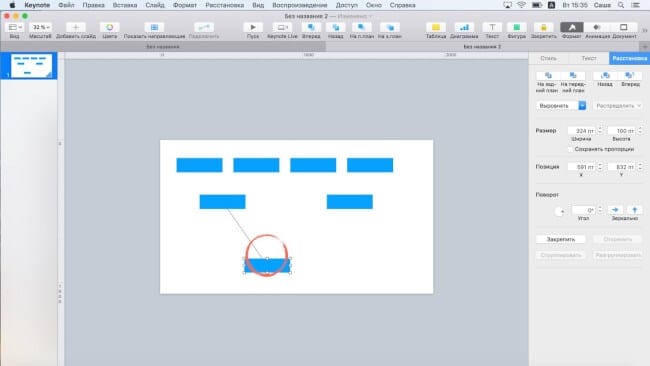
If you try to move the shape, you will see that it is attached to another and adapts depending on the location.
You can also change the line type.
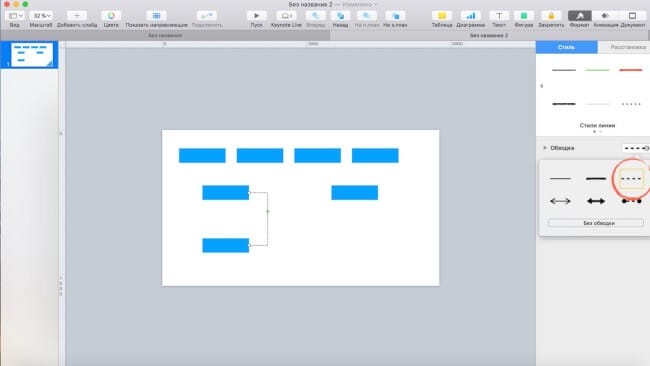
There are three types of connections in Keynote presentations: angled, polyline, and straight. This allows you to quickly draw diagrams and mindmaps and conveniently move them.

The ability to lock any object using the Lock function
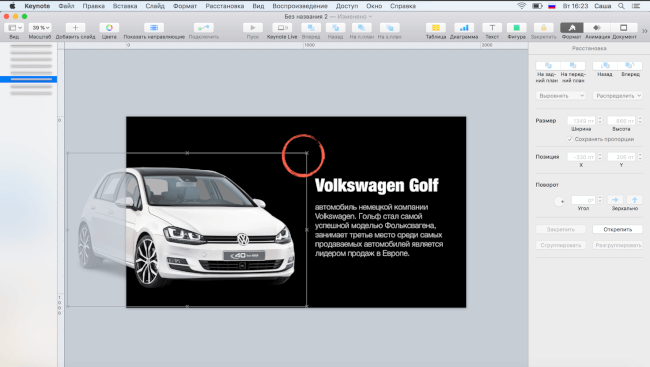
The function works with both pictures and text. Once you have anchored an object, you can only move unselected objects.
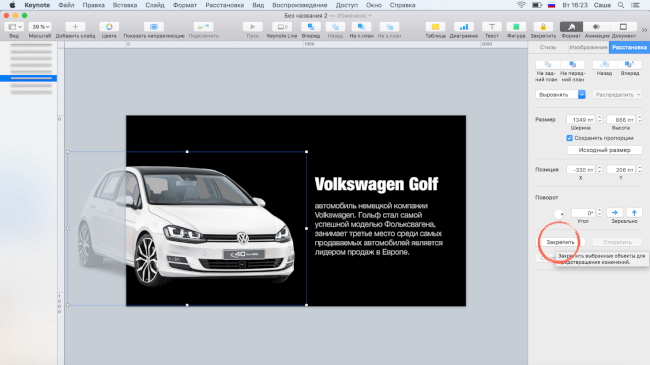
When the object is fixed, it is displayed with characteristic crosses along the contour when you click on it.
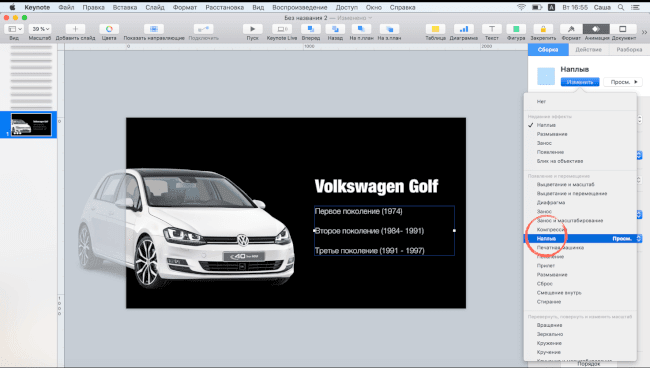
An animated list that automatically hides
Each presentation has lists. But how beautiful to animate them so that the theses appear sequentially, and the “passed” ones disappear? To do this, you can use the Dissolve function under Animation – Assembly.
After you have selected this type of animation, you need to click On the selected paragraph in the additional settings so that the abstracts appear in turn and disappear.
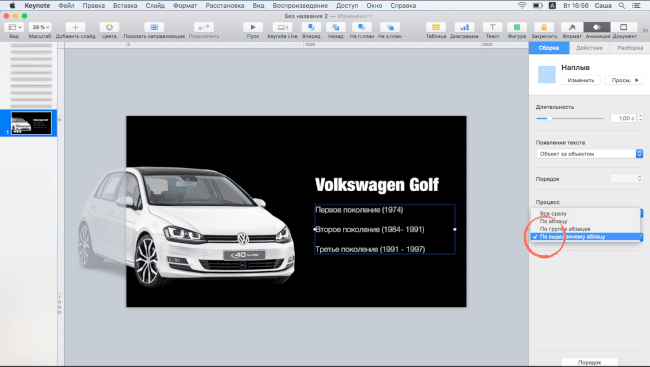
By the way, you can make an appearance by words, by objects, by symbols.
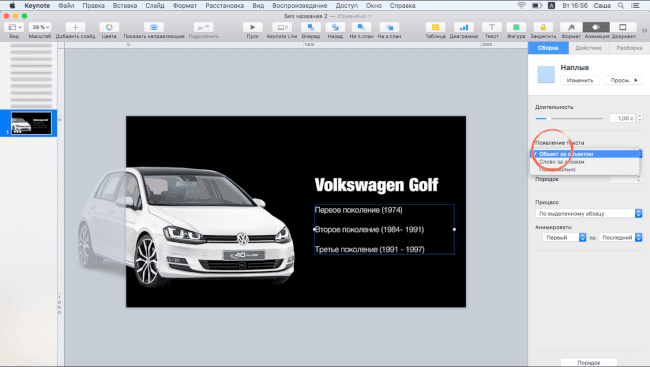
As a result, on click, the thesis appears, and then it turns gray.
Setting up a presentation
Choose a theme, add slides, then change the look and aspect ratio of your Keynote presentation.
Getting started with shapes
There are over 500 professional-grade figures to choose from. You can also create your own.
Drawing on iPad or iPhone
Draw directly in presentations with your finger or with Apple Pencil on supported devices.
Object animation
Draw an animation diagram of an object on a slide on your iPhone or iPad and Mac.
Create new presentations with a specific theme
In Keynote, you can set a preference to always open a new presentation in a specific topic, instead of displaying a topic selection window.
-
Choose Keynote> Preferences (from the Keynote menu at the top of your screen).
-
Click General at the top of the Preferences window, then select the Use Theme button.
After the words “Use Theme”, the name of the currently selected theme is displayed.
-
Click the Change Theme button, select a theme, then click Select.
-
To close the preferences window, click the red close button in the upper left corner of the window.
After specifying this setting, you can still open a new presentation with a different theme. Optionally, choose File> New From Themes Selector (from the File menu at the top of your screen).
Sources used and useful links on the topic: https://AppleInsider.ru/obzory-prilozhenij/app-store-hd-obzor-prilozheniya-keynote-dlya-iphone-i-ipad.html https://appleiwatch.name/overview -keynote-apple / http://keynote.skydocu.com/ru/%D0%BD%D0%B0%D1%87%D0%B0%D0%BB%D0%BE-%D1%80%D0%B0 % D0% B1% D0% BE% D1% 82% D1% 8B-% D0% B2-keynote /% D0% B8% D0% B7% D0% BC% D0% B5% D0% BD% D0% B5% D0 % BD% D0% B8% D0% B5-% D0% BC% D0% B0% D1% 81% D1% 88% D1% 82% D0% B0% D0% B1% D0% B0-% D1% 81% D0 % BB% D0% B0% D0% B9% D0% B4% D0% B0-% D0% B8-% D1% 80% D0% B0% D0% B1% D0% BE% D1% 82% D0% B0-% D1% 81-keynote / https://support.apple.com/en-us/HT208484 https://laba.com/blog/show/404 https://support.apple.com/en-us/keynote https: //support.apple.com/ru-ru/guide/keynote/tan317e80e8c/mac
Post source: lastici.ru