
Writing Text on Android: The Best Markdown Editors. Best Free Online Markdown Editors and Converters

Markdown Editors Review
Markdown is a textual markup language with an extremely simple and convenient syntax. Files created in this markup can easily be converted to HTML, PDF and even EPUB. Markdown gained immense popularity in 2004, and has become one of the most used and preferred markup languages for writing a variety of content. Today we will consider the best of them.
Markdown Journal
Another pretty basic Markdown editor that syncs with Dropbox. To use it, you'll need to give Markdown Journal access to your document folder in your Dropbox.
Missing
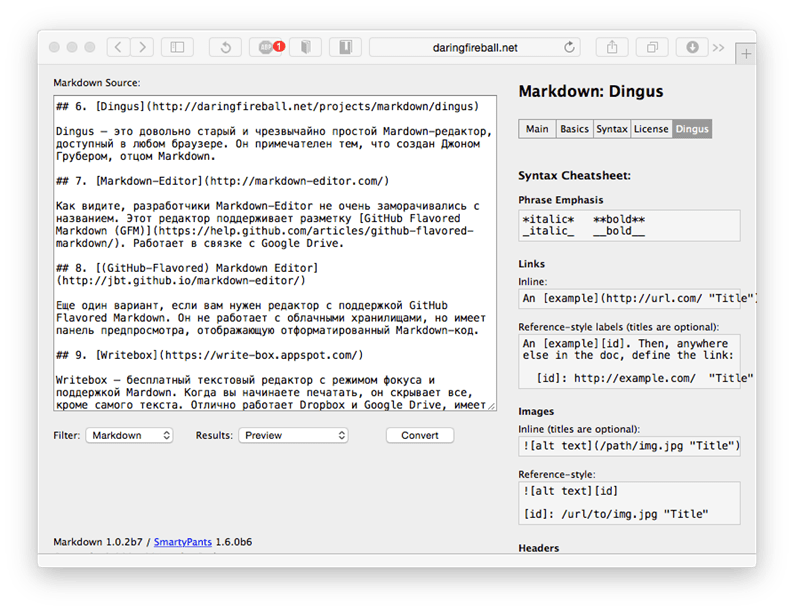
Dingus is a relatively old and extremely simple Mardown editor available in any browser. It is notable for being created by John Gruber, the father of Markdown.
Markdown-Editor
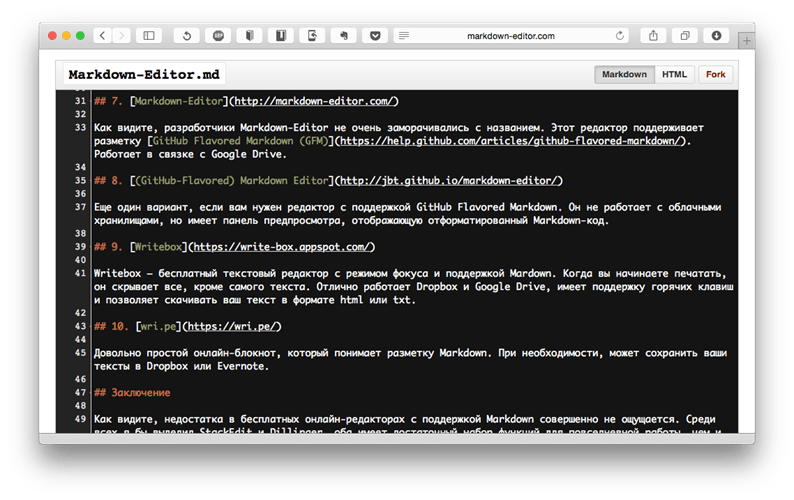
As you can see, the developers of Markdown-Editor didn't really bother with the name. This editor supports GitHub Flavored Markdown (GFM) and works in conjunction with Google Drive.
Writebox
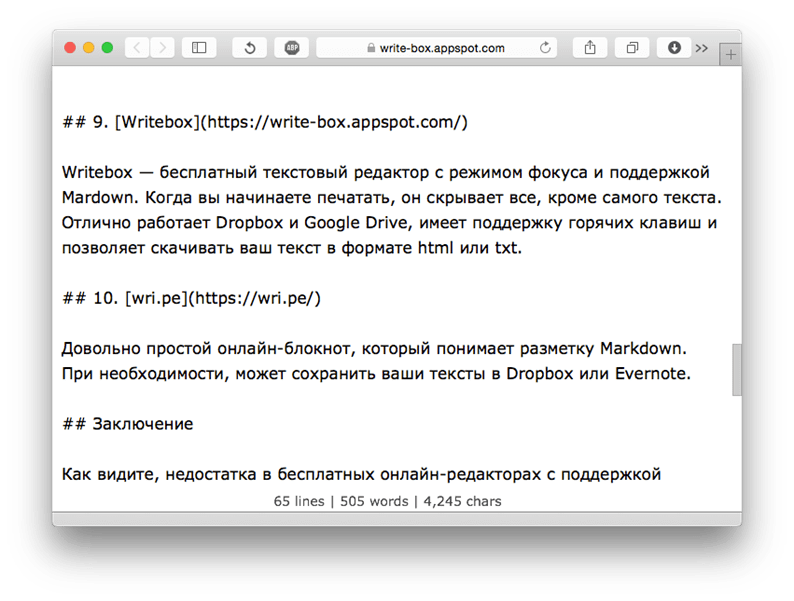
Writebox is a free text editor with focus mode and Markdown support. When you start typing, it hides everything except the text itself. Dropbox and Google Drive works great, has hotkey support and allows you to download your text in html or txt format.
Online Markdown Editor
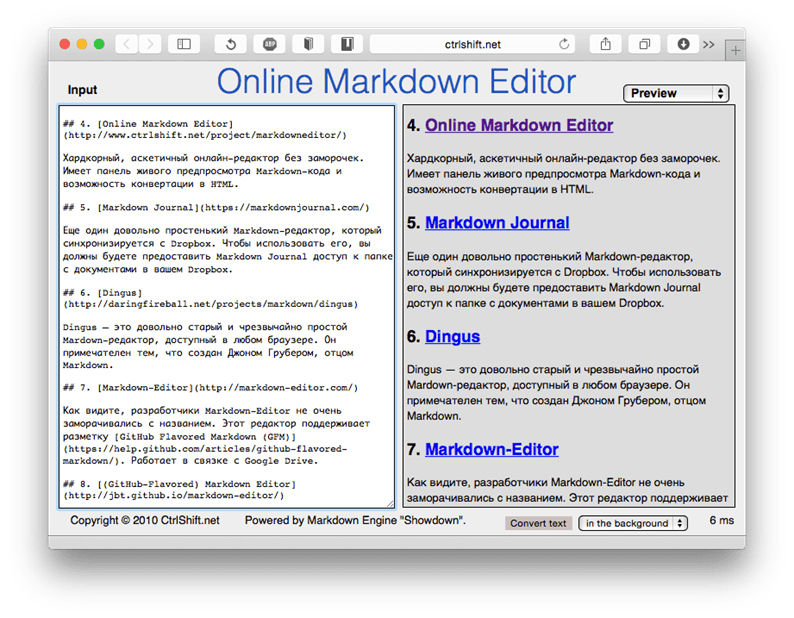
Hardcore, ascetic online editor with no hassles. Has a preview panel for Markdown code and the ability to convert to HTML.
Haroopad
Haroopad is a cross-platform markdown editor that allows you to write documents quickly and easily. It supports all the features you'd expect from a typical Markdown editor and more:
- In addition to exporting to HTML, PDF can also export to RTF, reStructured, ePub;
- Publishing documents to Tumblr and Evernote and even WordPress;
- Third-party CSS support for editor customization, and preview;
- Lots of popular default editor and preview themes (monokai, solarized, zenburn and many more!);
- Can display a Markdown syntax cheat sheet
- VIM mode support (!!!
- Live preview;
– Mathjax support; - Inserting media content from Youtube, Vimeo, Twitter, Instagram, etc .;
- Chart support;
- TODO list support;
- Syntax highlighting;
- Full screen mode;
There is nothing to add to the impressive list of possibilities. The editor is so great that I even got pissed off. He knows how to do everything that I need and is for all popular platforms. Watch this short video and see for yourself that this is just a great Markdown editor.
[
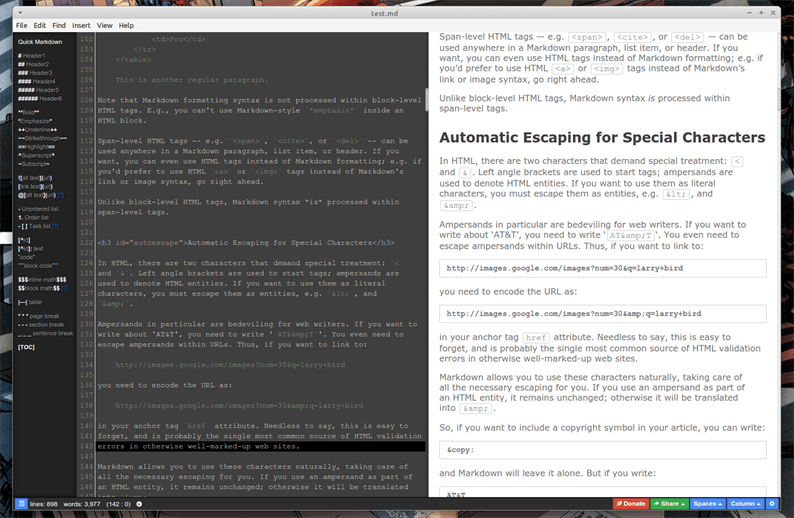
Haroopad is an excellent Markdown editor
] (https://the-bosha.ru/2016/05/05/obzor-markdown-redaktorov/haroopad.png) [
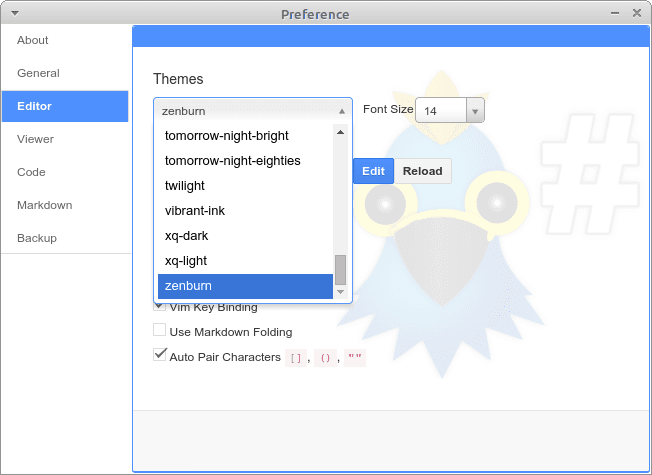
Haroopad – editor settings
] (https://the-bosha.ru/2016/05/05/obzor-markdown-redaktorov/haroopad_settings_editor.png) [
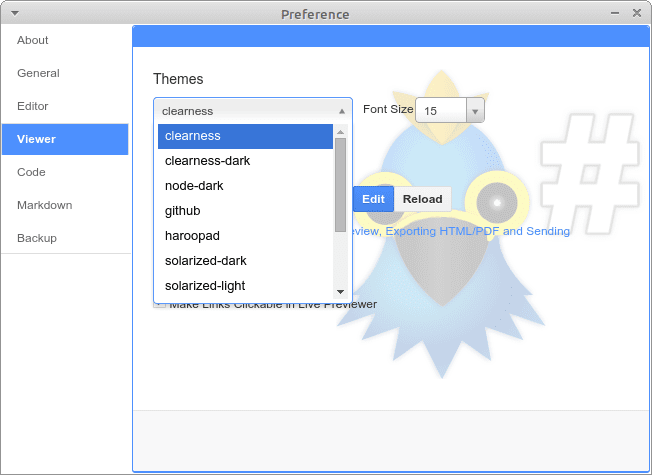
Haroopad – live preview settings
] (https://the-bosha.ru/2016/05/05/obzor-markdown-redaktorov/haroopad_settings_viewer.png) [
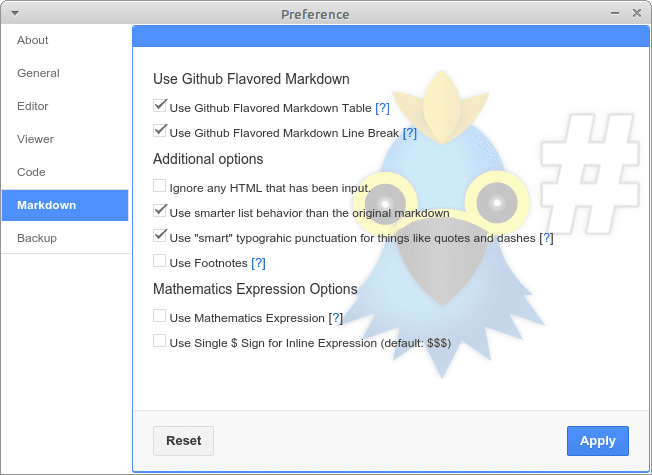
Haroopad – Markdown settings
] (https://the-bosha.ru/2016/05/05/obzor-markdown-redaktorov/haroopad_settings_markdown.png )
Installation
There are ready-made x86 and x64 packages for all platforms. Download and install as usual.
Supported platforms: Linux, Windows, MacOS
Mark My Words
Mark My Words is a minimalistic Markdown editor specially created for Elementary OS, but will work in any Linux distribution.
- Live preview;
- Support for themes;
- Export to HTML or PDF;
- Syntax highlighting;
- Ability to customize the look by editing CSS;
The editor follows the minimalism of Elementary OS and is still in development. More features are planned in the future. Works pretty well, but falls short of other markdown editors reviewed. Suitable for supporters of minimalism. Can't move the live preview window to the same area of text that is currently being edited.
[

Mark My Words – minimalistic Markdown editor
] (https://the-bosha.ru/2016/05/05/obzor-markdown-redaktorov/markmywords.png) [
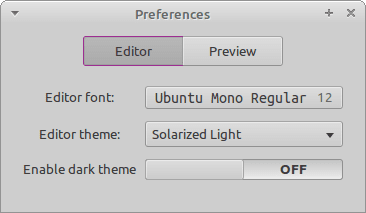
Mark My Words – editor settings
] (https://the-bosha.ru/2016/05/05/obzor-markdown-redaktorov/markmywords_settings_editor.png) [
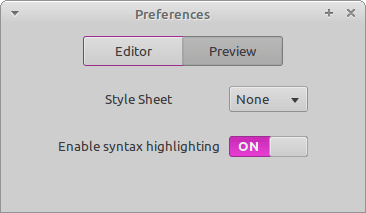
Mark My Words – preview settings
] (https://the-bosha.ru/2016/05/05/obzor-markdown-redaktorov/markmywords_settings_preview.png) [
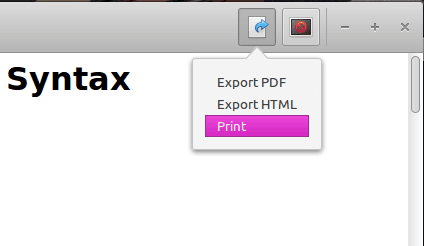
Mark My Words – export
] (https://the-bosha.ru/2016/05/05/obzor-markdown-redaktorov/markmywords_export.png )
Installation
There is a repository for Ubuntu:
Archlinux users can install Mark My Word from the AUR :
Supported Platforms: Linux
ReText
ReText is another good editor available for Linux with its own set of unique features. Among the main ones:
- In addition to uploading to traditional HTML and PDF, it can also upload to ODT;
- Tab support;
- Car storage;
- Support for themes and color schemes;
- Live preview;
- Selection of the line where the text is currently being typed or edited;
- Full screen mode;
- Spell checker with the ability to specify the language;
Again, everything would be fine, but the live preview stands still, and you need to constantly scroll to where you are currently working with the text. I was pleased with the support of tabs. In general, an excellent editor, but I lacked its capabilities.
[
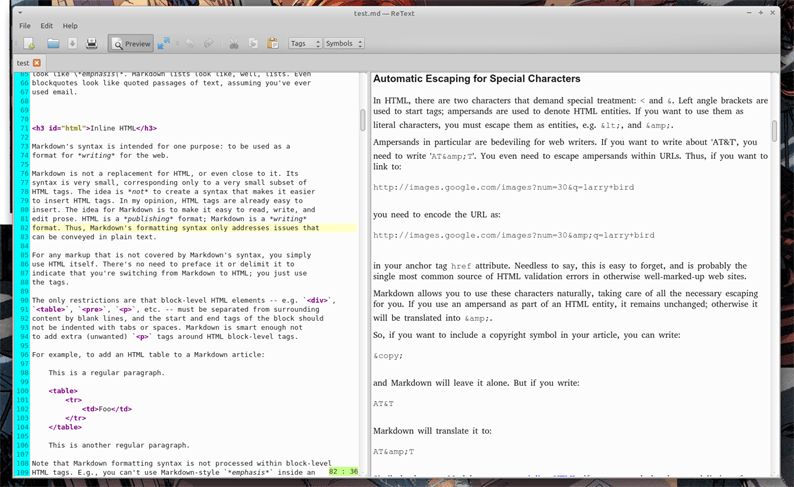
ReText is a good Markdown editor
] (https://the-bosha.ru/2016/05/05/obzor-markdown-redaktorov/retext.png) [
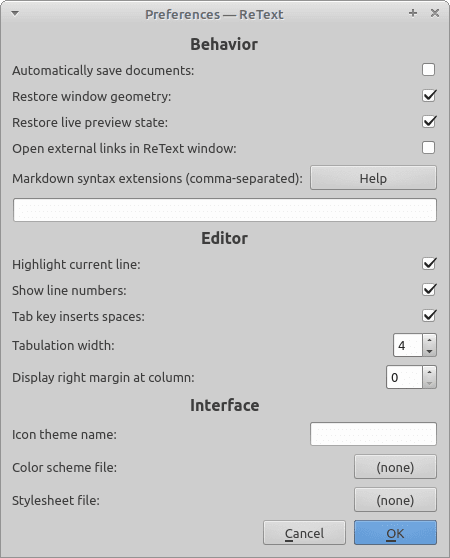
ReText – settings window
] (https://the-bosha.ru/2016/05/05/obzor-markdown-redaktorov/retext_settings.png) [
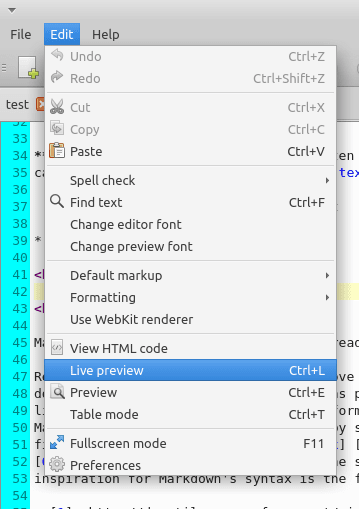
ReText – menu
] (https://the-bosha.ru/2016/05/05/obzor-markdown-redaktorov/retext_menu.png )
Installation
Most distributions have retext in their repositories. For example in debian and ubuntu:
If not in the repositories, then you can install using pip:
Windows and MacOS are not officially supported, but the editor is written in python, so it will work on both platforms if desired.
Supported Platforms: Linux
Uberwriter
Uberwriter is an editor with an original idea: it doesn't provide any customization at all. The author believes that he knows better how it will be more convenient to create. Despite the complete lack of customization, it has one unique “trick”: a mode that allows you to concentrate only on the typed text (distraction-free). Instead of telling, it is better to watch a short demonstration of Uberwriter in action.
- Export to HTML and PDF;
- Live preview;
- Selection of the line where the text is currently being typed or edited;
- Checking spelling, punctuation and semantics of the text;
- Spellchecking;
Live preview, despite its presence, works only for text. Images and other media content are displayed as text. Unfortunately, uberwriter looks abandoned, but despite this, some people may like the ideas of the author of the application.
[
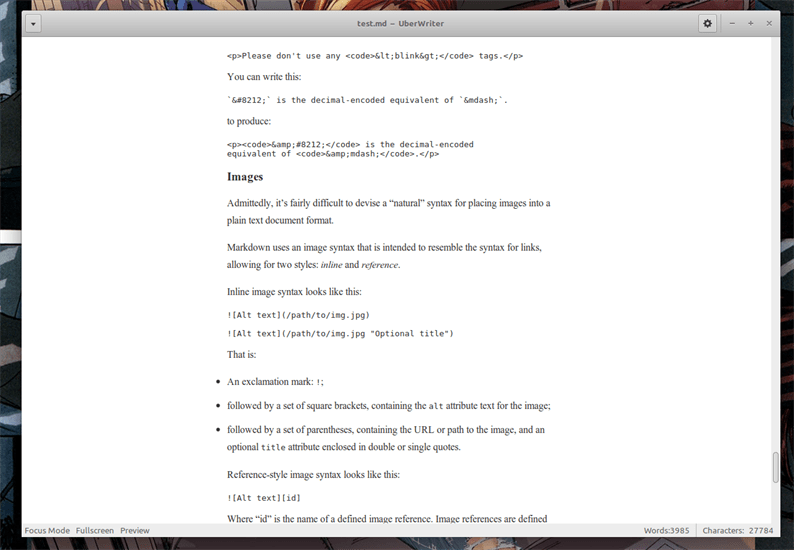
Uberwriter
] (https://the-bosha.ru/2016/05/05/obzor-markdown-redaktorov/uberwriter.png) [
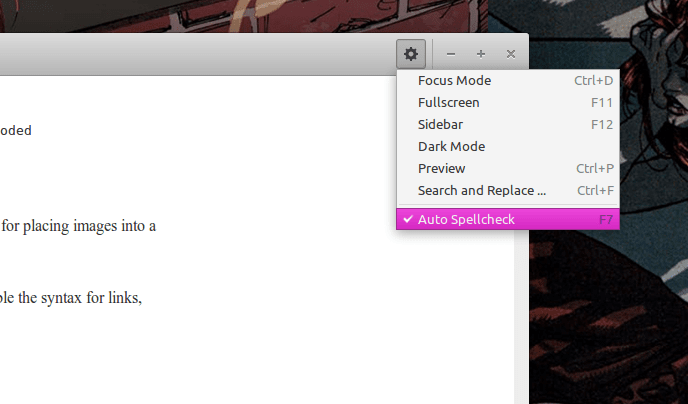
Uberwriter – menu
] (https://the-bosha.ru/2016/05/05/obzor-markdown-redaktorov/uberwriter_menu.png )
Installation
Uberwriter is available for Ubuntu through their Software Center, or ppa:
And of course Archlinux users can install from the AUR:
Other distributions are not officially supported.
Supported Platforms: Linux
Does not
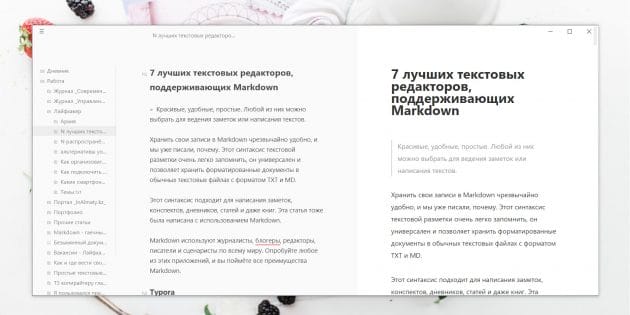
Platforms: Windows, macOS, Linux.
Price: Free trial, license cost $ 29. The beta version is free with no restrictions.
Another minimalist Markdown editor with a simple interface similar to Typora. At the same time, it contains a file panel that displays documents and folders with which you work. This allows Caret to be used as a full-fledged note manager.
Like Typora, this editor displays text formatting right in the input window, but you can also enable the preview pane if you like. Caret supports the GitHub Flavored Markdown syntax, including tables, formulas, and code blocks. So the program can be used by students for taking notes and writing drafts, although those who deal with the exact sciences are better off looking towards LaTeX editors.
Caret has built-in search to quickly jump to files or navigate sections of your documents. The editor has a dark theme for working at night and a focused mode. Caret supports export to HTML and PDF.
Ulysses
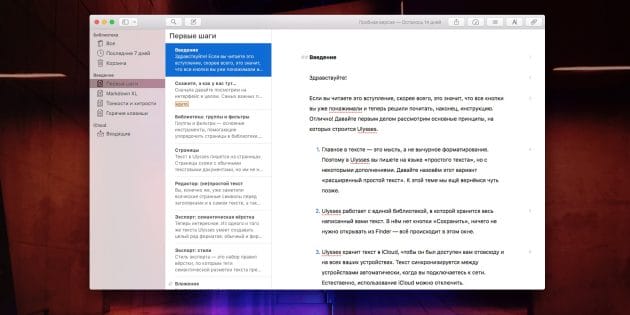
Platforms: macOS, iOS.
Price: Subscription costs $ 5 per month or $ 40 per year.
Ulysses is a professional tool for seasoned writers, editors, journalists and screenwriters. It allows you to run multiple projects at the same time, sorting your articles, sketches and scripts into folders. The Ulysses interface is somewhat similar to Evernote, but it looks sleeker and more convenient.
It is full of functions for working with text, such as easy navigation through chapters and a draft version control system. Another useful feature of Ulysses is the ability to set goals and track their progress. If you set yourself a task – to write so many symbols per day – a diagram appears on the special Ulysses panel, filling in as you progress.
Behind the beautiful interface of the editor, there are many settings and possibilities. Ulysess can save your texts to TXT, HTML, ePub, PDF, DOCX or upload them directly to your WordPress or Medium blog.
It makes sense to pay for this monster only for professionals who live off their texts. But they will definitely like Ulysses.
iA Writer
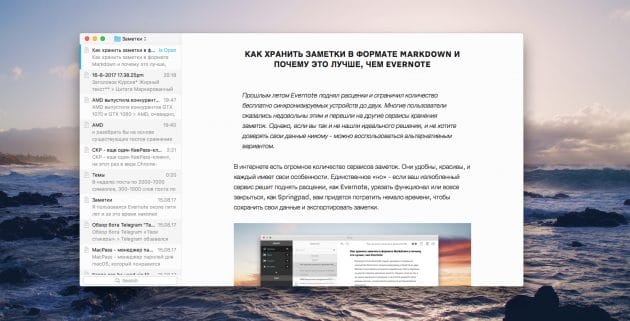
Platforms: Windows, macOS, iOS, Android.
Price: $ 19.99, Free for Android.
iA Writer is a clear demonstration that a text editor can be not only convenient and functional, but also beautiful. This application is focused on simplicity and minimalism – nothing will distract you from your work.
IA Writer has a file pane and a preview mode. The text in it looks clean and easy to read. Optionally, you can change the fonts and theme of the editor, as well as switch between day and night modes. The application displays statistics for your documents – the number of characters and words, as well as the average time to read. iA Writer supports export to HTML, Word and PDF.
It is especially convenient to work with this editor on macOS, since it was primarily developed for Apple computers. Swipe right on your mouse or touchpad with two fingers and see all the files you're working on. Swipe left to see your document in preview mode. Overall. The Android version is pretty good too. But the beta for Windows looks pretty awkward so far.
Best Markdown Editors for Linux
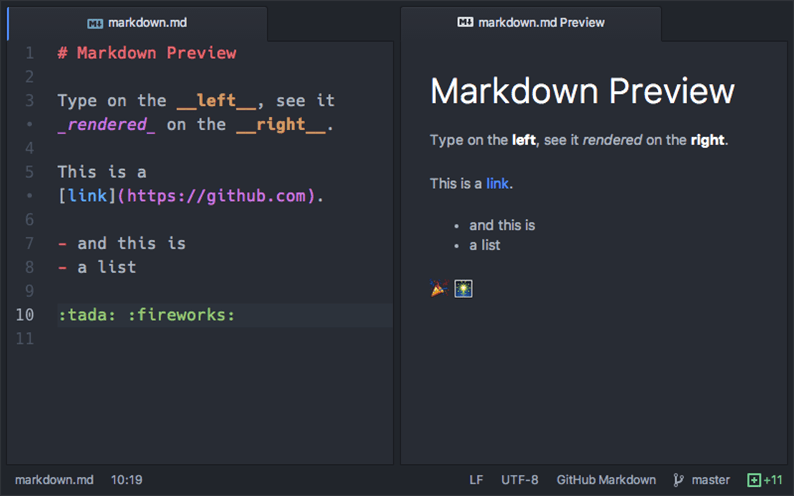
In this article, we'll take a look at some of the best Markdown-enabled editors you can install and use on Linux. In fact, there are many more of them, but we will consider only the most convenient of them.
Markdown (markdown) is a lightweight markup language created with the aim of writing the most readable and easy to edit text, but suitable for converting into languages for advanced publications (HTML, Rich Text, etc.).
Atom
Atom is a modern, cross-platform, powerful open source text editor that runs on Linux, Windows and Mac OS X. It is highly customizable, thanks to plugins as well.
Its benefits include the following:
- Built-in package manager (plugins, themes, etc.)
- Smart code completion
- Split window support
- Find and replace text
- Built-in file manager
- Customizable themes
- Easily extendable with open source plugins
Home page: https://atom.io/
VS Code
Everything described for the previous application is also true for Visual Studio Code. It is an easy-to-use and powerful open source editor, extensible with plugins and theme support. Has a built-in debugger and version control client. It also works with Markdown using a convenient plugin, immediately showing the result in an adjacent window.
Homepage: https://code.visualstudio.com
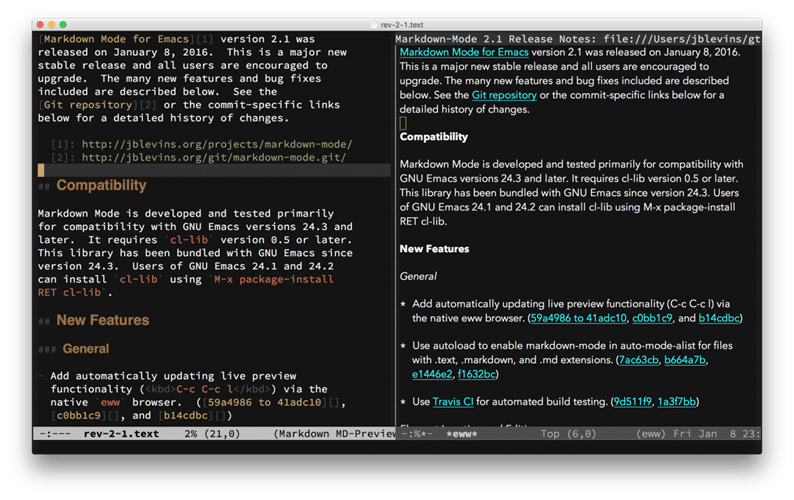
GNU Emacs
Who doesn't know Emacs? This editor is over 40 years old and is considered one of the most popular applications for * nix systems.
Important functions:
- Built-in documentation and tutorial for beginners
- Full Unicode support
- Various text editing modes, it's easy to customize the editor for yourself
- Syntax highlighting for most file types
- Well configurable with Emacs Lisp or GUI
- There is a package system to download and install, a huge community and much more …
Homepage: https://www.gnu.org/software/emacs/
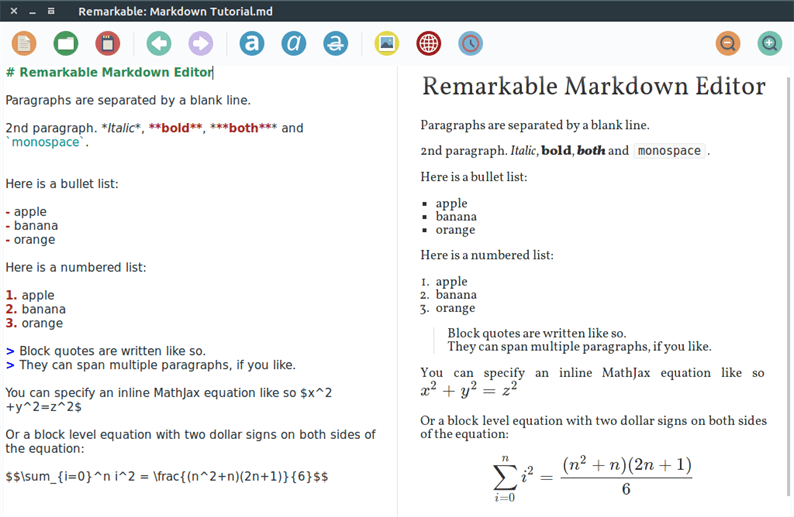
Remarkable is arguably the best Markdown editor for Linux listed. It supports the full Markdown syntax and is extremely functional:
- Real-time preview
- Export to PDF and HTML
- Github Markdown support
- Support for custom CSS styles
- Syntax highlighting with automatic language detection
- Hotkeys
Homepage: https://remarkableapp.github.io
ReText
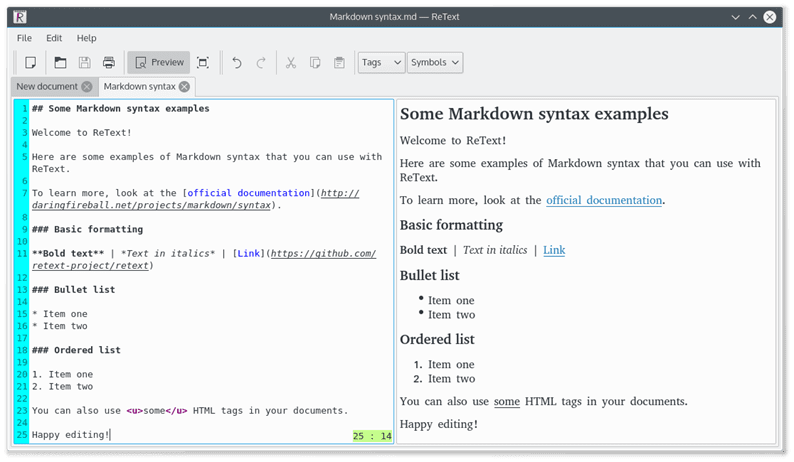
ReText is a simple, lightweight and powerful Markdown editor for Linux. Has the following features:
- Simple and intuitive GUI
- Highly customizable
- Support for color schemes
- Support for mathematical formulas
- There are extensions for exporting text and much more …
Homepage: https://github.com/retext-project/retext
Mark My Words
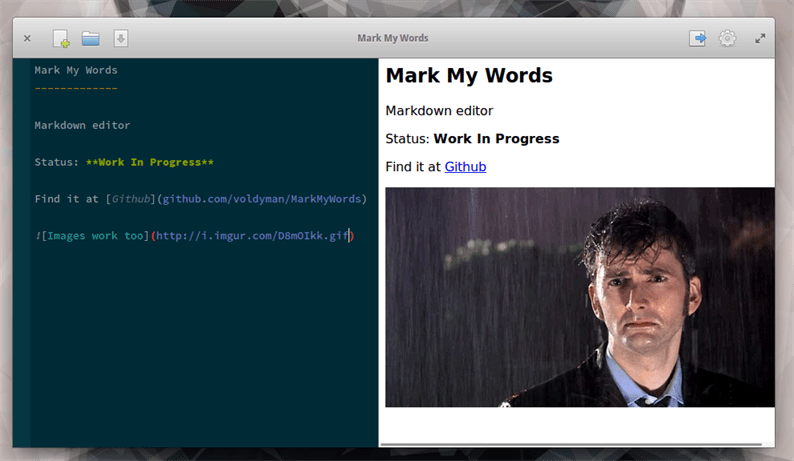
Mark My Words is also a lightweight yet powerful Markdown editor. It is relatively young, but has many important features, including syntax highlighting, a simple and easy GUI.
- Real-time preview
- Export to PDF and HTML
- Tracking file changes in an external program
Homepage: https://github.com/voldyman/MarkMyWords
SublimeText-Markdown plugin
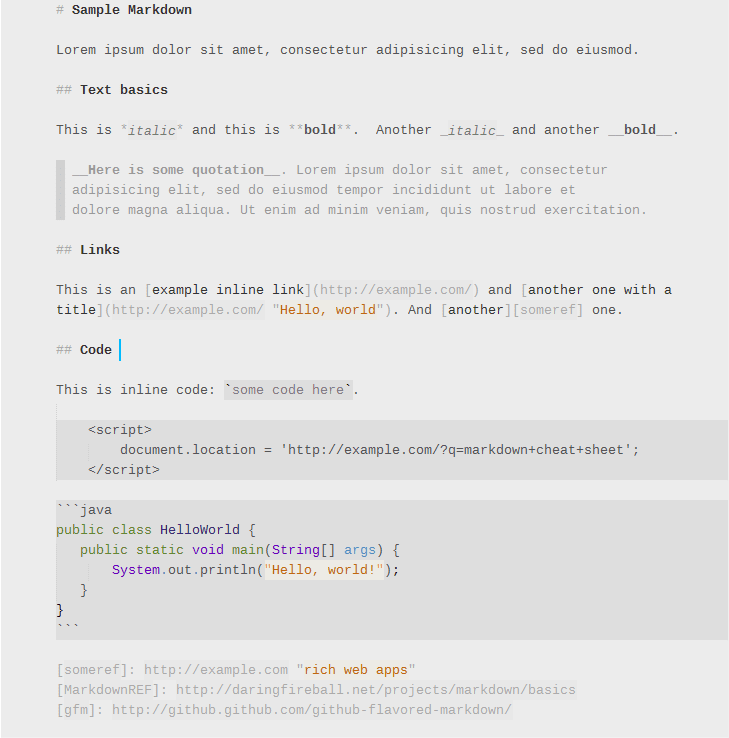
Sublime Text is very popular and needs no introduction. For Markdown support, I recommend the SublimeText-Markdown plugin, it has excellent syntax highlighting, a choice of color schemes and much more.
Vim-Instant-Markdown Plugin
Vim is a very popular and powerful text editor for Linux, also time-tested. It is loved by programmers very much for its flexibility, lightness and extensibility.
There are several plugins for Vim to support Markdown, try the most effective one, Vim-Instant-Markdown.
Homepage: https://github.com/suan/vim-instant-markdown
Typora
Typora doesn't have a preview window, mode switch or anything like that. It has only one window with real-time Markdown syntax highlighting so that nothing distracts you from the text.
Key features:
- Markdown support including tables, highlighted code blocks, LaTeX, TOCs.
- Cross-platform
- Nice interface and support for custom CSS styles.
- Convenient export of notes
Home page: https://typora.io/
Best Free Markdown Editors for Writing
These free online Markdown editors allow you to paste text from elsewhere or write it down directly in editors.
1 StackEdit
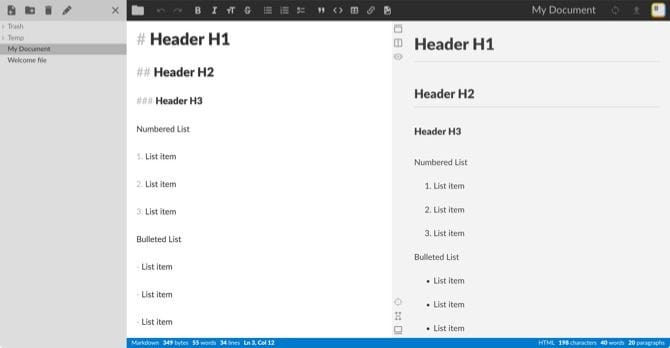
What makes StackEdit such an outstanding editor is that it is ideal for those new to writing in Markdown.
When you enter text on the left side of the editor, you can apply formatting using the toolbar, similar to what you saw in Microsoft Word. You can use simple buttons to format fonts, lists, quotes, and links. The right side of the Markdown editor automatically changes it to the correct syntax.
Notable features for StackEdit include:
- Folder organization, focused writing and reading mode along with the number of words, lines, bytes, characters and paragraphs.
- Import Markdown and HTML files, and export to Markdown, HTML, PDF, and Pandoc. Please note that there may be a small fee for certain types of file exports.
- Syncs with Google Drive, Dropbox and GitHub, plus links to WordPress, Blogger and Zendesk for publishing.
- Accessible file history and properties, templates, and a handy Markdown cheat sheet.
For a free, feature-packed online Markdown editor, try StackEdit.
2 Dillinger
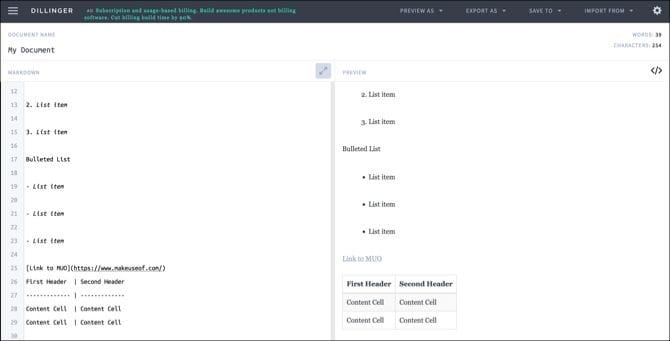
Dillinger is another great Markdown editing option. This tool is ideal for those already familiar with writing in Markdown because there is no toolbar; just a complete editor.
Enter your text on the left and you will see it displayed as rich text on the right. You can switch to HTML view instead of rich text with the click of a button. The editor also allows you to work in full screen mode without distractions.
Notable features for Dillinger include:
- Saving documents and sessions.
- Link, save and import from services like Dropbox, Bitbucket, GitHub, Google Drive, OneDrive and more.
- Preview and export in HTML, HTML style, Markdown and PDF.
- Autosave, word and character count and scroll sync for editor.
If you're familiar with Markdown and want a clean, free online editor, Dillinger is a winner.
3 Editor.md
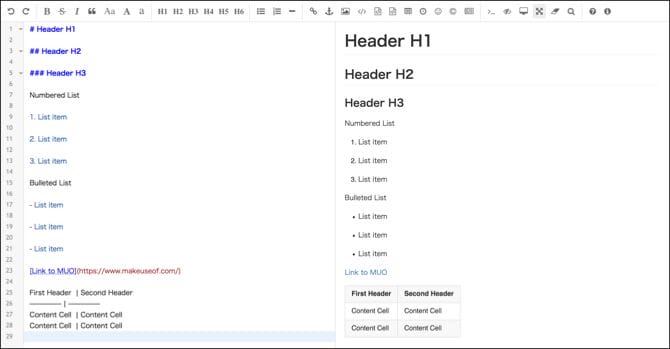
Another Markdown editor similar to StackEdit is Editor.md. This open source tool also provides an easy-to-use toolbar with even richer formatting capabilities that is useful for novice Markdown users.
You can format everything from fonts to headings and lists. You can also quickly insert links, images, code blocks, tables, emoticons and special characters. Use an online editor or download the app if you like. Using it online, you simply copy and paste the text version you created in the desired location.
Notable features of Editor.md include:
- List of useful keyboard shortcuts by clicking Help
- HTML preview with one click.
- Full screen, focused writing with no distractions.
- Search tool and jump to line option.
For a simple Markdown editor that offers a more robust toolbar, check out Editor.md for free.
Best free markdown editors to convert
With these free Markdown tools, you can insert your rich text or upload your document. Then convert it to Markdown in no time.
4 Project
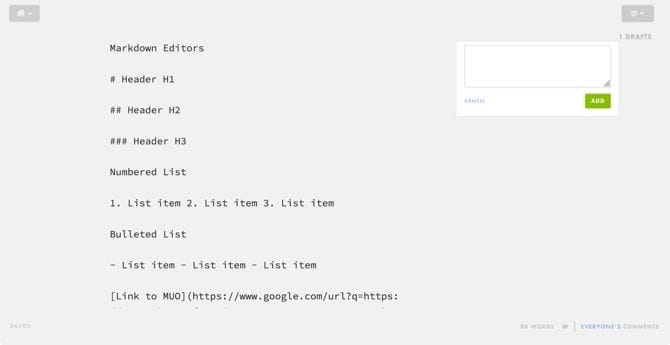
With Draft, you can easily convert documents written in rich text format to Markdown, which include headings, lists, links, and other elements.
Import your document from places like Dropbox, Google Drive, Evernote, Box, or from your computer. Drag and drop or browse or import your file. Then just wait a few minutes and your converted Markdown document will display.
Notable features for draft include:
- Share your document with a link that allows others to help you edit it.
- Create folders to organize your documents.
- Publishing to sites like WordPress, Blogger, Tumblr, LinkedIn and others.
- Adjust the font style, size and color settings along with the background color.
You can create a Draft account for free and receive email notifications when your documents have been converted and are ready for you. For a good Markdown tool with additional features, head over to the site and try Draft.
5 Paste in Markdown
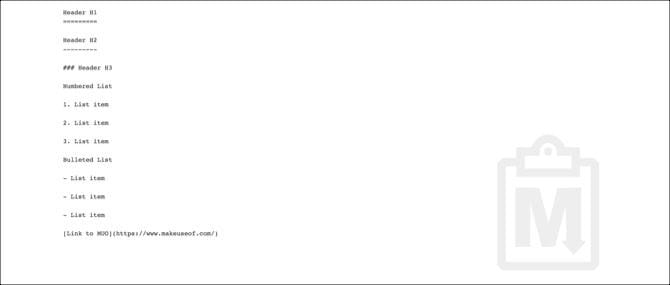
Paste to Markdown is one of the easiest sites to convert documents to Markdown. You won't find any additional features or interesting features with this tool. But it's fast, easy, and works.
Convert your document with Embed in Markdown:
- Copy text from your document or another site.
- Paste the text directly into the main page Paste in Markdown.
- You will see your document in Markdown, and then you can copy and paste it where you want.
This is it! You don't need to press any buttons, press any keys, or move the mouse. After you paste the text into the page, it will be converted for copying and sending. It's no easier than Paste in Markdown.
6 Word to Markdown Converter
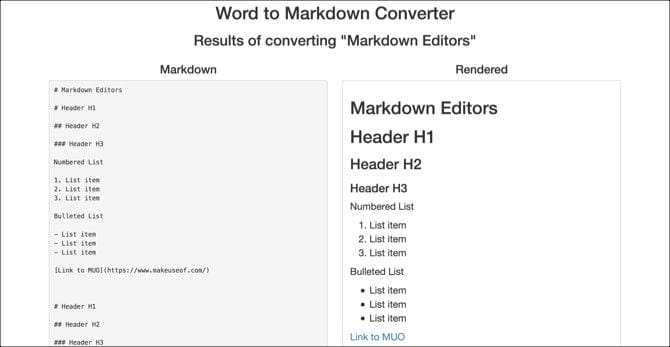
One of the latest online Markdown tools to try is Word to Markdown Converter. As the name suggests, the site currently only works with Microsoft Word documents. However, it does it well.
Convert your document using Word to Markdown Converter:
- Use the Browse button to find your document or drag it to the bottom.
- When a new tab opens, you will see both the original and new Markdown text.
- Then copy the Markdown text and paste it where you need it.
The simplicity of Word to Markdown Converter is similar to the simplicity of pasting into Markdown. There are no bonus features or actions you have to take other than grabbing your document. The only difference is that this free online tool only works with Word. So, if Word is your application of choice; this is your instrument.
Pivot table

This table summarizes the main characteristics of the main editors.
Conclusion
In addition to the listed editors, there are also plugins for popular powerful IDEs and other equally powerful text editors. In any case, sometimes a full-fledged IDE or a powerful text editor can be overkill, and a small Markdown editor with all its capabilities may be just what you need.
Sources used and useful links on the topic: https://the-bosha.ru/2016/05/05/obzor-markdown-redaktorov/ https://Lifehacker.ru/10-besplatnyh-onlajn-redaktorov-s-podderzhkoj- markdown / https://Lifehacker.ru/luchshie-redaktory-s-podderzhkoy-markdown/ https://tehnojam.ru/category/software/10-luchshih-redaktorov-s-podderzhkoj-markdown-dlja-linux.html http: //helpexe.ru/proizvoditelnost/6-luchshih-besplatnyh-onlajn-redaktorov-markdown-i
Post source: lastici.ru