
Desktop context menu in Windows 10. How do I edit the Windows context menu?

Usability difficulties arise. Simply put, it is more difficult to find the desired item or command in the menu with your eyes, if there are several dozen sub-items, than when there are half a dozen of them. In addition, the pop-up submenu blocks confuse even experienced users, albeit for seconds. And there is nothing to say about newcomers.
Due to the menu clogged with unnecessary trash, the system itself, or rather the explorer (Explorer.exe), begins to slow down. Such “brakes” are noticeable even on the newest and most powerful configurations, not to mention the “budget” and “office” options.
Personally, I do not like it when a new computer program, after its installation, independently embeds its item in the context menu of files and folders.
Of course, many people ask permission for this action (usually at the end of the installation process), but there are also clever ones that do not care about our approvals.
If the devil already breaks his leg in this menu, then the program described below will help to clean it of unnecessary items and optimize.
Installation and interface language of the context editor
I will not describe the process of installing the program, because it is simple and straightforward.
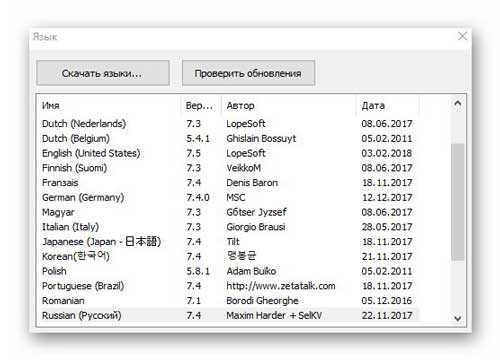
If suddenly its interface turns out to be in an incomprehensible language – here is a link to the official page of language packs for FileMenu Tools.
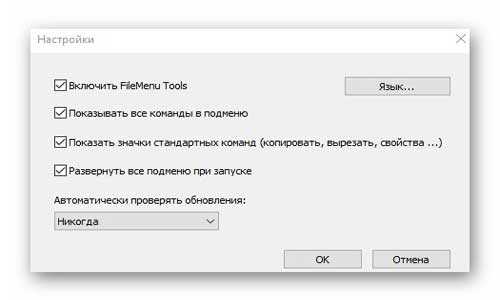
Select the required package, download it and unzip it, and then “throw” (copy) the result obtained into the folder with the installed program. It will remain in the settings to specify your language and that's it …
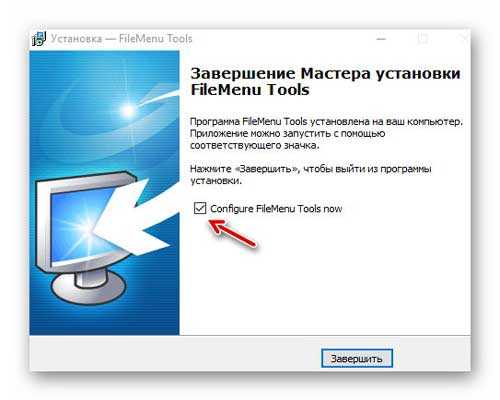
At the very end of the installation of the program for editing the context menu, you can check the box and it will start immediately …
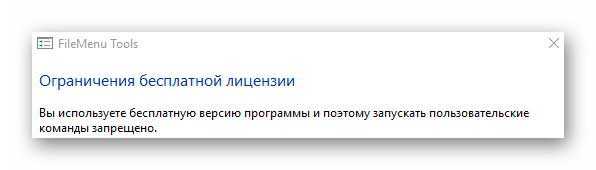
So, we are considering a free version of the program, so we will not consider how to add our commands to the menu of files and folders …
We save the text from the clipboard directly to a file
…
…
On the right side of the main window of the pop-up menu editor (in the first tab “FileMenu Tools Commands”) you will find a large list of its additional useful commands, which are recommended to be selectively added …
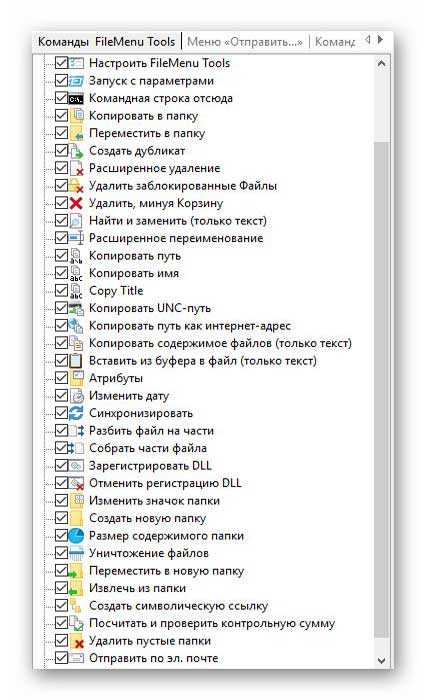
There are various types of copying files and moving them, creating duplicates, batch and full (without the possibility of recovery in the future) advanced deletion by filters …
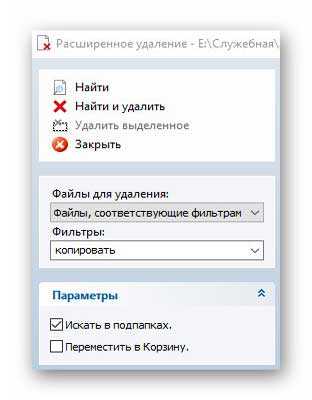
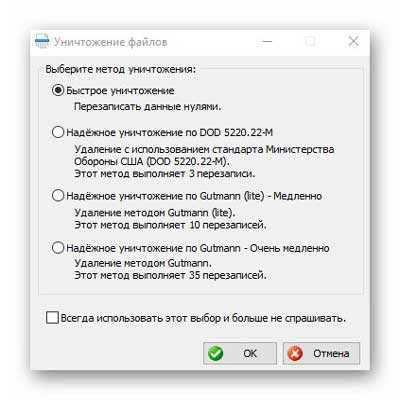
… (including locked files and bypassing the trash can).
There is a convenient tool for finding and replacing text …
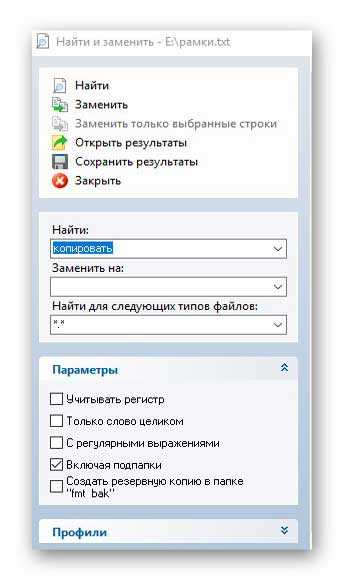
… And also extended file renaming is available.
More recently, I described a separate program for copying the path and file name – and so, FileMenu Tools can also embed such an item in the context menu. I also wrote about cutting and gluing any files into pieces – our today's heroine of the review can do this too …
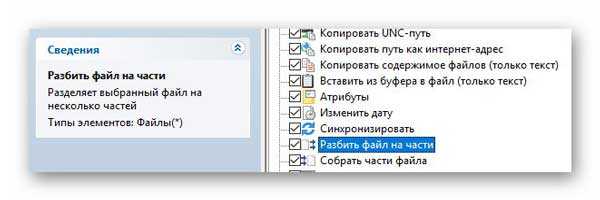
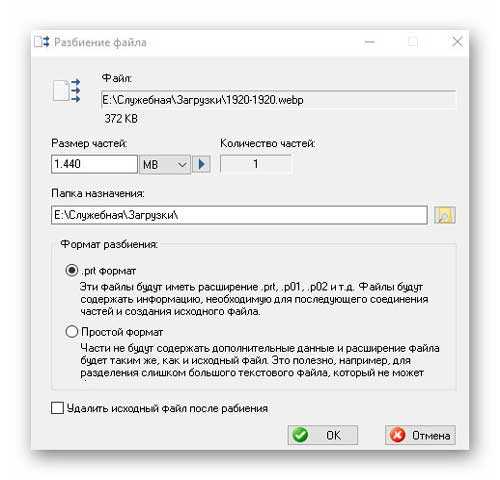
There are many additional useful items for the context menu – everyone will find the one they need.
Remove the checkboxes from the extra items and click on the active checkmark in the green circle, which is to the left of the program toolbar …

This action will apply the changes.
Congratulations, you now have useful new items in the files and folders menu …
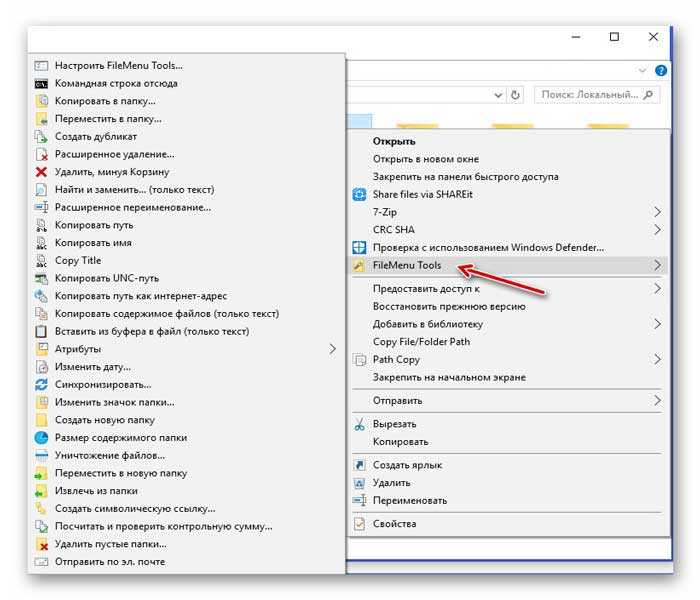
There are two more useful tabs in the right section of the main window of the FileMenu Tools program – they will help us to delete unnecessary menu items of files and folders …
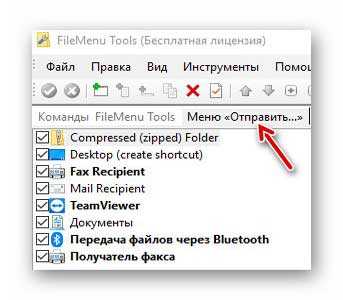
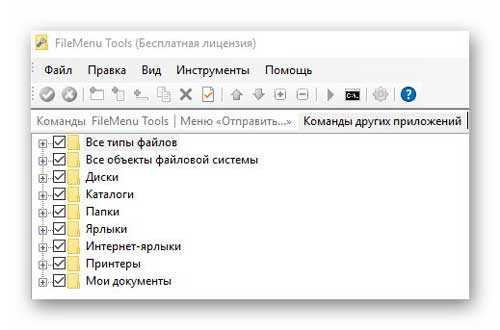
We click on the small plus signs and in the opened lists we remove the jackdaws from the unnecessary menu items. Remember to apply the changes?
I almost forgot – using the left section of the main program window, you can add and remove separators between menu items and sort them …
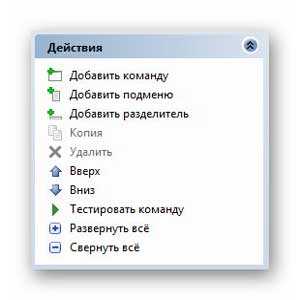
So, everything is ready, the menu editing programs have not been downloaded yet, we proceed to manual editing. As you know, there are two context menus in Windows: for files (with small variations depending on the file type) and for directories (folders). Here is the registry key for the file context menu:
HKEY_CLASSES_ROOT*shellexContextMenuHandlers
Below the ContextMenuHandlers section are the applications that appear in the menu when you right-click on the file. Each of them can be deleted permanently, or you can deactivate it until the moment (which I will advise you as well). You can delete a record by simply erasing a subsection, deactivating it by adding a mathematical ” – ” to the left of the value. For example, I wanted to hide the ability to edit documents using the NotePAd ++ editor:

We go to the specified registry path and add a minus to the left of the parameter value:
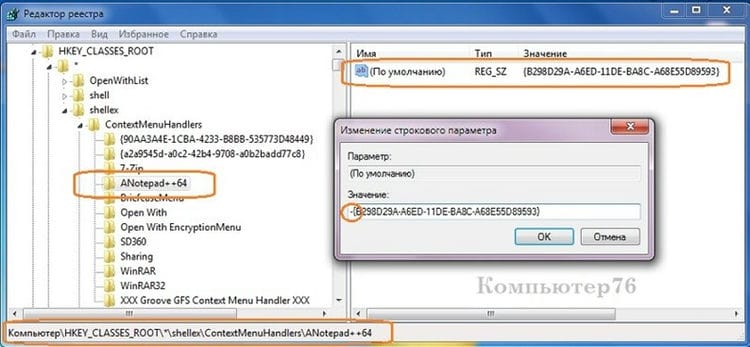
Everything about NotePad ++ in context can be forgotten for now. If it does not help, and the entry is tired – just delete the section.
However, you have probably noticed that the registry key does not display all the items from the context menu list. Because not all items are stored in one location. The rest are in the following sections:
HKEY_CLASSES_ROOT*shell
HKEY_CLASSES_ROOTAllFileSystemObjectsShellExContextMenuHandlers
The meaning is exactly the same, just remember that for the Desktop, context menus are located in a different registry key. Sections. I rarely look into them for the simple reason that third-party programs do not like to be embedded there. However, if such an embarrassment happened (or you decided to get rid of, say, the Gadgets item), note the necessary registry keys:
HKEY_CLASSES_ROOTDirectoryBackgroundshell HKEY_CLASSES_ROOTDesktopBackground HKEY_CLASSES_ROOTDirectoryBackgroundshellexContextMenuHandlers
You already know how to delete and deactivate.
In my opinion, some commands in the menu are missing. I constantly take screenshots by editing them in Paint. It, point, and add. We open the section:
HKEY_CLASSES_ROOTDesktopBackgroundshell
And let's create a new subsection on the left under the shell (I called it Drawing), and in it a new subsection named command:
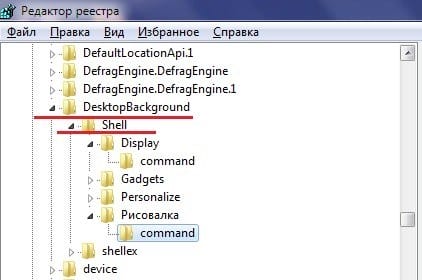
Now, on the right side of the window, change the value of the REG_SZ parameter to a path indicating the location of the file, enclosing it in quotes. The path is easy to find out by looking at the File Properties. Paint has this:
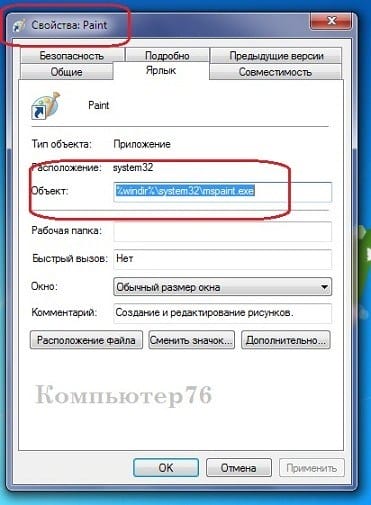
Do not leave the registry and set the necessary permissions for the created section on the left by selecting your account. Just in case there is no error window. We check the menu itself – everything is in place:
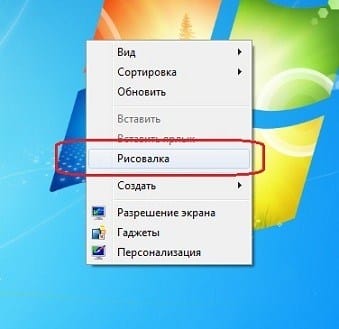
A separate paragraph of the article. Since it allows you to work with other Windows commands, the developers put it in a separate section.
The Create item disappeared from the context menu
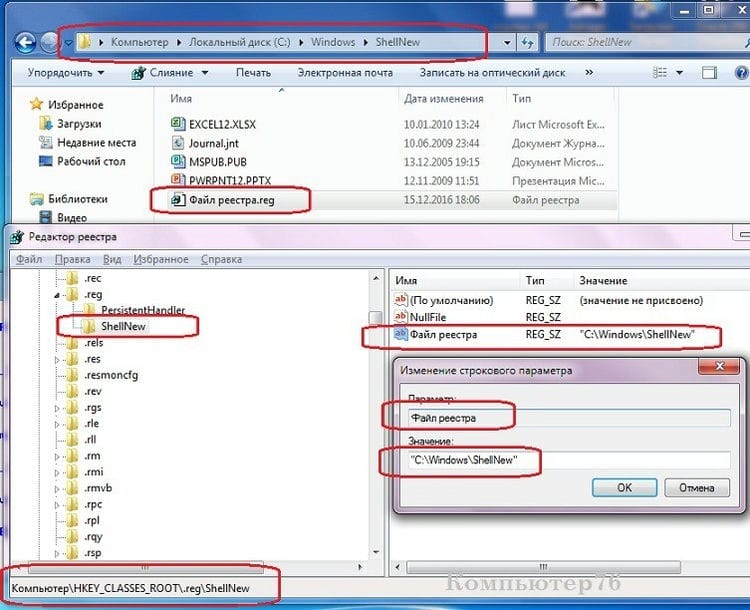
But before heading to this section, let's immediately determine the type of files that we want to create from the context menu. For example, if I edit the registry a lot and often, let this type of file appear when I right-click it. And here we will assume that everything is in order with the file association of your copy of Windows: .reg files are registered in its memory. So, this is how we look in the registry:
HKEY_CLASSES_ROOT.reg
where .reg is the extension of the files I need. As you can imagine, there are a bunch of them in the HKEY_CLASSES_ROOT section. All I have to do is create a new subsection in the .reg section (I will name it ShellNew) and immediately on the right will add a new parameter with an empty value, but with the name NullFile :
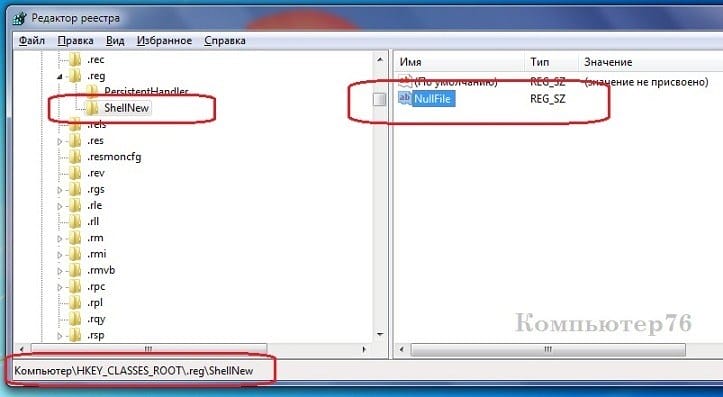
Everything. Checking the Desktop:
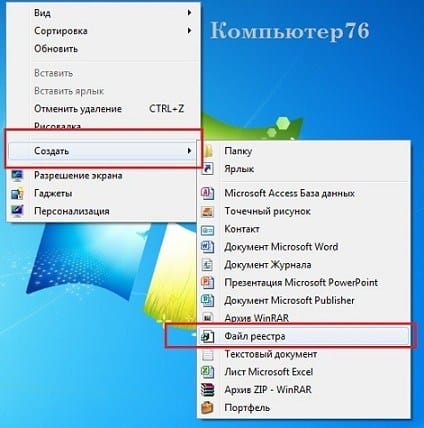
The method works on my Windows 7. If you have a newer version, it may not work. But then, to the steps described, you just need to add the file of the required type to the folder at:
C:WindowsShellNew
You already have it. Create a file of the required format, call it any name. And return to the same registry key (I have, let me remind you, HKEY_CLASSES_ROOT.reg) and add to the two existing ones the third one with the name in the parameter and the value of the full path to it. See:
Well, you learned how to delete or deactivate.
Windows Defender scan
The Windows Defender Scan menu item appears for all file types and folders in Windows 10 and allows you to scan an item for viruses using Windows Defender's built-in defender.

If you want to remove this item from the context menu, you can do this using the Registry Editor.
- Press Win + R keys on your keyboard, type regedit and press Enter.
- In Registry Editor, navigate to HKEY_CLASSES_ROOT * shellex EPP ContextMenuHandlers and delete the key.
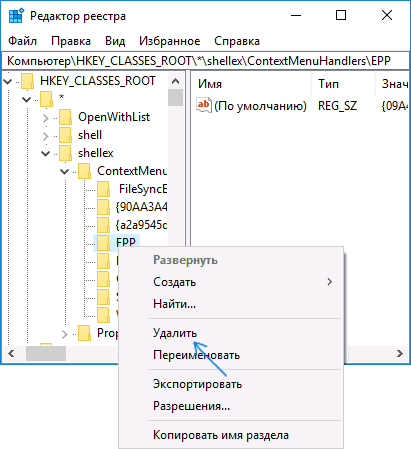
- Repeat for HKEY_CLASSES_ROOT Key Directory shellex ContextMenuHandlers EPP
After that, close the registry editor, exit and enter the system (or restart the explorer) – the unnecessary item will disappear from the context menu.
Modify with Paint 3D
To remove the Edit with Paint 3D item from the context menu of image files, follow these steps.
- In Registry Editor, go to HKEY_LOCAL_MACHINE SOFTWARE Classes SystemFileAssociations .bmp Shell and remove the “3D Edit” value from it.
- Repeat the same for subkeys .gif, .jpg, .jpeg, .png in HKEY_LOCAL_MACHINE SOFTWARE Classes SystemFileAssociations
After uninstalling, close the registry editor and restart Explorer, or log out and log back in.
Edit with Photos app
Another context menu item that appears for image files is Edit with Photos Application.
Open Shell – setting Windows 10 start menu from Windows 7 and instead of Classic Shell
To remove it, in the registry key HKEY_CLASSES_ROOT AppX43hnxtbyyps62jhe9sqpdzxn1790zetc Shell ShellEdit create a string parameter named ProgrammaticAccessOnly.
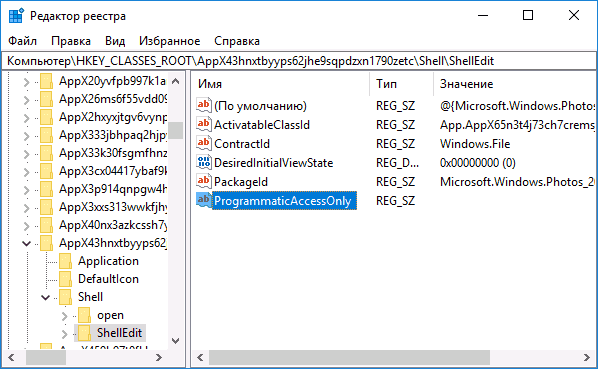
Open Registry Editor and navigate to the next section and open it:
Locate the file extension that you want to delete from the context menu “Create”. If you want to delete Microsoft Word Document, you will have to find the .docx section and open it. After you open it, you will see the ShellNew section – which you need to delete. This will remove the entry – the Microsoft a Word Document from the context menu “Create”.
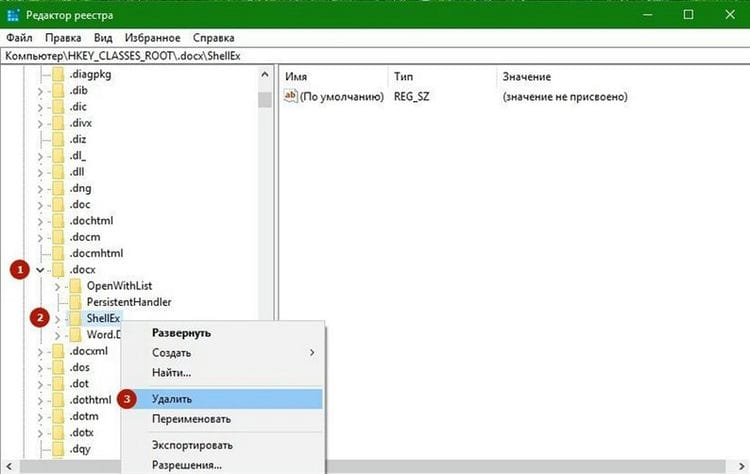
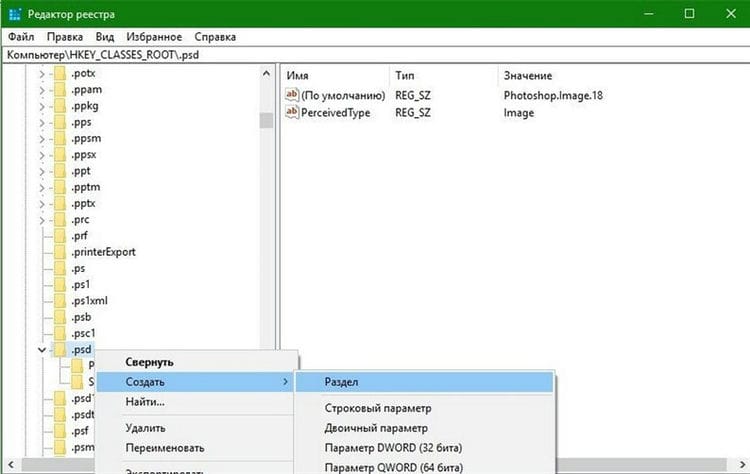
To add a new item or file type, search in HKEY_CLASSES_ROOT for the extension you want. We will be adding a .psd file for Photoshop.
Right click on it and select New> Section and name it ShellNew.
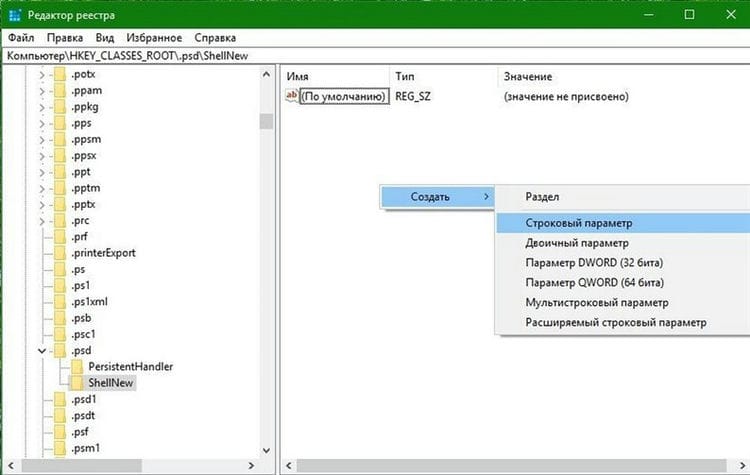
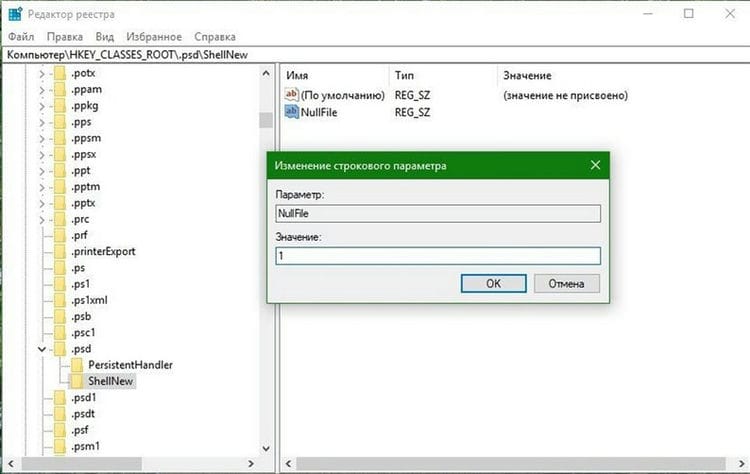
Now in the right pane select New -> String Parameter, name it NullFile and set the value to 1.
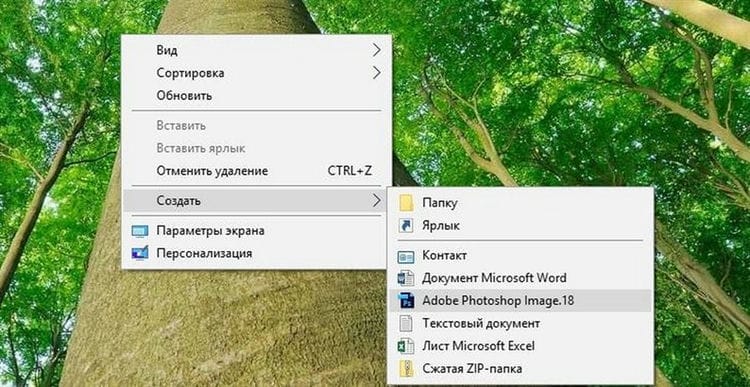
Everyone now if you go to the shortcut menu item “Create”. You can quickly create .psd files.
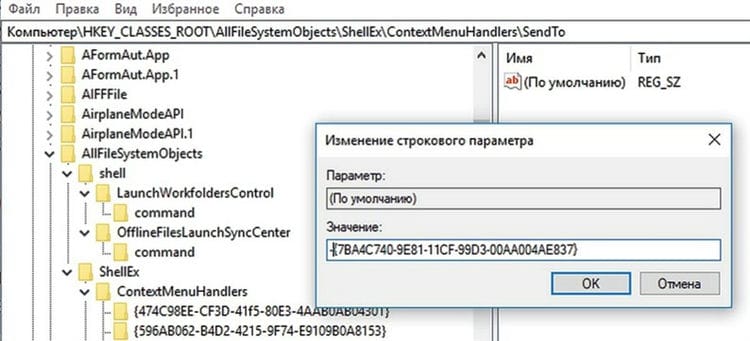
Windows-specific context menu items are scattered throughout the registry and can be difficult to find. To disable them, you must put a minus sign, as well as with the line “Send”
Most of the lines in the context menu are created by the system itself. Among them are also options that are not used by anyone, which, however, I would not like to accidentally activate by mistake. You cannot simply get rid of them through the ShellExView program – you will have to manually modify the registry.
A good example is the Send To item that Windows displays every time the user clicks on a file or folder. Do not forget that some of the sending options do not meet today's needs: the default is generally set to “Fax Recipient”.
To remove this item from the menu, in Regedit go to “HKEY_CLASSES_ROOT | AllFilesystemObjects | shellex | ContextMenuHandlers | SendTo “. In the right window, double-click the “Default” option and put a modest minus “-” in front of the long sequence of characters in curly braces to disable it. As always, you need to log out of Windows and log back in.
Disable ads
Starting with Windows 10, Microsoft has been displaying self-advertisements in File Explorer and the Start Menu. Fortunately, there are two ways to disable it.
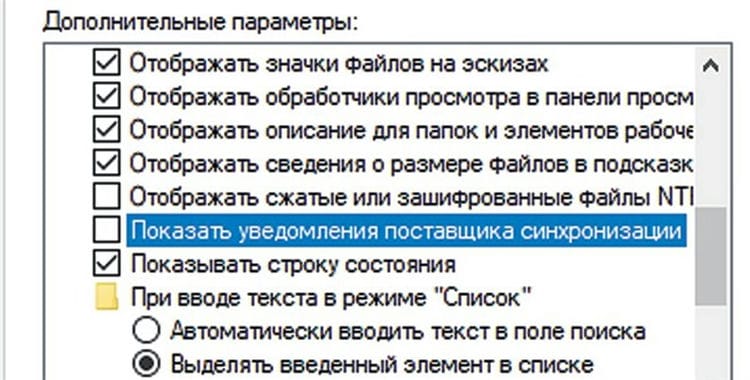
In Explorer go to “View | Parameters | Change folder and search options “. On the View tab, uncheck the box in front of the Show sync provider notifications option.
In the registry via the path “HKEY_CURRENT_USER | Software | Microsoft | Windows | CurrentVersion | Explorer | Advanced “you will find the DWORD parameter” ShowSyncProviderNotifications “. Set it to “0”.
![Desktop context menu in Windows 10. How do I edit the Windows context menu?]()
Here, adding a new item simply by editing the registry will not work. Therefore, we will use a special program Ultimate Windows Context Menu Customizer. Which allows you to flexibly customize the context menu. For example, we can select unnecessary sections in the menu and delete them.
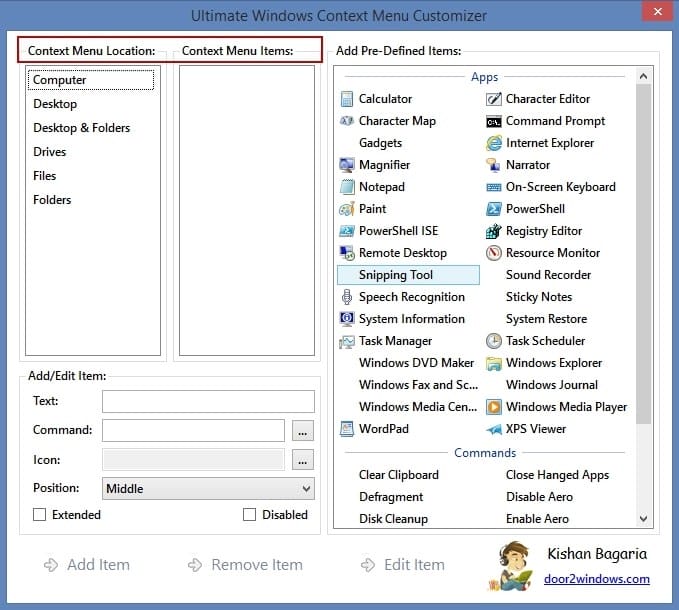 In general, the program is pretty easy to use, so it's not hard to figure out how to use it. New items are added in reverse order.
Installing a specialized utility
There are quite a few programs of this type. There are good reviews for the ContextEdit program. But it is paid. There are also free CCleaner (read how to use the program here). And the Context Menu Tuner program. But they do not “see” all the items of the context menu. And they have problems with “rolling back” actions in case of errors. Autoruns from Win Sysinternals requires professional knowledge. This is clearly not a beginner level.
A fairly reliable and simple program ShellExView from Nirsoft stands out well against their background. You can download it at this link. Install the program, copy the ShExView_lng.ini crack to the root folder of the program and run it. It is easy to bring the program to a form that is understandable even for beginners.
“Settings” “Filter by extension type” “Explorer menu”.
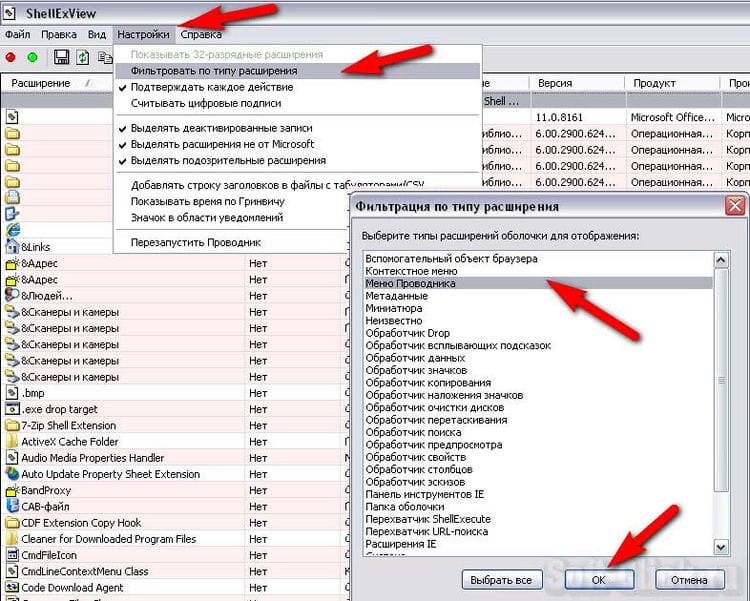
And it is easy to edit – there is a command “Deactivate”, ie, an unnecessary item can be simply disabled without deleting it. In case of an error, you can turn it back on in two mouse clicks (the “Activate” command).
pros
- There is a zipped version (does not require installation)
- Does not install its tool bars in browsers, does not climb into autoload and the Internet on its own, does not offer any advertising nonsense in its interface
Minuses
- The crack ShExView_lng.ini must be copied separately to the program folder
- You need to check the availability of new versions yourself on the official website.
Used sources and useful links on the topic: https://soft-click.ru/windows/ochistka-kontekstnogo-menyu-programmy-provodnik-v-os-windows-7.html https://OptimaKomp.ru/kak-otredaktirovat -kontekstnoe-menyu-fajjlov-pod-sebya / https://computer76.ru/2016/12/15/edit-context-menu/ https://windows10w.ru/help/nastroit-kontekstnoe-menyu-windows-10 -i-udalit-punkty.html https://g-ek.com/kak-redaktirovat-dobavlyat-udalyat-elementyi-iz-kontekstnogo-menyu-v-windows-10 https://ichip.ru/sovety/nastraivaem -kontekstnoe-menyu-windows-pod-sebya-267682 https://prostocomp.net/sistema/kak-dobavit-ili-ubrat-punkty-v-kontekstnom-menyu.html
Post source: lastici.ru