
Predictive typing or how to turn off hints on the iPhone or iPad keyboard. T9, or Predictive Text Input in Mobile Phones

Predictive set – what is it
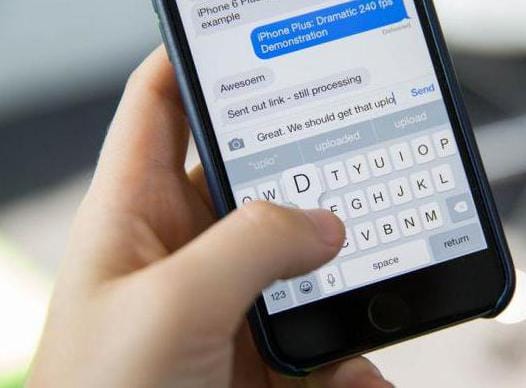
Whenever your mobile device offers you endings for words or even entire phrases while typing, you're dealing with predictive input. Predictive text input allows you to speed up the process of transforming users' thoughts into text due to such prompts, as well as correcting common mistakes.
Examples of predictive input systems are the legendary T9, iTAP, or QuickType on iOS.
To some, the ability to enter whole sentences with just a few taps on the screen seems attractive, but there are some users who are only distracted and annoyed by this option of speed typing. In this case, you can simply disable this function and forget about the inconvenience.
Mobile devices
Predictive text input is common on mobile devices (primarily phones), where text input is difficult, for example, when writing SMS messages. There are mainly two predictive input systems used: T9 and iTAP.
Editors for programmers
The editor parses the text and displays a menu that suggests the end of the entered keyword or identifier. Or, for example, when you enter a tag, HTML offers a choice of all its parameters.
In most editors, the predictive input menu is called either with a short pause in typing, or by pressing the Ctrl-Space key.
Document editors
When you enter text, the system suggests the end of the word you are entering. For example, this can be helpful when entering tables in which the contents of the cells are often repeated. In document editors, developers use predictive input very carefully, as prediction errors are especially common here.
General
In languages with a developed system of endings (as in Russian), the system that suggests the end of a word at its beginning does not work well – there is no guarantee that the word will turn out in the case in which it is necessary.
Description of the predictive typing feature on iPhone
The essence of predictive text input is as follows. The system predicts the word to be typed even before the user types it. The option offers available options based on previous experience with typing text. The best one can be selected with one touch.
In the eighth version of the operating system of Apple devices, a predictive set was already present. iOS 9 offers a Russian version of such a useful option. Its use significantly reduces the typing time, because the system gives hints. The predictive typing feature suggests words or even combinations of them to continue the phrase, analyzing the messages you previously wrote.
This option is self-learning. After analyzing your writing style, the predictive typing feature suggests clue words that match your writing style. For example, for business communication via e-mail, the option will use a more formal style, and when composing short messages, it will be conversational.
Hints are displayed on a special panel located above the iPhone keyboard.
Subtleties of application
Let's consider some of the nuances, saying that this is a predictive set. iPhones and iPads, for example, with the arrival of iOS 8, are also equipped with this functionality. But unlike Android, predictive typing on Apple devices is not as perfect. At first, autocorrect words can be very unsuccessful, and it takes time to “learn” the device. Also, you need to develop a good typing skill for smart keyboards to work well. If you type words with typos or misspellings, the system may not recognize them correctly.
How does predictive typing work?
What is it in practice? In its most basic form, the predictive keyboard uses text that you enter regularly. All the words you type are memorized by the system to create a custom local dictionary of words and phrases that you repeat frequently. The device then prompts you for these words if you are likely to use them or need them again.
For example, if you type a word and your keyboard has never seen it before, it will offer to correct it for another, which, in its opinion, is more likely. You have three options:
- you can accept one of the suggested corrections;
- ignore suggestions and leave everything as it is;
- add it to your personal dictionary so that the system does not bother you when you enter it again.
How is the custom dictionary populated?
If you use the fix and choose one of the options already suggested, it is obvious that the keyboard will continue to consider the word incorrect and suggest replacing it in the future. If you add it to your dictionary, the keyboard will immediately “recognize” it and suggest the next time you enter a similar combination of letters or use similar words before and after this word, but skip it.
Plus, the keyboard will still enable this functionality if you ignore predictive typing. What does it mean? The first or second time you skip correcting or saving a word, it is assumed that it is not a spelling mistake, but also not a word that you use often enough to be represented in similar usage patterns. If you ignore it for the third or fourth time (depending on the specific keyboard), the system will flag it as a future probable and will still start suggesting it when you type similar words or sentences.
This way, you don't have to worry about how to enable predictive typing – most modern devices include it by default.
How do smart keyboards differ?
Almost every modern keyboard uses the technology mentioned above. However, there are clear differences between the prompts that your phone's system makes by default and those obtained from the virtual keyboards of the SwiftKey, Fleksy, or Swype services.
What are they doing differently? The only thing these products have in common is that they try to suggest words. This is where the comparisons end. The prompts can be as simple as the old T9 Nuance keyboards. They relate to values based on keys that have been used previously. Such devices usually use lists or dictionaries of words.

Modern technologies
What is predictive typing in iPhone and Android? Today, more advanced smart keyboards take a different approach to prompts. It is based on natural language processing and machine learning. Language modeling is exactly what the described function gives, that is, it allows you to “recognize” certain words. As a rule, they are combined into a whole in the applicable language. Thus, the accuracy of such keyboards is usually much higher than that of older pushbuttons.
How to enable predictive typing on iPhone? As a rule, it is enabled by default, but if this option is inactive, just go to the keyboard settings and select the appropriate menu item. Similarly, you can disable this option, but this is not recommended.
The experts explain that today's smarter keyboards use cloud services and reverse processing to improve their prompts, sync user dictionaries across devices and add new words to them without forcing users to download huge updates or re-train their devices.
They also offer cloud services that can serve many functions. Some of the more common ones include:
- entering the name of a contact from online services into a tooltip;
- analyzing your entry in various online services for updating and thus personalizing the word store;
- saving and synchronizing your language model.
This allows the functionality to be used on multiple devices and not be lost if it gets damaged or stolen. There is also a dynamic update of your language model available today based on other information received from sites in real time, such as Twitter.
For example, Swype's Living Language feature allows your vocabulary to be updated with popular trends on the Internet and social networks. SwiftKey offers SwiftKey Cloud, an add-on service that can connect to your Twitter, Google or Facebook account to see what you said on those networks or in your email.
The Google Predictive Keyboard is similar, except that it uses what you type on your Android device, as well as anything you enter on your Google accounts, web search history, Google+, etc. In all cases, these features are optional. they must be chosen and can be easily excluded.
How can you improve your results?
Now that we understand how predictive typing works (what it is and how to use it), you can follow some simple steps to improve your keyboard. It's important to remember that good prompts take time and preparation, so you won't be able to go from regular mistakes to high accuracy overnight, but each step will bring you closer and closer to comfort.
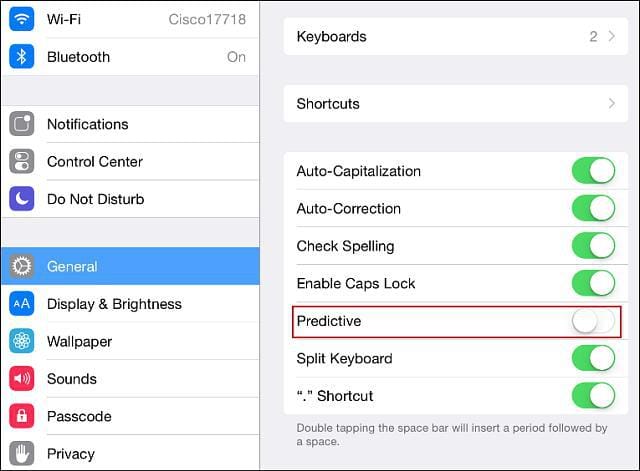
How to turn off iOS keyboard hints
Open any application on your mobile device that allows you to bring up the keyboard. It could be Messages, Notes, Mail, or something else.
Then look for the key on the keyboard to switch between languages or the key that appears in its place with the image of a smiley. Press and hold your finger on the screen until a menu appears. Then just drag the slider next to the Predictive Set line to the off position.
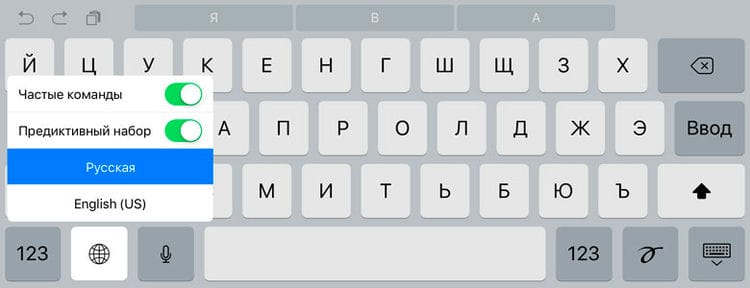
You can also turn off predictive typing in the iPhone or iPad settings: Settings> General> Keyboard> Predictive typing.

How to enable T9 (auto correction) on iPhone
It is clear that enabling this option is done in the same way as disabling:
- Go to the “Settings” of your phone and select the “General” tab;
- Scroll down until you find the Keyboard tab. Click on this item;
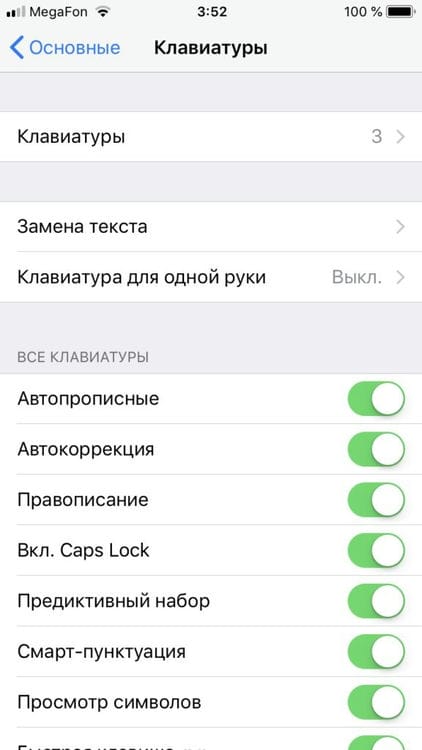
- You will have many points here. Find “Auto Correction” and set the slider to “Enabled” as shown in the screenshot.
Customize for yourself
We recommend that you try to configure “Auto-Correction” and generally fast typing for yourself, so that these options really help you when typing and correspondence. Moreover, this is done simply. Open the section “General” in the settings of the iOS device and select the item “Keyboard” and then “Auto-correction”. Here you can:
- Teach her new words.
For example, in the “Keyboard” subsection, tap on the “Abbreviations” block. Then click on “New reduction”. Write down the full phrase and its abbreviated version – the same abbreviation. Click save. Now try composing a message and write an abbreviation. The system will offer you the full option – just tap on it or press the space bar. - Ask to highlight misspelled words.
To do this, just activate the “Spelling” option. - Activate a mode in which you will be offered options for continuing the phrase
(the system takes into account your previous conversations, writing style and most frequent words). This can be done in the “Keyboard” subsection by enabling the option called “Predictive dialing”. - Set the default spelling of words with capital letters, if they come first in a sentence
. Just turn on the “Auto-capital” function.
Finally, let's discuss one more important point. Does he talk about how to clear the T9 dictionary on an iPhone? Indeed, as you use it, a large number of accidentally added or misspelled words accumulates here, which interfere with fast typing. Therefore, the iOS auto-correction dictionary needs to be reset periodically. To do this, go to the “General” section in the settings, tap on the “Reset” item and select “Reset keyboard dictionary”. Thus, you will remove words (including erroneous words – for example, “solder” instead of “sleep”), added during your use of the device.
The T9 mode gained popularity when push-button devices came into vogue. This option is very convenient and allows you to quickly type text. It was only necessary to click on the required initial 2-3 letters, and the wise program itself guessed the required version of the full word.
Here's what you can do?
Add words to the dictionary. Many users do not do this and rely on the keyboard to simply search for words already in the dictionary. The system can learn on its own, but the process takes much longer, and depending on how often you use specific phrases, they may be ranked below native keyboard prompts. If you're using a specific word that your keyboard is trying to correct more than two times, add it.
Learn to edit a dictionary. Just like adding words on a regular basis, you should remove from it those that it suggests to use and that you don't need. If your keyboard just insists that you type a name or city name instead of a common word, your best bet is to simply remove it entirely from your custom dictionary and type it in manually when you need to type it.
Turn on cloud features and make sure all your words are on all your devices and you don't have to repeat ‘learning'. Connecting the keyboard to other applications or selecting one using the system dictionary rather than the application dictionaries will make typing easier. However, in this case, you may run into the problem of how to clear the predictive set if you mistakenly save a lot of misspelled words.
Finally, using keys that are always used by updated cloud dictionaries (such as Swype's Living Language) means your keyboard will always have and understand new words if you choose to use them. For example, if you are using the default Google keyboard on Android, turn on “personalized suggestions”.
You can enter text using the onscreen keyboard.
Tap the text box to display the onscreen keyboard, then tap the keys on the keyboard. If a key is pressed by mistake, you can move your finger to the correct key. The letter is not entered until the finger comes off the key.
Press the Shift key to change the case, or hold down the Shift key and slide your finger to a letter. Tap the Shift key twice to turn on Caps Lock mode. To enter numbers, punctuation marks, and special characters, tap the 123 number key or the # + = symbol key. If you haven't added any keyboards, tap to go to the Emoji keyboard. If you have multiple keyboards, tap to go to the last keyboard you used. Repeat touching to access the rest of the keyboards. Alternatively, touch and hold, and then move your finger to select a different keyboard. Double-tapping the space bar inserts a period with a space.
If a word has a red squiggly underline, tap it to see suggestions for correction. If there is no desired option, enter the desired word manually.
As you type, QuickType uses predictive typing to predict the next word. To select a suggested word, tap it. You can also accept the highlighted version by entering a space or a punctuation mark. To reject the suggested suggestion, tap the original word (displayed as a QuickType with quotation marks),
Hiding variants in predictive typing.
Drag QuickType options down. Drag them up again if you decide you want to use them.
Disable predictive dialing.
Touch and hold or, then move your finger to Predictive Dialing.
iPhone can correct typos and guess the next word, even if QuickType is disabled. To accept the suggested word, enter a space or punctuation mark, or tap return. To reject the offer, tap the “x”. If a suggestion is rejected multiple times, iPhone will stop suggesting it.
Settings for typing or adding keyboards.
Go to Settings> General> Keyboard.
The onscreen keyboard on iPhone 6 and iPhone 6 Plus contains additional keys that you might find useful. These keys are visible when using the iPhone in landscape orientation.
You can also enter text using the Apple Wireless Keyboard. See Using the Apple Wireless Keyboard. To use dictation instead of typing text from the keyboard, see Dictation.
Editing text
Touch and hold your finger until the magnifying glass appears, then, without removing your finger from the screen, slide your finger to locate the insertion point.
Click the insertion point to display the selection options. You can also highlight a word by double-tapping it. Drag the grip points to increase or decrease the volume of the selected text. In read-only documents such as web pages, tap and hold your finger to select a word.
You can cut, copy or replace the selection. In some programs, you can apply formatting to text (bold, italic, or underline; tap B / I / U), view the definition of a word in a dictionary, or find a synonym. Click to see all available actions.
Undo the last editing operation.
Shake iPhone and tap Cancel.
Using abbreviations, you can enter words and even phrases with just a few characters. For example, the abbreviation “etc.” is replaced by the phrase “and so on.” This abbreviation is already memorized, but you can add your own abbreviations.
Create a reduction.
Go to Settings> General> Keyboard and tap the Shortcuts option.
Don't want to correct your word or phrase?
Create an abbreviation, but leave the Abbreviation field blank.
Using iCloud to update your personal dictionary on other devices.
Go to Settings> iCloud and turn on iCloud Drive or Documents & Data.
Using the Apple Wireless Keyboard
You can use an Apple Wireless Keyboard (sold separately) to enter text on your iPhone. The wireless keyboard connects to your phone via Bluetooth, so you need to pair the keyboard with the iPhone first.
Note.
The Apple Wireless Keyboard does not support the keyboard features in the device. For example, it does not use predictive typing and does not correct misspelled words.
Pairing an Apple Wireless Keyboard with an iPhone.
Turn on your keyboard, go to Settings> Bluetooth and turn on Bluetooth connectivity, then select your keyboard from the Devices list.
After pairing, the keyboard connects to the iPhone if it is within communication range (up to 10 meters). If a wireless keyboard is connected, the on-screen keyboard does not appear.
Saves battery power.
Turn off the Bluetooth function and keyboard when not in use. You can turn off Bluetooth in the Control Center. Press the On / Off button to turn off the keyboard. on it and hold it until the green indicator turns off.
Unpairing a wireless keyboard.
Go to Settings> Bluetooth, tap next to the keyboard name, and select Forget This Device. See Bluetooth Devices.
Pros and cons
T9 is found in both old models and today's gadgets based on Android. Despite the convenience and reduced time for typing text material, this mode is not without its drawbacks. Speeding up typing is often a theoretical concept.
The application has a built-in large dictionary with a wide range of words most often used in everyday life. This mode sometimes presented unwanted surprises when, after typing, it paraphrased words in a different manner, and the user had to spend time on corrections.
Removing T9 on iOS
Basically, the iPhone doesn't have this mode. This development of predictive input was created for simplified push-button devices. The option on the iPhone is called auto-correction. Although most of it is called T9.
Additional features
In addition to the automatic correction mode on the iPhone, you can disable:
- automatic input of capital characters at the beginning of input (we are looking for the “Auto-capital” command);
- word hints (looking for the “Predictive typing” command).
There is also the option to include your own templates for replacing text materials. They will be active even if auto-correction is disabled. This operation can be performed in the section “Replacing text”.
IOS AutoCorrect
Today I would like to tell you about one service that probably caught the eye of everyone … but for some reason, few people use it. Perhaps many simply do not imagine why it might be needed. Let's try to fix this situation.
If you open the system settings and go to the “keyboard” section, there will be “Abbreviations” at the very bottom. By default, they are configured to expand the abbreviation “and so on” into the phrase “and so on” – purely symbolic, so that the user would understand what it is all about.
The idea is really quite obvious. If, when entering from the keyboard – it does not matter whether it is hardware or on-screen – there is a sequence of characters specified in the settings as an abbreviation, then the system substitutes the text specified as a phrase instead. Moreover, this service is systemic, which means that it works wherever you can enter text.
As I noted at the beginning, most of them have only one predefined abbreviation “etc.” And here's what happens with me:
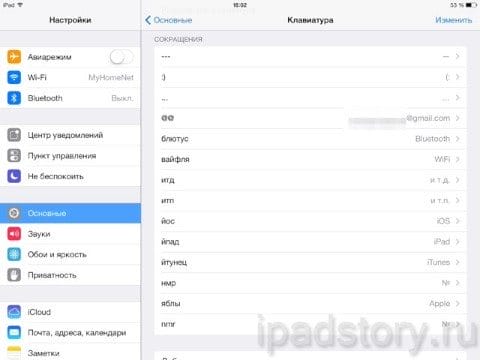
Let me throw you some ideas for using this feature to make your tablet life easier. In all cases, it is important to understand that it is better to use abbreviations to use rare (or generally impossible in ordinary language) letter combinations, otherwise you can easily complicate your life instead of simplification.
Idea one: your email
Its address has to be entered quite often, since it is with it that people are identified on social networks, web services, etc. This is the most logical thing that suggests itself in autocorrect, so create an abbreviation.
Idea two: common anglicisms
If, due to your occupation, you regularly have to mention terms in the text that require switching the layout, maybe it makes sense to introduce autochangeable synonyms for them in Cyrillic? As the author of this site, I am simply forced to constantly use the words Apple, iPad, iOS, AppStore, etc. – but, as you can see, I do it directly from the Cyrillic layout.
Idea three: special characters
One of the most frequently asked questions about using the on-screen keyboard on an iPad is: “How do I enter a number character (No. )?” The correct answer is: no way! Standard keyboard tools. But if you use the same standard autocorrect, then it's easy.
To do this, it is enough to give him an abbreviation – for me they are “nmr” and “nmr” for Cyrillic and Latin, respectively. Of course, the symbol itself is needed to indicate it as a phrase – for which you can use the symbol table, and the free version will do just fine. You don't need it very often, and you can look at the advertisement for a few seconds. The number symbol has the official designation “Numero Sign” and is located in the “Letterlike Symbols” group.
The fourth idea: personal chips
My readers are aware: I use “inverted” emoticons. (: This is not happening because of the notorious “think different” (although this is what I am trying to teach my students), but because of the banal dislike for the tendency of forum and blog engines to replace text emoticons with pictures …
So – working with the text, I type emoticons in the most ordinary way, as I'm used to. And iOS inverts them for me. In addition, you can see that I have the autochange of three minuses set up for the em-dash: it's easier for me to poke minus three times in a row than to turn into the “alt-shift-minus” folding. Similarly, three dots are replaced with ellipsis, etc.
(If you have a question here, the answer is yes. Yes, all my articles here are written entirely or to a large extent directly on the iPad from an external keyboard. This does not turn the tablet into a laptop, but I don't need it – it’s enough that the transformation into the tool of operational work with the text is extremely successful.)
It seems that the examples given are quite enough. It remains to tell how these same abbreviations are configured and work.
The setup is very simple and is fully illustrated by the following screenshot:
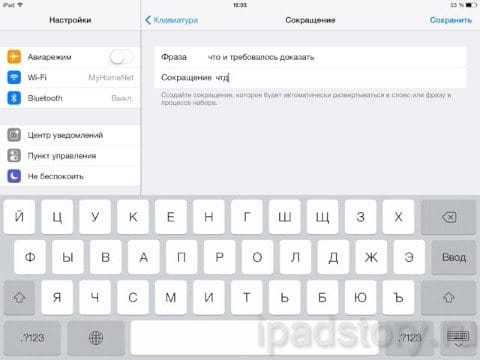
After you save the created abbreviation, the system will keep track of whether it appears in your text. If they do, you will be offered a replacement. Like this:
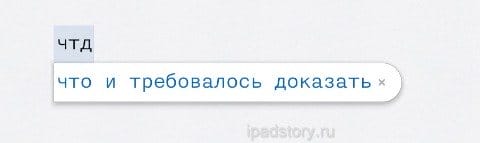
Normal continuation of typing will signify your agreement; no further action is required. To refuse, it is enough to point your finger at the cross. This requires a certain positioning accuracy, so I recommend again: use such abbreviations that they occur exclusively for their intended purpose and do not require refusals. (:
Finally, I will mention two disadvantages of this service. First, abbreviations are weakly case-sensitive. More precisely, they are converted according to the following rules:
- If the phrase contains both uppercase and lowercase letters, then it will be used for replacement as is.
- In all other cases, the capitalization of the phrase will be the same as that of the typed abbreviation.
That is, in the above example, “what was required to prove”, “what was required to prove”, “what was required to be proved”, and “what was required to be proved”, and what was required to be proved.
Secondly, the system somehow tries to analyze the symbols used and act “intellectually” depending on their type. I find it difficult to accurately describe the algorithm – it is known in detail only to Apple programmers – but, for example, you will not be able to set the autocorrect “b” to a comma, the absence of which in the main on-screen keyboard causes a pronounced frustration among Russian-speaking iPad owners.
How to change keyboard on iPhone
In order to change the settings, you need to do the following:
- You need to go to “Settings”, Go to the “General” section, then go to “Keyboards”.
- This will open the settings page. Installed varieties can be seen here. There is a New Keyboards link at the bottom of the screen. It will be useful in cases where the required language is not in the list.
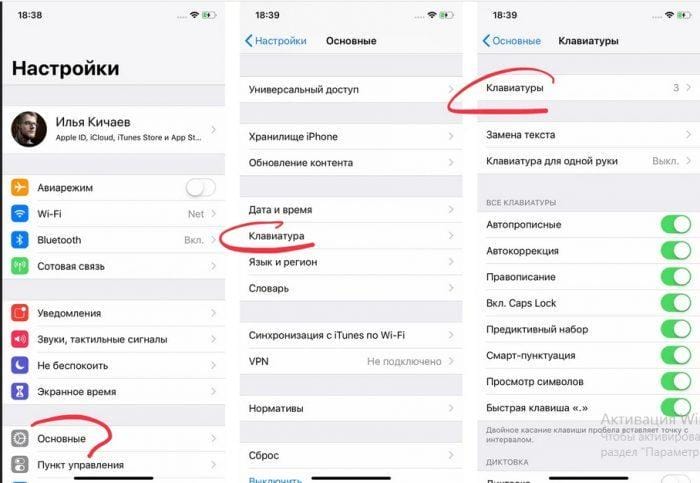
- After all the required languages are activated, you need to exit the settings.
The built-in on-screen keyboard will appear automatically every time a text field appears on the screen after the user taps on it. To change the language, you need to click on the globe icon. After that, a list of available languages will appear, from which you need to select the appropriate one.
In the settings, you can change the keyboard settings.

basic settings
Go to basic settings and find the keyboard. In this menu, you will see all the input settings: auto-correction, hints and predictive typing. Not everything can be left on, but some are worth paying special attention to.
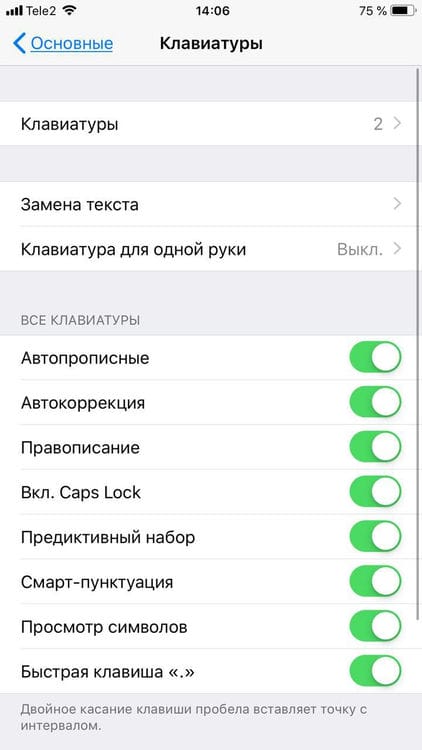
Another useful thing is smart punctuation. It automatically changes punctuation marks to typographic ones. For example, two minus signs (- -) turn into dashes (-), and strange quotes (“”) become normal (“”). But some people need specific characters – turn smart punctuation on or off as you see fit.

Dictionary of abbreviations
Almost everyone uses these things. IPhones have a very cool “replace text” feature that allows you to replace abbreviations with full words.


To make abbreviations, go to the keyboard settings and click on “Text replacement”, and then on the plus in the right corner:

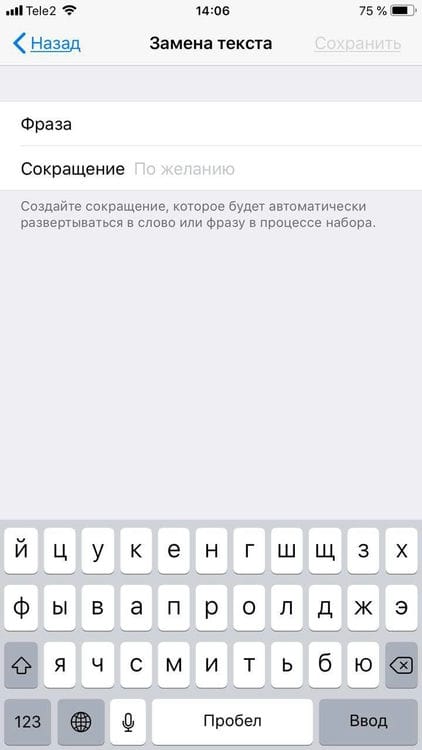
Having created an abbreviation, the iPhone itself will offer you to replace the set of letters with a phrase or a word.
Keyboard size
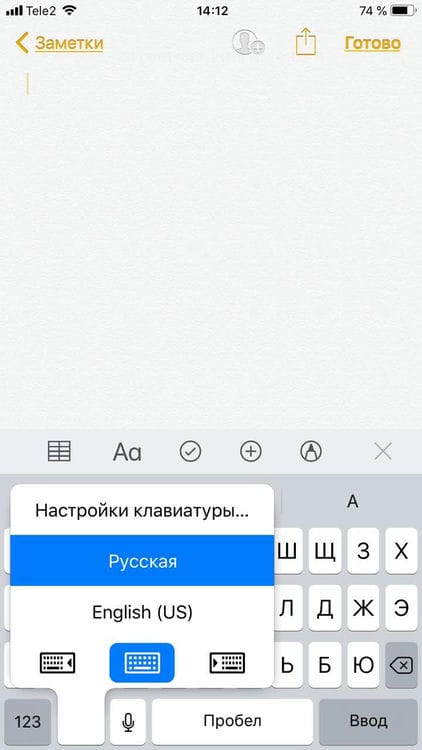
Sometimes you need to respond to a message in the messenger promptly, but what if you are on the street? To do this, Apple came up with a reduction in the size of the keyboard for the left and right sides. To use it, hold down the globe and select the desired keyboard:

Text formatting
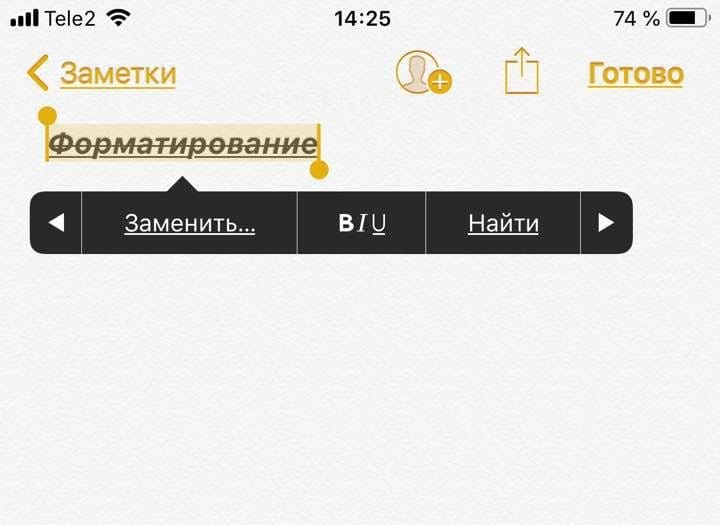
This thing doesn't work in all applications, but it's useful. You can change the formatting of the text: make it bold, italic, strikethrough or underline. Just highlight a word and choose the format you want. But don't forget digital etiquette.
iOS tip. Back to Basics. How to use the keyboard
Answers to user questions, messages on social networks and our personal experience suggest that sometimes even basic useful things of smartphones are hidden from users. Today we will tell you about the cool things that have settled in what we use every day – the keyboard. So, how to type text on iPhone is lightning fast.
Uppercase letters – you can press Shift and then enter an uppercase letter, or you can hold Shift with one finger and type several of them with the other. As you wish. And if you press Shift twice in a row, then Caps Lock will turn on – all letters will be uppercase.
Entering characters ё, ъ, €, ą, different types of quotes and hyphens – the iPhone has a very compact keyboard, while it has great possibilities. For example, some people think that the letters Ё and Ъ are not on the iPhone. But this is not the case! If you hold down “e” you can enter the letter e, if “b” – b, hold down “$” – select other currencies, and quotes or hyphens – different types of quotes or different lengths of hyphens and dashes (yes, there are people who want their texts looked typographically correct). Try to hold down different characters on the keyboard and open up a new world!
Period with a space – Everyone probably knows this. Enter 2 spaces in a row and get a full stop. It helps a lot to speed up the set of sentences.
Spelling – If iPhone thinks you're wrong, it will underline the word with a red line. Tap it and select a correction option, or write down your own so that next time it doesn't emphasize your favorite neologisms like “hello” or “customized”.
One-handed input is a cool new feature in iOS 11. In “big” iPhones 6, 6+ and higher, you can now move the keyboard to the right or left side by holding down the globe key. The keyboard will shrink, making it much easier to type with one finger. A very useful innovation!
Fully functional keyboard – if you turn the phone horizontally, the keyboard expands and additional keys appear. True, everything broke on iOS 11, but it works in iOS 9 and 10.
Selection of text – you can touch the text with your finger until the magnifying glass appears, and then move it to the point where the selection starts and select “Select” :). Or you can double-tap a word to select it. Further, the selection frame can be changed by dragging the blue corners. Well, the selected text can be cut, copied, transferred to this and other applications (try how it works in TextGrabber on iOS 11), as well as in some programs, such as standard “Notes” or “Mail”, – make it bold, italic or underlined.
By the way, if you do not know the definition of a word from a correspondence or letter, you can use our Lingvo or LingvoLive, or you can go to the system dictionary: select an unfamiliar word – click “Find”.
3D Touch is Power – If you have an iPhone with 3D Touch, you can highlight text like a ninja. Press and hold the keyboard until its color turns light gray. Move the cursor in the text by dragging your finger across the keyboard as you would on a trackpad. Without lifting your finger, press a little harder to select a word and move your finger to select other parts of the text.
Undoing is a crazy hidden feature of an iPhone 8 years ago. If you accidentally deleted something in the text, shake your iPhone and select “Undo”. This will return lost or corrected text. Jedi straight!
Predictive typing is like T9 only better. Such an additional panel above the keyboard with word options. Tries to predict your next word and suggests it to you.
If you see a suitable word, type a space or touch it and it is automatically inserted along with the space (if you enter a punctuation mark immediately after, the space will be removed). And it's very easy to disable it – select “Settings”> “General”> “Keyboard” and then disable “Predictive dialing”. By the way, misspelled words will still be offered for correction. To accept it, press the space bar, punctuation mark, or tap Return. To reject, tap “x”. If an option is rejected multiple times, iPhone will stop suggesting it.
Dictation is again a cool thing, hidden from prying eyes. If you don't see the microphone icon next to the spacebar, go to Settings> General> Keyboard and turn on dictation). By the way, on iPhone 6S and above, it can work even without the Internet. So, is it inconvenient or slow to type with your hand? Tap the mic and speak, then tap Done when finished. Bams! The recognized text has been transferred to your text field.
The coolest thing about dictation is the punctuation marks. Yes, they also exist, and dictation with them resembles sending a telegram from Prostokvashino – Hello everyone VSKL We dictate the text of the PTC So, punctuation marks: “comma”, “point”, “semicolon”, “exclamation mark”, ” question mark “,” open quotes “,” close quotes “,” new paragraph “,” new line “,” big “,” no space “,” smiley “,” sad smiley “,” winking smiley “. Try it, you will definitely like it!
Speeding up your typing – you can automatically replace abbreviations with full phrases, independently replenishing your dictionary. You can do this in “Settings”> “General”> “Keyboard” – Text replacement. For example, you can automatically replace the Criminal Code as “Dear Colleagues,” or “dosvidos” as “See you next time.” Respectfully yours, head of all departments, Ivanov Ivan Ivanovich. The main thing is not to use common phrases, otherwise you may get a completely wrong replacement …
Adding keyboards – no emoji keyboard? Are you learning French, but you didn't find a suitable keyboard? Search in Settings> General> Keyboards> Keyboards> New Keyboards. Add as much as you want (only it will be harder to switch later). Add emoticons immediately, and then according to your taste.
If you do not like standard keyboards, and you want to type text, for example, sliding on keys like in Swype, go to the App Store, download the desired keyboard and activate it in “Settings”> “General”> “Keyboard”> “Keyboards” > “New keyboards”. Well, remember that you can connect almost any Bluetooth keyboard to your iPhone and iPad and, in general, type messages and letters in your usual environment.
Caps Lock (always caps) on iPhone
To activate typing in capital letters, you must double-click on the Shift button (up arrow).
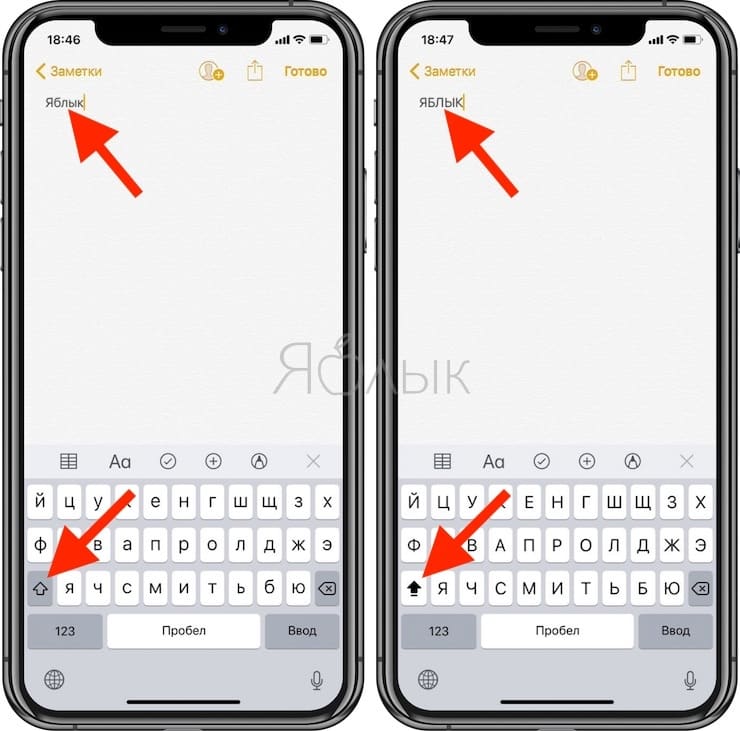
In this way, we activate a function similar to that used when turning on the Caps Lock key on a Mac or PC.
How to add an alternative keyboard to iPhone or iPad
As already mentioned, iOS 8 gave developers the opportunity to create alternative keyboards for the iPhone or iPad, and developers did not hesitate to use it. Already in the App Store, there are applications designed to replenish the list of existing keyboards of an apple device with new, sometimes all original, alternative solutions. Want to improve your typing speed? Then take a look at Fleksy, Swype, Minuum, TouchPal and other alternative keyboards, a brief overview of which can be found here – “A Brief Review of Alternative Keyboards for iPhone, iPad”. Or maybe you want to diversify the communication with animated pictures and short videos – the free GIF Keyboard application will help you.

However, simply downloading the program from the App Store will not be enough, you need to connect an alternative keyboard in the settings of your device.
First, you need to visit the App Store and download the alternative keyboard you are interested in on your device. Next, go to Settings> General> Keyboard> Keyboards> New Keyboards, where we look for the name of your newly installed program and tap on it, after which the alternative keyboard will be activated. To check, open, for example, iMessage and, using the button in the form of a globe, switch keyboards until the one that was installed appears.
Trackpad mode
A trackpad is a keyboard that combines standard buttons and a touch interface. Depending on the force of pressing, such a device determines what action the owner of the iPhone wants to take: to type text or to get access to a number of other commands.
Trackpad mode is available on Apple smartphones 6S and 6S Plus. To activate it, you need to press the iPhone display with a little effort when working with a text document. After that, the text selection and editing functions will become available when using the “Predictive set” option. The cursor can now be moved freely over the text. When pressed once, a certain text fragment will be highlighted on the display. If you double-click in the body of the document, the whole sentence will be marked, if you triple-click the entire paragraph.
How to customize the keyboard on an iPhone
On iPhone 6 or later, you can customize the keyboard for easy one-handed typing. To do this, perform the following actions:
- Go to “Settings”, then – to “General”, “Keyboard”.
- This will open a list of available options that you can change. Click on “One-handed Input”.
- The opportunity to choose from several options opens: the position of the keyboard for the left or right hand, for working with both hands. Select the desired one, then exit the settings.
When you no longer need one-handed input, you will need to go back to the keyboard settings and select the option that is used for two-handed input.
Sometimes the user sees that the letters on the keys are too small. In this case, the situation can be corrected by making them capitalized. To do this, go to the “Universal Access” section in the settings. Then, going to “Keyboards” set the parameter “Uppercase”. After that, not lowercase, but uppercase characters will become visible on the keyboard.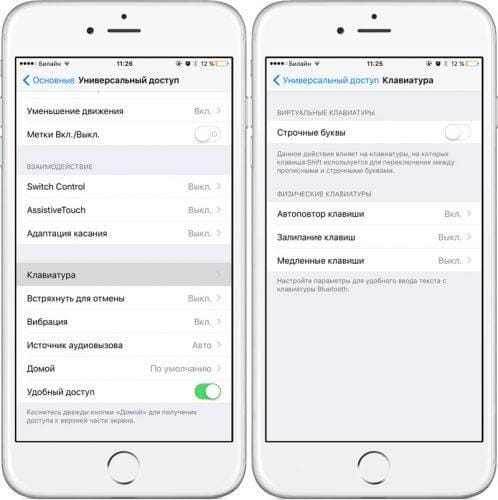
Sometimes it is convenient to use a larger keyboard for input. To do this, it is enough to set the iPhone screen in a horizontal position. It will be positioned along the bottom edge of the screen and enlarged in size.
The following options are also available in the settings:
- You can turn on the spell checker for the language for which the keyboard is intended.
- Automatic error correction is available.
- At the request of the user, you can turn on the predictive set. In this case, when typing a word, the user will be offered input options.
These parameters are found in the keyboard-related settings section.
Setting procedure.
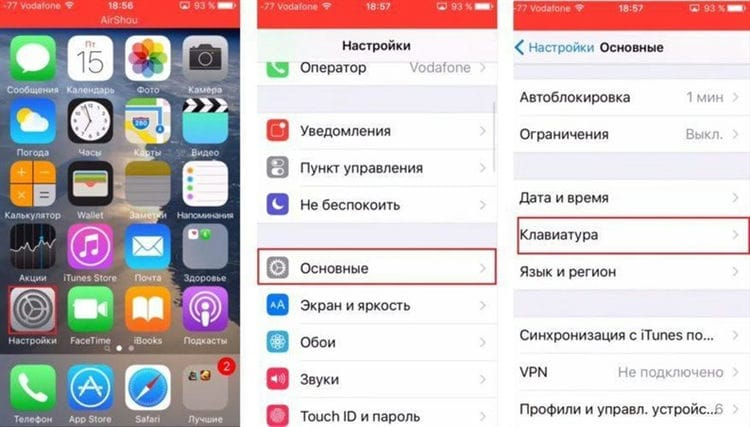
How do I hide the predictive typing panel?
The tooltip bar takes up additional space above the keyboard. In order to remove it for a while, you just need to hide it by swiping down with your finger.
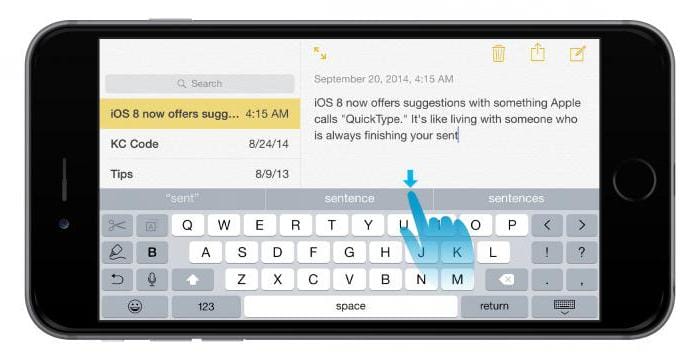
This is different from disabling the Predictive Dialing feature described above. iPhone in this case makes it easy to restore the suggested word bar without leaving the typing window. To do this, you just need to swipe up on the screen.
Configuring predictive dialing
Starting with iOS 7, the iPhone keyboard was equipped with a small Shift key that was sometimes difficult to press. The ninth version of Apple's operating system has provided the text input tool with a wide, easy-to-use button.
The Shift key functions have also changed. Users no longer need to press this button every time they need to enter an uppercase character. You can hold down the key. Until it is returned to its original position, it will be used when entering text. If this innovation is not to your liking, you can turn off the option in the “Settings” and use the old dialing method.
Allows you to use the following functions when entering text: “Autocript”, “Autocorrect”, “Spelling”, “Caps Lock on”, “View characters”, “Hotkey”. The last option involves inserting a point when you double-tap the Spacebar. All these options can be made active or disabled at the request of the iPhone owner.
New predictive typing features
The ninth version of iOS made some changes to the process of using the Predictive Typing feature. What are these improvements? For example, now on both sides of the screen there are quick buttons. Their purpose is to provide quick and easy access to those commands that are used most often. For example, while composing an email, Redo, Undo, Italic, Bold, Underline, Move Right, and Move Left will be available.

These buttons change depending on the applications in which the kit is used. For example, if a piece of text is selected, the options “Repeat” and “Undo” will change to “Copy” and “Cut”. In the “Notes” application, the functions “Styles”, “Images”, “Sketches”, etc. will be available. The owner of the iPhone can customize all these buttons for himself, making working with text simple and convenient.
Conclusion
Thanks to the new version of iOS 9 beta 1, which provided the presence in the iPhone of Russified predictive typing, the usual smartphone keyboard has turned into a “smart” one. Using a special mechanism, this option predicts subsequent words and phrases, displaying them on a special panel. You can choose the best option with one touch. The function is self-learning. The more often it is used, the higher the quality of its prompts will be.
Sources used and useful links on the topic: https://podkluchaemvse.ru/telefony/prediktivnyj-nabor-ili-kak-otklyuchit-podskazki-na-klaviature-iphone-ili-ipad https://dic.academic.ru/dic .nsf / ruwiki / 219089 https://FB.ru/article/228950/prediktivnyiy-nabor—chto-eto-na-iphone-ios-kak-vklyuchit-prediktivnyiy-nabor https://crabo.ru/hardware-solutions /what-is-a-predictive-set-in-an-iphone-predictive-set-what-is-it.html https://www.syl.ru/article/333148/prediktivnyiy-nabor-chto-eto- takoe https://omsk-iphone.ru/novosti/prediktivnyj-nabor-chto-eto-iphone.html https://tarifkin.ru/mobilnye-sovety/kak-pomenyat-klaviaturu-na-ajfone https: // wylsa .com / 10-poleznyx-funkcij-klaviatury-v-iphone / https://zen.yandex.ru/media/id/5b50c605495e8e00a9999616/polzovateliam-ios-polzuemsia-klaviaturoi-pravilno-i-ostavliaem-otzyvy-5b60866c9bef9e00a82f8c2c https: // yvy7ablyk- 11- ves/16540hory -dolzhny-ispolzovat-dlya-bystrogo-nabora-teksta-na-iphone / http://app-s.ru/publ/alternativnaja_klaviatura_dlja_iphone_ili_ipad/1-1-0-223 https://mosderevo.ru/interior-trim/ prediktivnyi-nabor — chto-eto-takoe-chto-takoe-predikativnyi-vvod-teksta-i-gde.html
Post source: lastici.ru