
Microsoft Edge – what is this program and is it needed? Introducing the new Microsoft Edge

Content
Where did Edge come from?
As we recall, Microsoft has been supporting Internet Explorer for many years. However, already in the 2000s, no one liked this application: it not only slowed down, but also did not get along with international standards. For example, some pages that Firefox or Safari displayed normally seemed to run through a mixer in IE. When Internet Explorer lost its dominant position in the market and became the target of derogatory memes, Microsoft realized that something needed to be changed.
In 2015, the corporation rolled out a new browser – Edge, leaving IE for corporate needs. The announcement was accompanied by the heroic in the spirit of Hollywood films, as well as promises of a bright future. The miracle did not happen: Edge was still inferior to Chrome in performance and was embarrassing with a barbed interface. It seemed that the new product was about to be forgotten: the share of Edge hovered around 5-6 percent, and this is taking into account the aggressive marketing.
However, at the end of last year, an announcement flashed that the Redmond IT giant was transferring the long-suffering browser to the open platform Chromium – Opera, Vivaldi, Yandex Browser and, in fact, Chrome itself now operate with its help. As it soon turned out, Microsoft even contributed to the overall development of the platform: it introduced a clever trick that saves battery when using “chromium browsers”. The officially improved version of Edge was released in early 2020. Judging by the reviews of journalists, we finally got a decent browser. Are they really comfortable to use?
How does he look now?
Since Edge runs on the same software as Chrome, both apps are similar. The same arrangement of bookmarks, icons with quick access to sites and the settings menu – both in the mobile and desktop versions. There is also a long list of Chrome extensions that work with Microsoft's browser. Edge also has its own plugins. The user can switch between them.
At the same time, the novelty also has branded features. The first feature is, of course, tight integration with the developments of the Redmond company. In Edge, it's easy to quickly sign in to your Microsoft account, and the Bing search engine and the Microsoft News news aggregator immediately turn on. In Russia, this is mixed with the integration of Yandex services. The second feature is that Edge takes care of your anonymity. The application has a built-in tool that turns off the tracking scripts of most sites. Plus, you can personalize the home page and choose a dark theme.
Organize your searches with Collections
Whether you suddenly need to build a curriculum for your child, or a long stay at home has awakened your dormant chef skills, Collections are a great help. Collections make it easy to collect, organize, and export information from different websites to different files, or go back to your exploration and pick up where you left off. This can be tricky these days, especially when it comes to tons of different sites and multiple devices.
Clicking on the Collections button on the right side of the browser will open a panel where you can easily drag and drop and group web pages, text, and images without having to open another page or another application. Then you can send your collection to Word or Excel. I use Collections to create lesson plans for kids: I search the web for all sorts of interesting ideas, then drag them to the Collections pane on the right, and when I'm done, I export the Collection into a beautiful Word document with one click and then print it to the children. You can also share the Collection by copying it to Outlook or another email service.
Today we announced that Collections will also be available on mobile this spring to make it easy for you to create, open and sync your Collections across all devices. The desktop version of Collections is already available on the Insider channels, and will soon be on the stable channel.
Work efficiently with vertical tabs
If you, like me, visit many sites, then you have dozens of tabs constantly open. And when this happens, it becomes difficult to make out which one is which. It happens that because of this I get lost or accidentally close some tab – of course, usually just the one that I needed.
Today we announced the vertical tabs feature to help you easily find and manage multiple sites open at the same time. Microsoft Edge is the only browser that allows you to manage tabs on the side with one click. Vertical tabs will appear on Insider Channels in the next few months.
Save time with Smart Copy
My favorite technological innovations are usually the simplest ones, those that involuntarily raise the question: “How did I live without them before?” How often have you cut and pasted something from the Internet into documents, where beautiful web content immediately turns into Augean stables to be raked? Smart Copy makes it easy to highlight, copy and paste web content while maintaining a rich web format. You can select any area or any content with your cursor, and when you paste it, it will retain the formatting, including images or links. It sounds very simple, but trust me, it is life changing. We look forward to launching Smart Copy on Insider Channels next month.
Control over ads with Tracking Prevention
To be honest, I love shopping. So, yes, sometimes personalized ads are useful – I find all kinds of new products online that I might not otherwise find. But for many others – and especially my kids – the personalized ads that follow you around the web can seem intrusive, if not creepy. Edge Tracking Prevention protects you from being tracked by third-party websites you don't directly visit.
This gives you more control over what you see and what you don't. On mobile or desktop computers, you can choose from three settings: Basic, Balanced, or Strict. Based on this, Microsoft Edge will adjust which third-party trackers to block. I prefer to use Balanced Mode (default) when surfing. And in the browsers of my children I set the Strict mode. Tracking prevention makes it easier to see and manage who is tracking you online. The function is already available.
Learn about passwords compromised on the dark web with Password Monitor
Every year, millions of usernames and passwords are sold on the darknet and are made publicly available due to data leaks.
Today we're announcing Password Monitor in Microsoft Edge to help keep your online accounts safe from hackers. The included Password Monitor notifies you in the event that personal data from autocomplete is found on the darknet. If Microsoft Edge detects a match with your username-password bindings, you will receive a notification inside the browser with a proposal for further action. In the panel in Settings, you can view a list of all leaked data and go to the appropriate websites to change passwords. And when the password is changed, save the new data to AutoFill and keep surfing calmly knowing that Microsoft Edge and Password Monitor are on guard. And again – a simple, even elementary solution, but thanks to him it became much easier for me to surf the Web. Another less problem.
How to uninstall Microsoft Edge on Windows 10
You won't be able to uninstall the program just like that. The company is forcibly promoting its product, so it included the browser in the list of programs that cannot be recycled. But still, there are several ways through which it is possible to erase the browser from your computer.
Removal via Powershell
-
Through the search, we find the Powershell program and run it.
Find the Powershell program
-
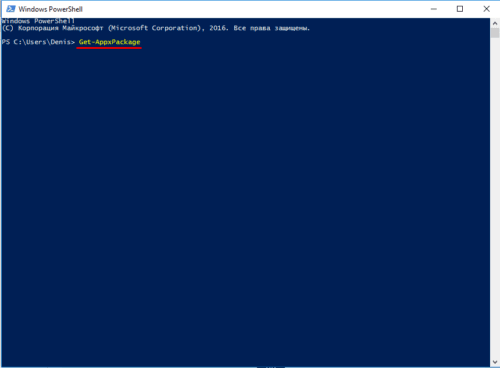
In the window that opens, write Get-AppxPackage. This command will bring up a list of all applications.
![Microsoft Edge - what is this program and is it needed? Introducing the new Microsoft Edge]()
Enter the command Get-AppxPackage
-
We are looking for a program named Microsoft.MicrosoftEdge and open it. The full name of the browser will be written in the PackageFullName column, copy it.
Copy the selected line
-
We enter the command Get-AppxPackage into POWERSHELL (the line that you copied without brackets) | Remove-AppxPackage.
By completing these steps, you will disconnect the web surfer from Microsoft on your computer.
How to uninstall Microsoft Age using a special program
There is a dedicated app that lets you block Microsoft Edge.
- Download Edge Blocker from the developer's official website.
- Click Block to block the browser. If you want to unblock it, click Unblock.
How to setup
-
All settings of the browser parameters can be done by going through the path: menu – parameters.
Go to the browser settings
-
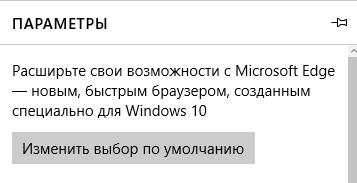
You can set it as your default browser.
![Microsoft Edge - what is this program and is it needed? Introducing the new Microsoft Edge]()
Setting the default browser
-
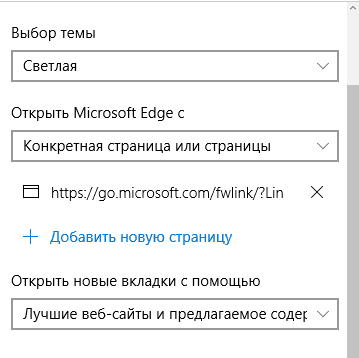
You can choose a theme that will change the look. The page from which it will open at startup. Configure how the browser will open new tabs.
![Microsoft Edge - what is this program and is it needed? Introducing the new Microsoft Edge]()
Setting up the browser
-
Customize your favorite sites, clear your browser history, and set your Microsoft account settings.
-
Adjust the display of the text to suit you. Choose the style and size of your text.
-
For more advanced users, there is “Advanced Options”.
Advanced settings for advanced users
How to completely uninstall Microsoft Edge
The preinstalled Internet Explorer 11 browser can be easily disabled in programs and operating system components. The process of disabling the Microsoft Edge browser is a little more complicated. You need to use the previously described method to remove standard Windows 10 applications. We will use the updated Windows PowerShell.
- From the context menu of the Start button, select Windows PowerShell (Admin).
- Now in the window that opens, run: Get-AppxPackage | Select Name, PackageFullName.
- In the list we find the PackageFullName of the Microsoft Edge program, and then we execute the command: Get-AppxPackage PackageFullName | Remove-AppxPackage.
Please note, the version of Microsoft Edge browser may differ depending on the version of the operating system. This means that you cannot specify a universal command, after which it will be deleted.
For example, to disable the browser on my computer, you will need to run the command below. With each update, the browser version changes, and then the PackageFullName accordingly.
The preinstalled Microsoft Edge browser uses standard operating system protections. For example, SmartScreen Filter helps protect your device by detecting unidentified applications and files from the Internet, and protecting your device from malicious sites and downloads. The developers took into account all previous mistakes and took care of the security of the updated browser.
Today you have the right to demand more from the browser.
World-class performance, increased privacy and productivity, and new useful features.
World class performance
The new Microsoft Edge browser delivers performance, compatibility, and speed to make your Internet experience even easier.
More privacy and control
The new Microsoft Edge browser has built-in features that give you more control over your own data and protect your online privacy.
More productivity
The new Microsoft Edge browser is packed with features to help you personalize your web experience and improve your productivity.
More benefit
When you use Give with Bing * in Microsoft Rewards, you earn points for every search you make, which are then automatically converted into donations to the charity of your choice.
-
![Microsoft Edge - what is this program and is it needed? Introducing the new Microsoft Edge]()
“A clear and early understanding of the available privacy settings. “
-
![Microsoft Edge - what is this program and is it needed? Introducing the new Microsoft Edge]()
“Built for speed. “
-
![Microsoft Edge - what is this program and is it needed? Introducing the new Microsoft Edge]()
“The new Microsoft Edge browser is a game changer. “


Relevance of EDGE
EDGE technology is of little use in modern realities and is almost completely superseded by the young technologies of 3G and 4G networks. The add-on works only in remote areas where there is little or no cellular coverage. And due to the low data transfer rate, which does not meet the requirements of Internet users, operators are gradually phasing out support for the technology.
Differences between Edge and GPRS
Edge and GPRS are very similar technologies, the task of which is to provide the user with access to the Internet. Nevertheless, there are a number of significant differences between them. In a sense, Edge is an improved version of GPRS. On average, Edge Internet speeds are twice as fast, ranging from 200 to 400 KB per second. The speed may depend on the coverage, the mobile operator, the location of the device from which you are logging in, and the performance of the smartphone itself. The download speed is approximately 28 KB per second.
Another major difference is the time of appearance and the speed of development. The so-called 2.75-G Internet appeared closer to the 2000s, and at that time the technology was an excellent replacement for the slow GPRS. At first, the new technology could offer users only 59 KB per second, but as the popularity of wireless access to the World Wide Web grew, mobile operators expanded their coverage areas and upgraded equipment. If a mobile operator used several time slots, then the Internet access speed could be up to 474 Kb per second, which was an incredibly impressive indicator for that time.
Conclusion
As you can see, the appearance of the Megafon Edge inscription means only connection to the tower, which supports the rarely used EDGE technology. There is nothing dangerous in this, such modules in the towers remain to service outdated devices that do not support 3G, 4G or 5G. A big plus of this technology is good coverage.
Sources used and useful links on the topic: https://w3bsit3-dns.com/2020/03/03/368720/ https://habr.com/ru/company/microsoft/blog/496740/ https://kompkimi.ru/ intrenetseti / kak-udalit-microsoft-edge-v-windows-10 https://windd.ru/microsoft-edge-chto-eto-za-programma/ https://www.microsoft.com/ru-ru/edge https://androfon.ru/article/edge-chto-eto-takoe-v-telefone https://zen.yandex.ru/media/id/5a626ff7a936f4cefc14d8e0/megafon-edge–chto-eto-znachit-5de68ce905fd98e386d843cd
Post source: lastici.ru