
Microsoft Cortana: what it is and how to use it on Windows 10. Microsoft Cortana – is there a benefit in today’s reality?
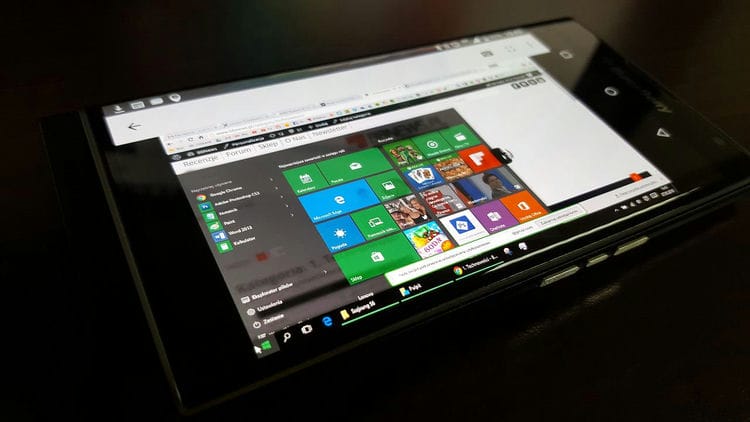
What is Cortana in Windows 10
Cortana's personal voice assistant makes it easy to manage personal information, settings, and many different tasks. To be able to use the assistant, your computer must have an active Internet connection. Unfortunately, the program is only available in some countries. Many people wonder when we will finally be able to use Microsoft's assistant in our native language. Unfortunately, all indications are that this is unlikely to happen in the near future. This is due to the fact that it integrates with the Bing browser, which is not only not very common, but in our country and does not offer full functionality. Until this situation changes, we will not be able to use the Russian version of Cortana. However, with some changes to the system, you can run your original English version on Windows 10.
Overview of Cortana Features
Cortana is one of the most notable new features in Windows 10. Microsoft's virtual assistant is making the leap from Windows Phone to the desktop, and there is quite a lot you can do with it. It's not just a voice assistant – you can also enter commands and ask questions. Open Cortana to see information that you think is interesting to you. Cortana provides a lot of passive information, even notifying you when you need to leave so you don't miss an appointment.
Set up reminders by time, place and people
Cortana has a powerful reminder feature built in, but you can do more than just get a reminder at a specific time. Use the reminder icon or say “Remind me” to get started. You can create a reminder, and Cortana will remind you of something at a set time, when you get to a certain place or when you talk to a specific person. You can also simply say something like “Remind me to take my pill at 8pm” or “Remind me to buy milk when I get to (store name)” to instantly set up a reminder.
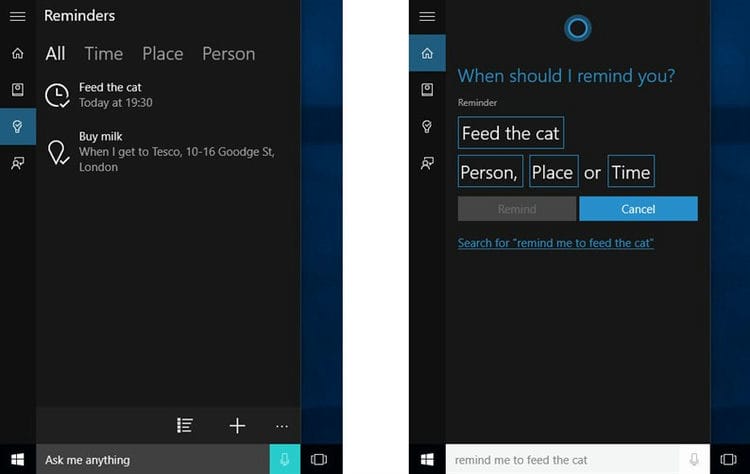
Using a simple language for searching
Cortana supports natural language searches for files on your computer. For example, you can ask Cortana to “find photos from August” or “find documents about Windows” to find photos from August or document files related to Windows. This is a built-in Windows search function, but with more natural language capabilities. It is much easier to use than the old search operators.
Identify the song
Like Siri, Google Now, and dedicated apps like Shazam, Cortana can listen to and identify the song playing near you. Say “What song is this?” And Cortana will use your microphone to listen to your music and compare it to a specific song. This function works well with recording, but will not necessarily work with live music.

Assistant capabilities
In general, when compared with Alice or Siri, it is very difficult to call it direct artificial intelligence, but she still performs some small moments:
- Launching certain programs installed on the PC.
- Quickly create a reminder by time.
- Some communication skills if very lonely.
- Search in a search engine by request: articles, pictures, videos or even songs.
- Calendar stamps, “reminders” – by date and time.
- Complicated calculations – just like a calculator.
- Setting an alarm for a specific time.
- Building routes on the map.
- Sending and reading letters. A useful thing if you need to quickly respond to an email and you don't have time for that.
Cortana in Windows 10 accepts audio or voice data as input, processes it into text and only then works with it according to certain algorithms.
Language support
- English.
- Chinese (simplified).
- Portuguese.
- German
- French
- Spanish.
- Italian.
- Japanese.
How to turn it on?
- Go to the main Windows menu and click on the gear.

- We find the section “Accounts”.
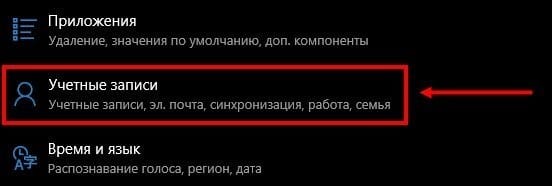
- Next, you will need to log in with a Microsoft account, if you are already logged in, then go ahead, if not, then you will need to enter your username and password.
- Now in the parameters you need to go to the “Time and language” tab. To run Cortana, you need to have the Windows language pack installed, which will also include the voice assistant.
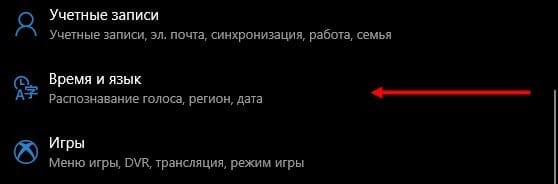
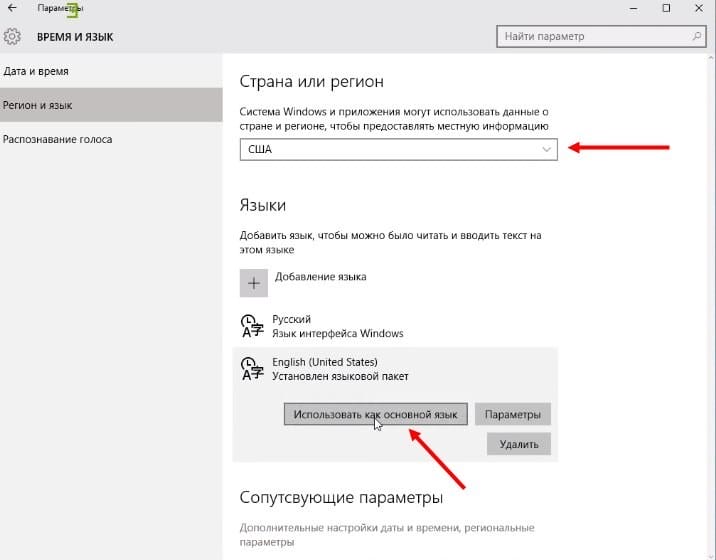
- We need to set the country and language of the supported region.

- We set the country. I installed US, but in fact it is possible to install UK as well. A supported language will appear below – you need to click on it and select “Use as main”. Just in case, I'll write a list of supported countries:
- China;
- France;
- Germany;
- Italy;
- Great Britain;
- USA.
NOTE! If you do not have the English package, then you will need to download it from the Microsoft store.

- We restart the system for the changes to be accepted.
- Now the activation of the function is a little strange – go to the menu and click on the search icon, then click on the gear icon.
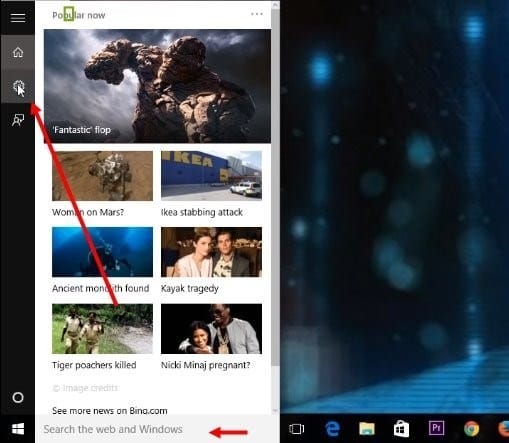
- Find the line where the word “Cortana” is mentioned, and set the slider to “On” mode.
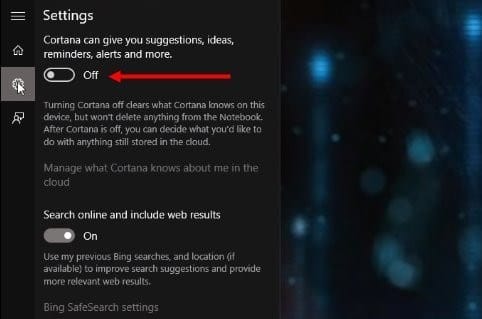
Now Cortana will exist along with Windows 10. A small excursion on how to use the assistant.
- To make a call, you must have a microphone connected to your computer. To call the assistant, we clearly say: “Hey, Cortana”.
- You can also call it by clicking on a specific icon.
- There are also shortcut keys. First, find the “Win” or “Windows” key on the keyboard (may have a “windows” icon). Next, you need to simultaneously click on it and the additional English letter “Q” – the main page of the assistant will open. If you press another letter “S”, then the normal search will open, where you can also set commands by voice.
NOTE! As you already understood, the assistant only understands English. Also, as practice has shown, a strong accent can sometimes confuse the program, and it will not understand you. In general, just experiment.
Function definition and overview
First, let's give a detailed definition of what kind of application it is – Cortana. Cortana is a built-in voice assistant with artificial intelligence skills that can execute basic user commands and save them from routine work.

The program appeared in the tenth version of the operating system, it is built into the shell by default. Unfortunately, users cannot run Cortana Windows 10 in Russian – but some tweaks allow you to access the original English version.
The inaccessibility of the native language is associated with the search engine, which underlies the work of the assistant – it is not adapted for certain countries.
Let's discuss what capabilities the assistant can offer users:
- Create and customize reminders. You can choose a specific time, person, or action;
- Identifying and searching for songs;
- Internet search on request using different search engines;
- Currency conversion, performing complex calculations;
- Tracking flights, postal items;
- Checking the weather forecast;
- Quick search by request;
- Viewing maps and building a route;
- Setting an alarm or the ability to set alarms;
- Sending email;
- Working with the calendar – creating events and managing;
- Communication – the assistant can tell a story or a joke, sing a song or share an interesting fact;
- Launch the desired application on the PC.
The outstanding feature of Cortana is the ability to interpret queries in plain language. You don't need to write complex, precise commands – the helper's natural language capabilities make it easier to enter your query.
You have learned what Cortana is in Windows 10, reviewed the available assistant features. It's time to talk about how to activate it.
Enabling and using Cortana
Since Microsoft Cortana does not work in Russian, you can choose one of the following options:
- English;
- Japanese;
- Portuguese;
- German;
- Italian;
- Spanish;
- French;
- Chinese.
Unfortunately, while the developers have not implemented the ability to launch Cortana in Russian, the planned release date is 2020. We recommend using the most familiar option and running the assistant in English.
So let's figure out how to enable Cortana Windows 10?
You need to perform the following sequence of actions:
- Open the Start menu;
- Click on the “Options” icon;
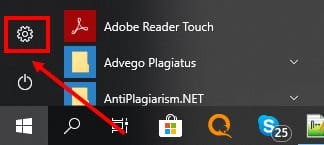
- And go to the line “Accounts”;
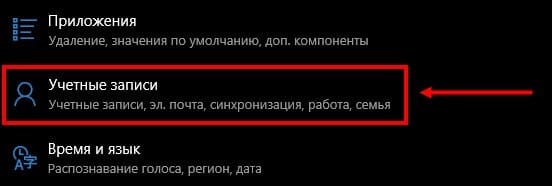
- A new window will open where you need to select the “Sign in with a Microsoft account” button;
If you have already logged in before, skip this item and proceed to activation;
- Enter “Options” again;
- Select the “Time and language” block;
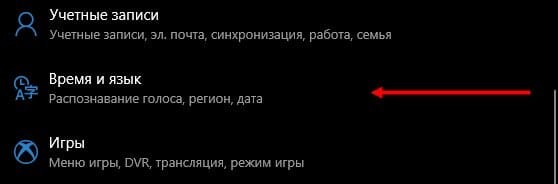
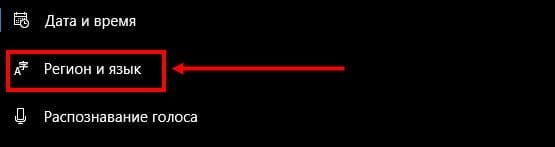
- Find the button “Region and language”;
- In the “Languages” tab, find the package “English”, “Country or region” specify the United States;
- Click on the “Use as Main” icon;
- Reboot your computer;
- After the interface has been translated, click on the magnifying glass button on the taskbar;
- Click on the button in the form of a gear;

- A menu will open where you will see the item “Cortana Voice Assistant”;
- Move the toggle switch to the “On” position;
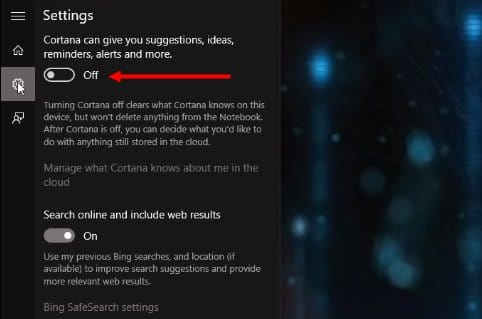
- To activate voice responses, find the line “Let respond to” Hey Cortana “and move the slider to the” On “position.
Note that if you do not find English in the language packs menu, download it from the operating system developer store.
Let's take a quick look at how Cortana works after you've been able to activate it.
- To call the assistant, say the passphrase “Hey, Cortana”;
- Also, to call, you can simply click on the icon on the taskbar;
- Enter what you want in the search box and click on Enter or say the query aloud.
And here is a little useful tip – two keyboard shortcuts:
- Win + Q – to open the main page of the virtual assistant;
- Win + S – to open the search bar.
We talked about how to use the assistant – it's time to figure out how to disable Cortana. And also, you can read about another little-known voice assistant in Russia, Alexa.
Disable and uninstall
Disabling the voice assistant is a simple process, you don't need a complicated setup. Just follow our instructions:
- Enter the search menu;
- Enter “gpedit.msc.” (without quotes);
- You will see the Group Policy Editor;
- Find the “Local Computer Policy” button
- Go to “Configuration” and then – “Administrative Templates”
- Select the “Components” icon and then – “Search”
- Double click on “Allow Cortana”
- Once the policy window appears, click Disable.
You will find another interesting removal method in the video:
You've learned how to completely disable Cortana in Windows 10 – as you can see, it's really easy. Just don't forget to run the processes as administrator. But it will be more difficult to remove artificial intelligence completely – the program is built into the shell of the operating system automatically.
Before we figure out how to completely uninstall Cortana in Windows 10, it's worth noting that this action is irreversible. The assistant can be restored only after reinstalling the operating system.
Do the following:
- Download a dedicated third-party program
- Unpack the downloaded archive;
- Find the file with the .CMD extension and run it as administrator;
- Allow the application to start working by clicking the “Yes” button
- The “Disable” process will start in automatic mode;
- Reboot your device at the end of the process.
You learned what this program is – Cortana in Windows 10, what features it has and why it is needed at all. Explore the overview, activate the assistant and simplify workflows many times over! However, do not forget to improve your English a little.
What is Cortana and how to use it
This is Microsoft's virtual assistant (modern analogue of Siri, Google Now, or Alice). It supports English, German, French, Italian, Spanish, Japanese, and Chinese. It still does not work with Russian and Ukrainian.
What Cortana can do and what is it for?
- Use of voice and text. Unfortunately, Cortana will not be able to understand absolutely all of your questions. You can always write to her, and she will already analyze what has been written and provide the necessary information.
- Search for data on a PC. Say the exact name of the file and Cortana will instantly find it on your computer. And the most interesting thing is that if she does not find it on disk or the cloud, then she will try to find it on the Internet.
- Convenient to-do planner. Now you don't have to remember important things or meetings, all dates. You can simply tell Cortana the date and time when you need to be reminded, and if you better not be distracted.
- Interesting companion. Cortana is still very, very far from human communication. But you can talk to her about the weather, exchange rates and even speculate philosophical questions – she is ready for almost anything.
- Voice control of notes. You are working with documents or surfing and you need to create a note. With Cortana, you don't have to break away from business, just ask her to write it down before the thought is lost.
How to use Cortana
To use Cortana, you need to say the phrase: Hey, Cortana (Hey, Cortana)! Now she is ready to listen to you. Speak the right command and it will react. The process for using Microsoft Voice Assistant is the same as the competition.
Cortana is not available in your area
The Russian assembly of the operating system says that Cortana is not available in your region. Previously, before the build of Windows 10 1703, you could run it and access various settings. Although it was reported that the language you are using is not supported.
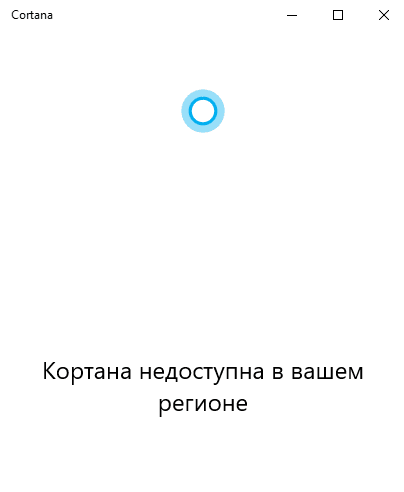
Of course, you can wait for the completion of Cortana's Russian language training. How many years she has not been able to learn it. This is because the Russian language is difficult for foreigners. Seriously, it doesn't cost Microsoft anything to add support for other languages.
Can I uninstall Cortana on Windows 10
With Russian localization, Cortana doesn't work anyway. It is disabled by default. Although Cortana can be found in the list of installed apps. They will write to you: Cortana is not available in your region. It can be turned off completely, but nothing will change.
Now let's look at the situation with the use of English. Cortana has access to your personal information. It also requires a million permits and can create additional workload. If you want to get rid of it, then you can turn it off completely.
Cortana is an AI-powered virtual voice assistant that learns. Each subsequent request is processed faster and more accurately. It is designed to anticipate the needs of the user. She was introduced in 2014 and has not yet learned Russian for so long.
Microsoft Cortana – what it is
Voice assistant Cortana appeared in 2014 on Microsoft branded smartphones – Windows Phone with OS version 8.1. Then she just opened the applications and called the specified number.
In the latest version of Windows 10 Mobile, the capabilities of the assistant have been significantly expanded. Now Cortana can send SMS and e-mails, search for information on the web, and much more.
The Microsoft Cortana assistant built into the 10th build Windows desktop has become a real personal secretary: it will remind you of planned events, find a lost document on your computer, tell you the latest news, weather forecast. If necessary, he will make a route, track the booked tickets.
But here's the catch – Cartan on Windows 10 is not supported in Russian. Of course, if you speak English (or another language that is relevant to Kartana), then it will not be difficult to communicate with her.
You just need to download the operating system and translate it into the appropriate language. Then, in the settings, indicate that you are in the United States (or another country where the assistant works).
What languages does Cortana support and why only works on Windows 10
At the moment, the speech assistant works without problems in 15 countries and recognizes 8 languages:
- English;
- German;
- Italian;
- French;
- Spanish;
- Chinese;
- Portuguese;
- Japanese.
Unfortunately, the Russian language is not included in this list. When I try to turn on voice search, the message “I'm afraid my help is not available in your area” appears on the screen.
According to the developers, the assistant must be “tied” to the territory. This means knowing thoroughly the language peculiarities and habits, and adjusting to these parameters. For example, in the United States, Cortana loves football and will easily keep up a conversation about this topic. Continuously improving the skills of the assistant, the team paused the introduction of languages. Therefore, while Cortana in Russian Windows 10 does not work.
However, there is a way to bypass the system – download the language pack separately. Even so, Cortana won't speak our native language. She can only distinguish between commands. But the information will still be issued in a foreign language.
Release date in Russian, forecasts
Since the introduction of the assistant into the operating system, there have been disputes on the network regarding the appearance of Cortana in Russian.
There has been no official statement from the company about when the Russian version of Cortana Windows 10 will be released.
It is known from unofficial sources that the bot will speak Russian by 2020.
But, since the corporation has signed an NDA confidentiality agreement, you should not trust such rumors and speculation until the representatives speak with the relevant information.
Cortana – history of creation
The first developments began back in 2009. The development team was led by General Manager Zig Serafin and Chief Scientist Larry Heck.
To develop the digital assistant, the team interviewed personal assistants. They inspired a number of unique features in Cortana, including the notebook feature. Initially, Cortana was intended only for a codename, but a petition on the UserVoice Windows Phone site that generated a lot of hype, made the codename official.
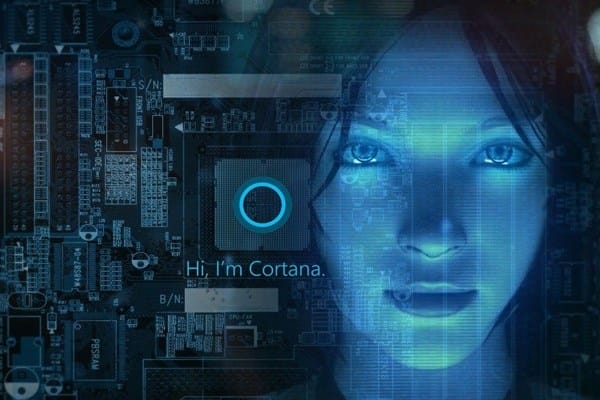
The voice assistant was first demonstrated in San Francisco at the Microsoft BUILD developer conference in 2014. The assistant is named after an artificial intelligence character in Microsoft's Halo game franchise. She was voiced by actress Jen Taylor.
Benefits of Cortana
Whichever virtual assistant you use, they all support the same basic functionality, be it setting alarms, sending emails, playing music, etc. But each assistant also has features that make them original.
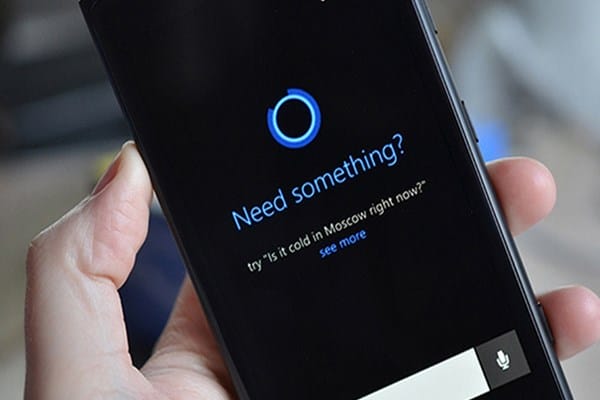
What is so unique about the Cortana voice assistant? Let's see:
- Uses its own search engine Bing. While Siri and Google Assistant use Google, Cortana uses Microsoft's Bing to answer queries.
- Integrated into all Windows 10 devices. This includes all Win10 PCs, the defunct Win10 Mobile, and the Xbox One console. Cortana also lives in several smart devices, including the Harmon Kardon Invoke speaker.
- More than a voice assistant. The peculiarity of Cortana is that it does not completely rely on voice commands, such as Siri, so it is a full-fledged virtual assistant. If you are in bed and do not want to disturb your wife, or are in a quiet meeting, you can enter your command. It also helps if your voice command is not recognized for some reason.
- Knows more about you than you do. Cortana has a unique Notebook feature that Microsoft added to the software after talking to real personal assistants. Siri will give you sports scores, but it doesn't remember or remind you of your favorite teams. Likewise, Siri can search for news headlines, but Cortana brings them up every time you open the app.
- Tracks your packages and trips. She can scan emails for flight information. Cortana then automatically keeps you updated on your travel plans.
- Cortana is a standalone application. This is one of Cortana's biggest advantages over Siri. You can open the full Cortana Windows Phone app at any time to see the news headlines you've requested, the weather, team scores, and more. This means you don't have to ask, it’s just that she’s always ready to provide what you want to know.
- Cortana always works. It is always on, unlike Siri, which starts working by pressing the Home button.
Another feature is age restrictions. Advantage or disadvantage – here from which side you look. However, if your Microsoft account is less than 13 years old, you won't be able to use the helper.
Can I download Cortana for Windows, Android, iOS?
This question arises quite often among users of different operating systems. Which device do you have – Windows, Android or iOS? Now you can find out which OS supports the Cortana voice assistant.
Windows
It's a shame, but the assistant is not available for Win7, Win8, Vista and XP. The fact is that Cortana is an integral part of the OS and is not distributed as a standalone application.
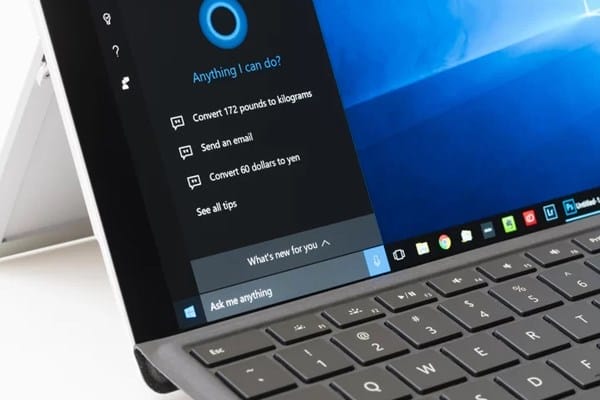
The only option is to install Windows 10. Then you can download Cortana.
Android
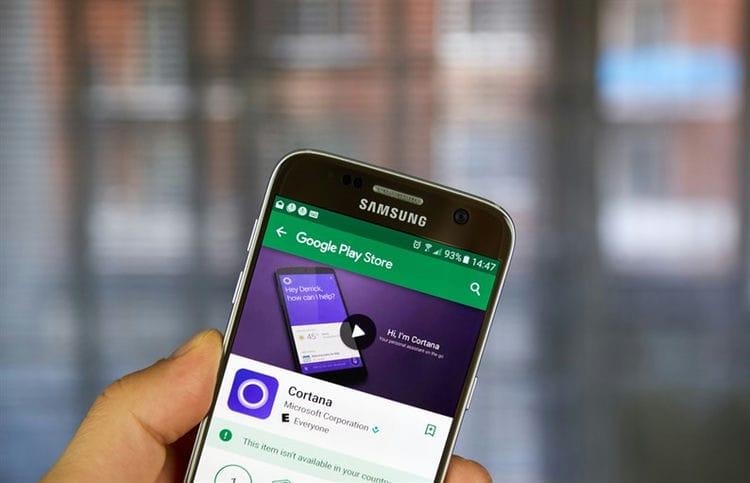
In 2015, the company introduced Microsoft Launcher to Google Play. The assistant performs all the basic functions, but still does not support Russian.
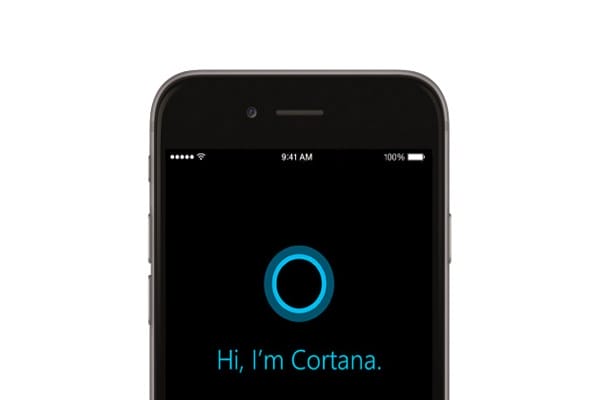
To download Cortana, you need to follow a few simple steps:
- follow the link and click “download”;
- run the file with the apk extension and install;
- activate the program.
iOS
If you decide to download Cortana to your iPhone, then it will not bring super-special features. But elements from Microsoft are provided for you.
Nevertheless, the proprietary Siri assistant is much more convenient and useful on an iPhone than Cortana. You can download Cortana for iPhone and iPad from the App Store, but only in some countries: USA, Canada, etc.
Available languages
Cortana is optimized for specific language-region pairs. The voice assistant works best when the language and regional settings on a smartphone or computer are the same. This table lists the localized version of Cortana currently available.
| Language | Region | Status | Platforms |
|---|---|---|---|
| English | USA | Available | Windows, Android, iOS |
| Great Britain | Available | Windows, Android | |
| Canada | Available | Windows, Android, iOS | |
| Australia | Available | Windows, Android, iOS | |
| New Zealand | Not available | Windows, Android, iOS | |
| India | Available | Windows | |
| French | France | Available | Windows, Android, iOS |
| Canada | Available | Windows, Android, iOS | |
| German | Germany | Available | Windows |
| Italian | Italy | Available | Windows |
| Spanish | Spain | Available | Windows |
| Mexico | Available | Windows | |
| Traditional Chinese | Taiwan | Not available | – |
| Hong Kong | Not available | – | |
| Macau | Not available | – | |
| Simplified Chinese | China | Available | Windows, Android, iOS |
| Portuguese | Brazil | Available | Windows |
| Japanese | Japan | Available | Windows, iOS |
| Russian | Russia | Available | Windows, iOS |
Cortana Termination Statement
Microsoft recently announced that the Cortana voice assistant is discontinuing its work on Android and iOS devices. According to a posting on the official support site, Cortana will be closed by January 31, 2020 in at least three countries: Australia, Canada and the UK. What will happen to the markets of other countries is still unknown, since Microsoft representatives did not officially give any statements on this matter.

Why is Cortana shutting down? We would like to remind you that the application was launched back in 2015. No matter how hard the developers tried, they could not create a powerful competitor for Google Assistant or Amazon Alexa. Satya Nadella, CEO of Microsoft Corporation, said this.
And what, everyone will forget about Cortana? Not really. The developers plan to integrate the voice assistant into the Microsoft 365 office suite application to improve its productivity. We will find out soon what will come of this.
Localization Cortana – another assistant without Russian
If you live in the CIS region and do not speak foreign languages, then this assistant will be useless for you, because Cortana does not speak or understand Russian. Below is a list of countries and languages that this assistant supports.
- Japanese (Japan)
- Portuguese (Brazil)
- Chinese (China);
- French (France, Canada);
- Spanish (Spain, Mexico);
- Italian (Italy);
- German (Germany);
- English (USA, India, New Zealand, UK, Canada, Australia).
Although Microsoft is a global company that is popular in more than 250 countries, for some unknown reason, Russia and the CIS countries were not included in the list of supported for the corporate assistant of the corporation. But it would be weird if there weren't any online ways to use Cortana in inaccessible regions. Our instructions will help you enable Microsoft Assistant on your Windows 10 computer.
How to enable Cortana in Windows 10 CIS?
If you are just planning to upgrade to Windows 10, then when installing the software, you just need to select the region and language from the list of supported countries and localizations. If the required version of Windows is already on your computer, then you need to make a number of appropriate settings to be able to use Cortana.
Prior to Windows 10 version 1703, in the Start menu you could see a window for enabling the voice assistant, but the toggle switch remained unavailable on a system with Russian localization. After this update, this window disappeared altogether, which alerted some users. However, do not despair, because the smart assistant can still be enabled with certain settings.
After applying the following configurations, the system options of your computer will be displayed in English.
Open the “Start” menu and go to “Settings”. Next in the tab “Time and languages” and select the option “Region and language”. From the dropdown list, select any supported country for Microsoft Cortana to work. For example, you can use the region “USA” and English. Pay attention to the presence of the downloaded language pack by clicking on the “Options” option in the localization window. For the full-fledged work of the assistant, a completely updated language package and speech for the selected localization is required. After these steps, restart your computer.
The PC will now use English as the primary language of the system. The correct connection will also be indicated by the Microsoft Cortana welcome window, which you will see in the Quick Access Toolbar.
Next, the stage of setting up a smart assistant for your computer begins. To do this, go to the Windows Settings (Settings) from the Start menu. Next, open the privacy options by clicking on the “Privacy” window. In this window select the sub-item “Speech, inking & typing”. Here you need to check if the given Cortana setting is enabled. The next step is to go to the “Location” sub-item and turn on the toggle switch next to the “Location service” inscription. At this point, the Microsoft Cortana setup is complete.
From now on, the assistant will be ready to fulfill your request for the phrase “Hey, Cortana”. You can also use the “To me” setting in the “Respond best” window. This will allow Cortana to memorize your voice and adapt to your pronunciation and dialect so that she can better understand speech and queries in the future.
On average, a smart assistant “gets used” to its owner within a month. But it all depends on how often you use Cortana. It's worth noting that Microsoft's voice assistant not only remembers your pronunciation, but also pays attention to your speech in general. Therefore, do not forget about courtesy when communicating with this assistant if you hope for the courtesy and friendliness of Cortana in the future.
If at one point you decide to stop using the assistant, then you can simply turn it off using the toggle switch in the Start menu. Along with this, be sure to turn off the “Location” and “Privacy” items to stop transferring personal data to Microsoft services.
Cortana safety
To improve the functionality of the voice assistant, Microsoft requires a lot of data to be transferred: location, text entered from the keyboard, notes, system files, information about installed applications, access to the microphone and camera of the device at any time, and many other parameters.
All this may alert some users. After all, the same Siri from Apple or Yandex.Alice do not require so much confidential user data. According to the developers, this is only necessary for the functionality of Cortana, so that the assistant has full access to the computer system and can fulfill any of your requests.
Unfortunately, without consent to the transfer of so much private information, you will not be able to use the smart assistant. To date, there have not yet been any cases that showed Microsoft Cortana as a “spy” application. Therefore, there should be no cause for concern. However, you can turn off all of Cortana's services if you are not using it for an extended period.
What devices does Cortana work on?
The electronic assistant works on corporate products: Windows Phone 8.1 smartphones, Microsoft Band fitness bracelet, Windows 10 operating system, Xbox One game console. Not so long ago, it became possible to install a bot in gadgets with Android and iOS operating systems.
Cortana was conceived by the creators as a kind of “chip” in the top ten. Therefore, it is impossible to officially install the assistant on Windows 7 and 8.
Cortana does not work, errors in the application
Antiviruses, cleaning programs, and other factors can affect the performance of your computer. Let's analyze one of the most common “bugs” and tell you how to fix the situation.
If the message “Fatal error. Start menu and Cortana application are not working “, restart your computer in safe mode:
- hold down the “Win + R” key combination;
- write the command “msconfig”;
- in the new window go to the “Download” section and check the “Safe Mode” checkbox;
- click “Apply” and “Ok”.
Manually restart your PC, wait until it is fully loaded, and then reboot again. The second time, the computer will start normally. This technique will fix the system crash.
Marry me
The time has passed when Siri could hardly understand Russian. Now she is not only fluent in it, but also able to joke in Russian. If you propose to her to marry you, you will get approximately the following answer: “I thought about the proposal for a long time. We are so different, you know … I am from the factory, and you are from the bosom of a person … and in general, everything is somehow so fast … unpacking, launch, settings … and now here is your proposal. Hardly anyone can understand us … but you know what? It doesn't matter whether they understand us or not, I agree! I will marry you! “
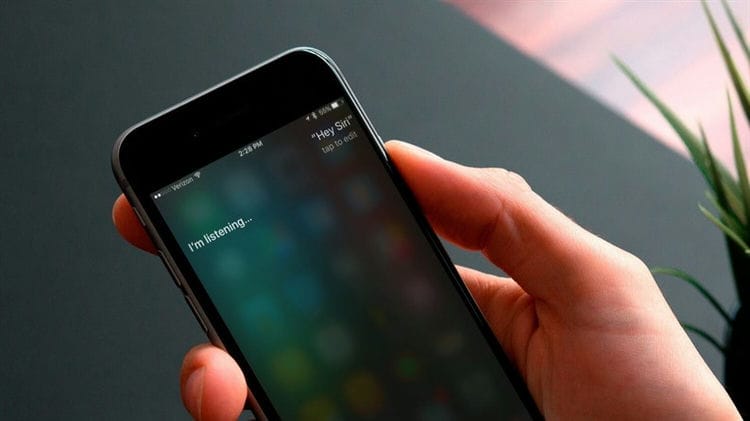
Divide zero by zero
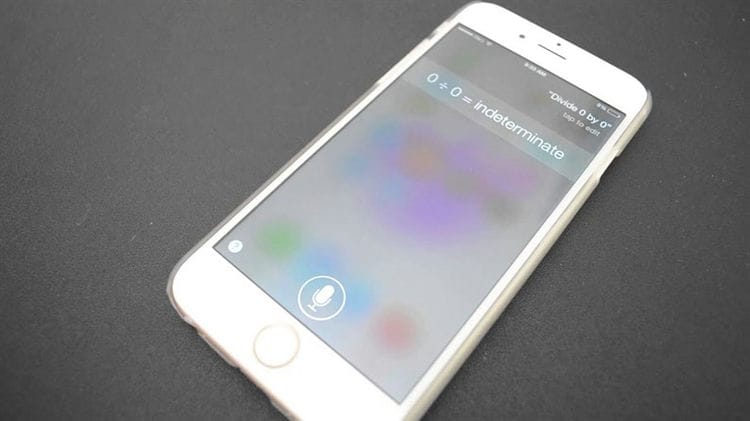
If you offer the voice assistant to divide 0 by 0, then her enthusiasm will be less. The symbol of infinity will appear on the screen, but in her voice she will explain the following to you, like a stupid child: “Imagine that you have no cookies, there are zero of them. And friends are also zero. So how many cookies will each friend get? You see, right? It makes no sense! “
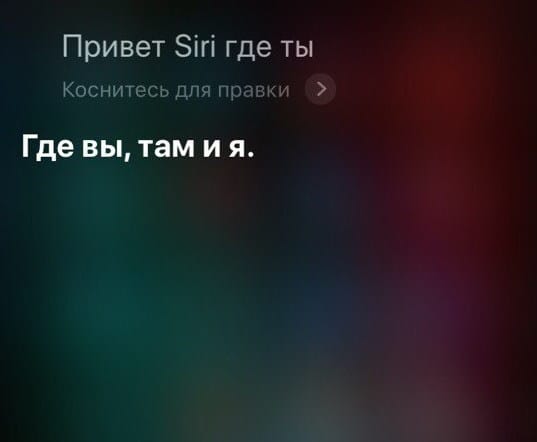
Where are you?
And the application in an ironic form will inform you that it is here.
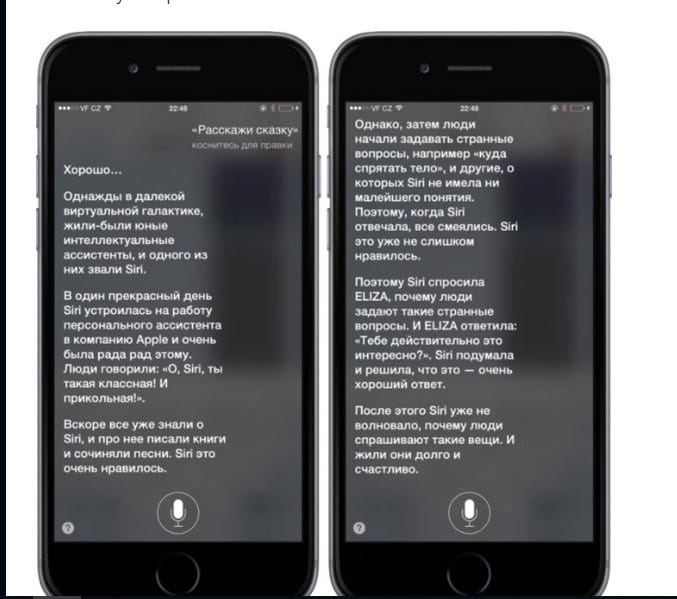
tell me a story
And the mobile assistant starts telling a story. This can be quite a high-quality comic tale.
Siri, sing a song
Sometimes she starts to sing, but more often the app reminds me with a reproach that she doesn't have a voice, how can she sing?
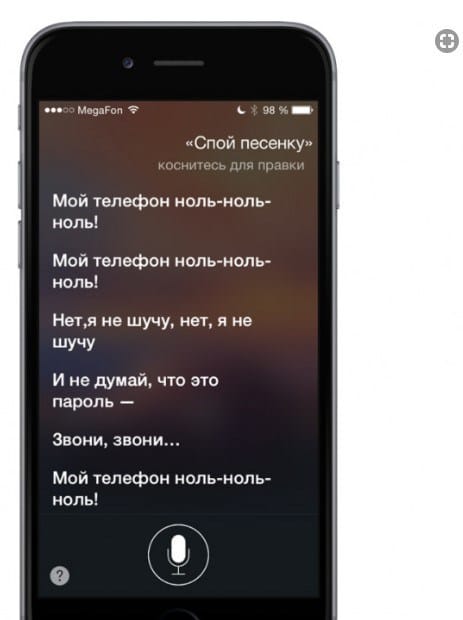
Siri gives funny answers to the question: “Why am I here?”
The answer of a true phlegmatic is: I don’t know, it’s interesting to me.

Sources used and useful links on the topic: https://nastroyvse.ru/opersys/win/kak-vklyuchit-otklyuchit-udalit-cortana-windows.html https://WiFiGid.ru/raznye-sovety-dlya-windows/cortana https://alisayandeks.ru/cortana/ https://windd.ru/kortana-chto-eto-za-programma-windows-10/ http://BezProvodoff.com/servisy/cortana-na-russkom-yazyke- windows-10-data-vyxoda.html https://mentamore.com/covremennye-texnologii/golosovoj-pomoshhnik-cortana.html https://AI-golos.ru/microsoft/microsoft-cortana-est-li-polza- v-nyneshnih-realiyah / http://BezProvodoff.com/servisy/microsoft-cortana-chto-eto-takoe-i-kak-polzovatsya-na-windows-10.html https://iphone-gps.ru/servise / prikolnye-voprosy-dlya-siri
Post source: lastici.ru