
Password Manager is encrypted software. Password managers – an overview
Why use a password manager?
There are two reasons for this:
- Simplification of interaction with complex passwords, logins, emails and other contact information;
- Security of activities in the global network and protection of all information using encryption.
Considering the password manager from one side is convenient. Various functions allow you to enter data manually and automatically, copy and paste the desired access code with just a couple of clicks. Convenient sorting and navigation, quick search are essential components of a password manager.
On the other hand, the program protects confidential data from unauthorized access. All data is contained in a single file encrypted with 128-bit code. To get to them, you need to enter an access code, which is often referred to as the master password. It is asked when you create an account, and it becomes the main security barrier for your data.
When you use a password manager, there is no need to provide the same access code for multiple sites. They can be made more complex by generating them through the program, because it is not necessary to remember this data.
Since all information on contacts, accounts and access codes is in one place, it is advisable to always keep Password Manager at hand.
Password manager – software differences
Password managers can be roughly divided into three categories:
- Desktop – provide access to the account store, which is contained on the computer's hard drive.
- Portable – store logins and access codes to sites, personal accounts, programs, etc. on smartphones / tablets. This type also includes portable flash drives, which contain a program for storing personal data.
- Networked – software that runs online on providers' websites.
Modern programs claiming to be the best password manager include many technological developments from the above categories and have the following features:
- Cross-platform (access from various operating systems).
- A single account for access from multiple devices (computer, smartphone, tablet).
- Synchronization with the server.
- Possibility of autonomous work.
- Availability of plugins for browsers.
- Automatic form filling.
- Secondary defenses (2FA, biometrics).
- Monitoring of long-unused accounts and possible vulnerabilities.
- Bulk password change.
- Convenient interface.
There are hundreds of good password managers, and the best are only a few. Developers want to receive monetary compensation for their work and resources used, so almost all programs are paid. Free software can be found on the web, but it will vary greatly in functionality, capabilities, and interactions with stored data.
To understand the version differences, here is the average table that many developers follow.
| Option | Free version | Paid version |
| Synchronizing accounts and data between devices | Not | Yes |
| Two-factor authentication | Not | Yes |
| Data leak scanner | Not | Yes |
| Old password scanner | Not | Yes |
| Entering a PIN instead of the master password | Not | Yes |
| Filling out application forms | Not | Yes |
| Restricting stored data | Yes (50 pieces) | Unlimited |
| Filling out forms in the browser | Yes | Yes |
Some developers practice providing full access free of charge for three, seven, or fourteen days. This was done as part of the trial period.
To understand if you need a free or a paid version of a password manager, you should consider the main functions of this program.
Key features of a password manager
There is a basic cohort of options that a good password manager should have. Before choosing software for your passcodes, consider the options offered and determine if it is right for you.
Password manager for security
Such programs have basic protective functions:
- Detection of unreliable access codes;
- Access code generators;
- Two-factor authentication.
These protective measures are important, but many developers of such software enhance their protection with additional options:
- Access codes management for applications and sites;
- Informing about data leakage from sites where you have created an account;
- Monitoring profiles for a long period of use of the access code.
Password Manager – 2FA and MFA
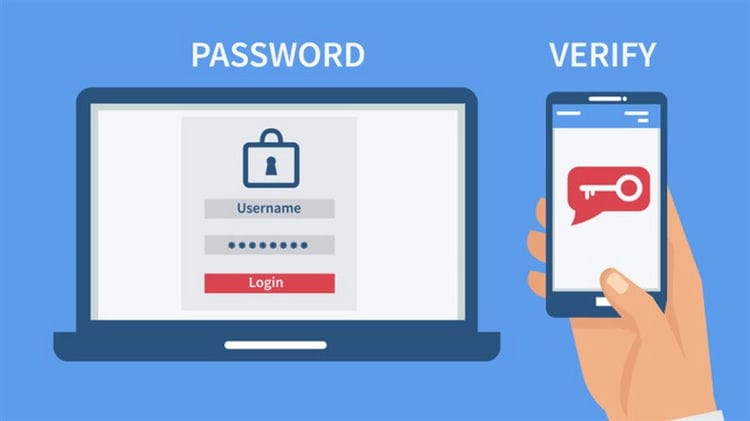
Trusted software uses two-factor (2FA) or multi-factor (MFA) authentication to verify your identity and grant access to stored data.
Such authentication methods can be considered using:
- SMS with an access code to the linked mobile phone number.
- A code generator such as Google Authenticator or Yandex.Key.
- Biometric fingerprint or face scanners.
Password generator
Coming up with complex passwords is the main task of Password Manager. Almost all typical programs contain it as an option. The access code is generated with one click on the corresponding button.
KeePass
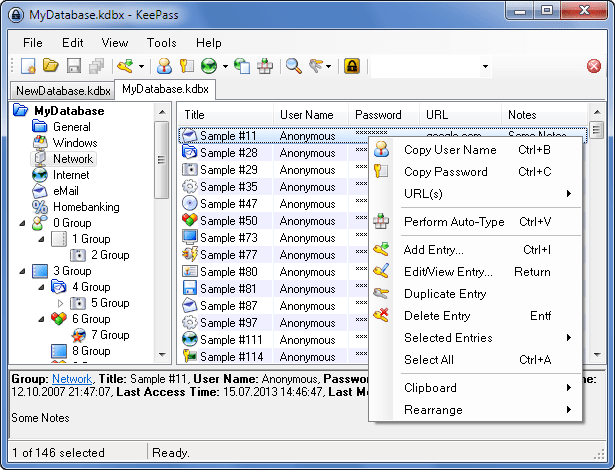
Multilingual free program for storing and generating passwords with open source and a number of ready-made plugins – encryption, synchronization, generation of pronounceable and easy-to-remember passwords.
Technologies
The password database is encrypted with AES-256. It is possible to use multi-pass key transformation. This increases resistance to direct attacks – perhaps in this regard, KeePass is more reliable than other password managers.
KeePass is stored in a file that can be synced using Dropbox.
Functions
- Create a record.
- Duplicate recording.
- Sorting records – by columns, by tags.
- Record groups – tree and sort.
- Search by records – fast or advanced.
- Copying record data – double-clicking on the field for copying, deleting the copied information from the clipboard after a certain period of time.
- AutoType for automatic data entry in browsers and other programs.
- Storing dates.
- Password generator, including those with specified parameters.
- Lock button – when you log in again, the program asks for the master password again.
- Base and program settings.
- Change of master password.
- Triggers.
- Export files: TXT, HTML, XML, CSV.
- Import files: 35 formats.
- Database transfer
2 eWallet
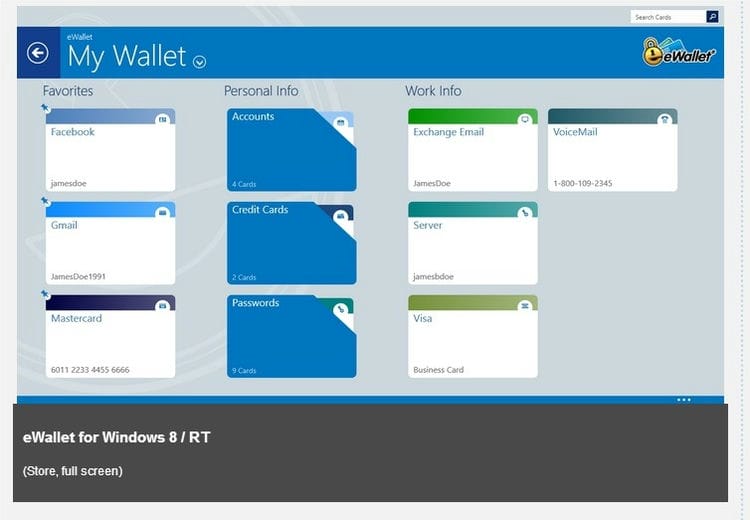
Versions
Available in versions for iPhone, iPad, Mac, Windows – at least 7. The Windows version of eWallet integrates with Internet Explorer, Firefox and Chrome browsers, and the version for OS X – only with Safari. The program is paid, but there is a test version for 30 days.
Technologies
The database file is encrypted using AES-256. The base is synchronized only manually.
Functions
- Category tree.
- Adding a customization card.
- Customization of fields in cards.
- More than 30 templates – credit cards, passwords, bank details.
- Tree statistics – counters by type of information.
- List of recent cards.
- Password generator.
- “Live fields”, for example, a call by clicking on the number field.
- Auto Pass – automatic substitution of username and password in the browser field.
- Smart Copy – fast copying of card numbers.
Overall impression: many functions, but usability is lame, plus the design in the style of a symbolic wallet with plastic cards gives a strange feeling.
3 RoboForm
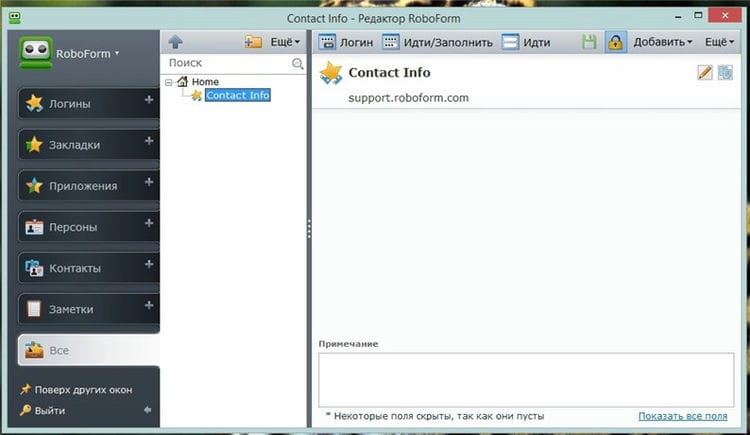
Application supporting 30 languages. But we don't really care.
Versions
Windows and Mac OS X, applications for iOS, Android, BlackBerry, Windows Mobile, Palm OS and Symbian mobile platforms. At the same time, the desktop version does not imply data import from Chrome.
Technologies
Synchronized using cloud technology, the base is encrypted using the AES-256 standard.
Functions
- Creation of records.
- Search.
- Print – logins, personas, notes.
- Auto Login.
- Password generator.
- Additional protection for each record. To open the data, you need to enter a master password.
- Import of the entered data from the browser.
- Sending records by e-mail – requires entering a master password.
- Create shortcuts on the desktop and in the browser.
- Integration with Windows Login.
- The ability to open multiple windows of the program.
- Administration: creating, editing user groups, sharing records for user groups, synchronizing databases when editing by users, checking which records a particular user accessed.
- Profiles of different users on one copy of the program.
- Backups.
- A portable version of the database that can be stored on a USB flash drive.
- Unicode control characters.
- Filling out long forms in online stores with one click.
- Screen keyboard.
Overall impression: there are a number of minor usability bugs – for example, the password generator in Windows is launched from the “Start” panel or by clicking on a shortcut; it is impossible to launch it from the program itself. And other similar little things are insignificant, but unpleasant.
Free video calls: 5 best video calling services
Today, when video calls are used almost as often as telephone communication, it is especially important to choose a high-quality video communication service. After all, they have ceased to be just a way of communication, but have turned into a working tool and even a means of teaching. We have compiled our own top video calling services that allow you to make free video calls to more than 20 users. So, the best products in 2020 are: Zoom. Google Meet. Skype. Whatsapp. Viber
How a password manager works
It is not necessary to memorize all passwords you use or write them down somewhere. For a long time there have been password managers that act as a kind of safe, inside which all your cherished combinations are stored. Moreover, there are both offline and online tools.
Don't worry about data security. These utilities use powerful AES encryption with a virtually unbreakable 256-bit key. Such a database can only be unlocked with the correct master password. Thus, the user does not need to remember the password for each of his accounts, but only the master password that opens the safe with all other codes
We give preference to online services (when the password database is stored on the developer's servers). This is the most convenient solution for the user, since passwords are used not only on a stationary computer, but also on smartphones and tablets. In this case, to start synchronization, you just need to enter your username and master password. All codes will be at your fingertips anytime, anywhere.
However, we conjecture that storing the database locally might be a safer choice. After all, online services require you to trust the provider and be sure that the master password is not really available to him, and there is no way to access the database in any other way.
Creating a master password
The password manager's security is entirely dependent on the master password. Therefore, you need to take the most responsible approach to its creation. For this, any service that generates a random long combination of characters can be suitable, as well as our instruction. But the first method has a significant drawback – the generated password is difficult to remember. Therefore, it is better to do everything yourself.
A simple guide to creating a strong master password:
-
Use of suggestions. A funny line from the Netflix series or your grandmother's saying will be a great basis for your password. You can also refer to your hobby. The phrase “I love Read Chip” might be a good idea.
-
The use of upper and lower case letters. Correct spelling is more of a flaw for a password. ILoveReadChip looks better from a security standpoint.
-
Embedding numbers. CHIP is worth reading in 2020 as well, thus we get “ILoveReadChip2020”.
-
Embedding special characters. You can also add a couple of special characters: “ILove / ReadChipMagazine2020 $”.
-
Double authentication. Be sure to use two-factor authentication to further protect access to the password manager Operation How to extract passwords from browsers: a step-by-step guide for those who have forgotten everything
All good dispatchers have two-factor authentication integrated, that is, in addition to the master password, you must enter a second factor to access the storage. In this case, you can be sure that even if the master password along with the database falls into the wrong hands, access to it will still be closed.
Why online services are better
Web services are leading in terms of ease of management, and it's not just about simplified synchronization. All modern password storage tools support biometric smartphone unlocking. This is much more convenient than entering long master passwords.
There is also an autofill credential function in the browser for entering the site. Unfortunately, this method does not work for Windows programs and applications on smartphones and tablets. The easiest way to do this is to copy and paste the data into the appropriate fields.
All solutions have a search function to quickly locate data. However, only industry leaders allow the integration of multiple databases, thanks to which the user can, for example, separate personal and work accounts. The “Favorites” function is also very useful for displaying frequently used passwords – the data marked in this way is always at the top of the list.
Logging into Windows without a password
Password managers preserve all credentials. The situation with logging into Windows is more complicated because you don't have access to the safe yet. Microsoft has integrated the Windows Hello function into the top ten, thanks to which user authentication can be carried out by scanning a fingerprint, recognizing a face or an iris. Devices like the Surface Book 2 already have the tech, because a regular webcam isn't enough.
Passwork (Web, Android, iOS, Chrome, Windows)
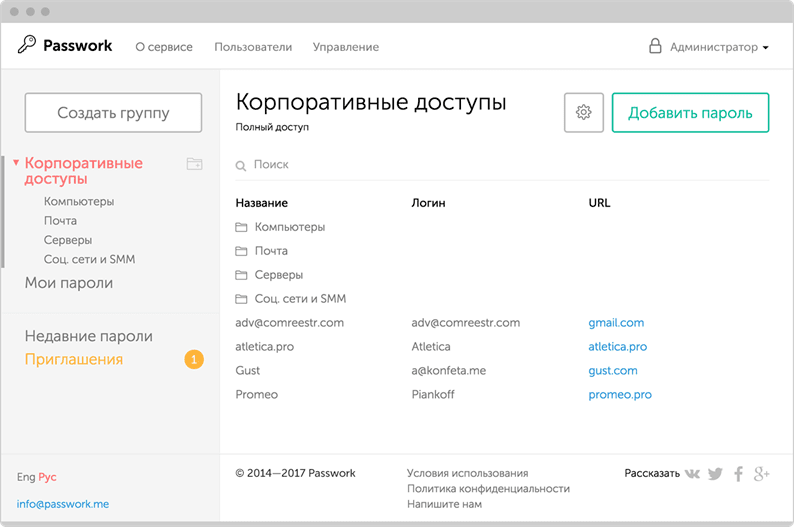
IT professionals appreciate the transparent encryption algorithms and software capabilities that open source provides. There are two ways you can use Passwork. First, you can install the boxed version on your own server and get an open source audited product that you can modify as needed. Secondly, you can use the cloud version. After installation, you will have access to all the numerous features of the manager.
The developers approached the distribution of access rights in a very interesting way. For example, a new user can be added to a temporary group by sending him an encrypted link with a one-time password by e-mail. The administrator can easily check who has access to which passwords, as well as easily track the history of actions with them.
All passwords in the program can be sorted into groups, and then into folders. Actually, it is very convenient for a large team to work in a group. And in folders, it will be easier to separate all accounts according to their functional purpose. In addition, this program has a browser extension, so you can go to the desired account quickly and without unnecessary steps.
Thus, you can work with colleagues in groups, invite by e-mail or a special link, provide access to single passwords, and a number of other features sharpened specifically for collaboration.
It should be noted the pleasant and minimalistic design of Passwork, which for some reason is alien to most password managers.
Passwork provides a public API, so third-party developers can code their client applications or integrate more tightly with their infrastructure.
Passwork developers are located in Russia, so the service is fully adapted for the Russian language (including the cost of use: 290 rubles versus $ 18 per year per user). And the box version is adapted for Russian business and government agencies.
Meldium (Firefox, Safari, Chrome)
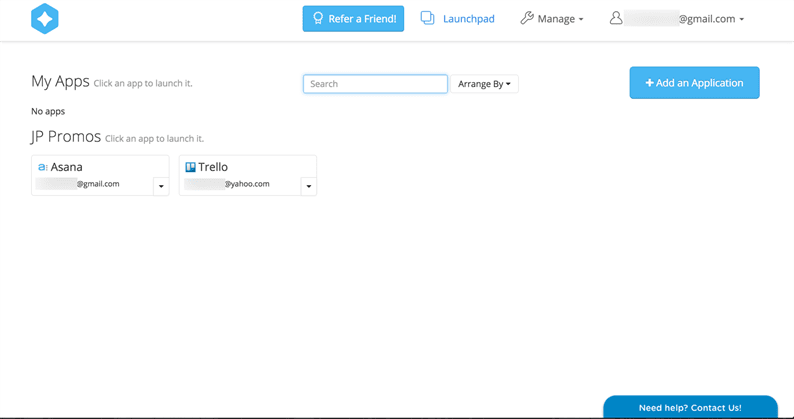
Meldium is basically a combination of a web application launcher and a password manager. It's great for working in groups with shared accounts.
The interface is pretty straightforward. You have a home page that displays all involved accounts. To fill out a form in a particular browser tab, one click is enough. Any team member can quickly open the required application. With the help of the browser application and the Meladium profile, the user will have access to the company's passwords sorted into groups. If necessary, administrators can bring in a new user. To do this, just add it manually or send an invitation to e-mail.
This program will also come in handy if you need to make access to your personal profile. Meladium allows you to add all personal profiles of employees and use the control panel for further administration and monitoring. The program also allows you to track the use of passwords throughout the company. If it detects weak or outdated passwords, Meladium will mark them as unreliable and promptly suggest updating. We can say that the program finds and repairs holes in the security wall of your organization.
Zoho Vault (Chrome, Firefox)
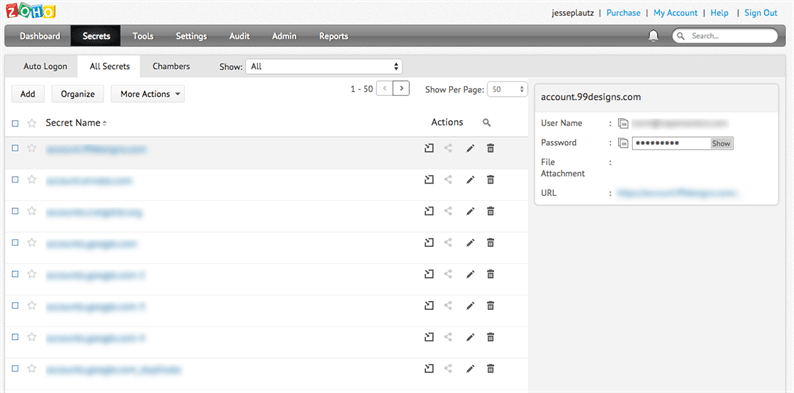
The next repository on our list is called Zoho. This software allows your team members to easily and securely share important information. All you need to do is download and install a specialized extension for one of the supported browsers. True, there are only two of the latter.
Using a CSV file, you can quickly import all passwords if you switched to Zoho from another manager. In personal managers, export tools serve only this purpose.
The program's reporting tools will notify you of all changes that occur in your accounts. Be it operations with access or changing a password, using one or another login, etc. The business version provides administrators with very broad capabilities. A user-friendly and intuitive interface allows you to quickly understand how Zoho Vault works.
SimpleSafe (Self-Hosted Web App)
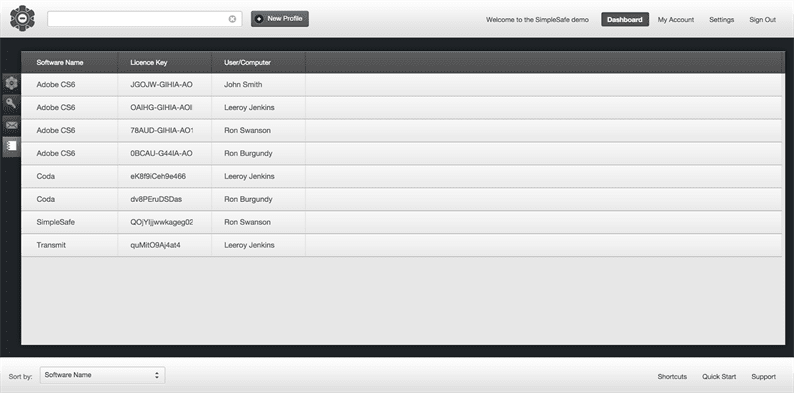
This program is highly appreciated by IT specialists. They point out that SimpleSafe can be safely considered an excellent launching pad with impressive functionality and tools.
The process of acquaintance with the program begins with a thorough setting of the environment, database fields, where passwords will subsequently be stored. Passwords of the same format can be sorted into groups. When configuring SimpleSafe, you are free to name the database fields as you wish. Now, whenever your team needs to track down this or that private information, it will be a simple task.
The control panel in the program functions in the same way as in other similar managers, so that team members will be very comfortable with its interface. True, SimpleSafe cannot boast of its own browser extension. So if you need to enter a password, you will have to use the copy / paste method. The thing is that the software is installed on local servers.
Vaultier (Web, Ubuntu)
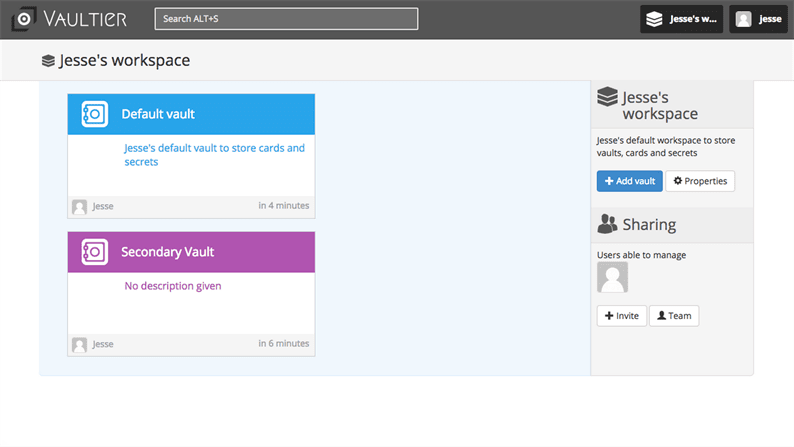
Vaultier can be referred to as another teamwork password manager that you can install on your own server. However, it is quite possible to work with a light version of the software – the cloud version of this “safe”. Plus, Vaultier packs seamlessly into a Docker container with a full install.
Vaultier relies on personal encrypted keys to protect passwords, even when protecting passwords for your entire team. Passwords are sorted into “vaults”, then “cards” with “secrets”. The latter contain passwords and account names. Such groups can also be used to delimit access levels. That is, each user can have access to the whole “safe” or only to one “card” within its limits. At the same time, administrators can revoke or assign the access level to any team member.
It is a password manager for the work team with an emphasis on security. Moreover, each team member can safely use it to protect personal accounts.
CommonKey (Web, Chrome)
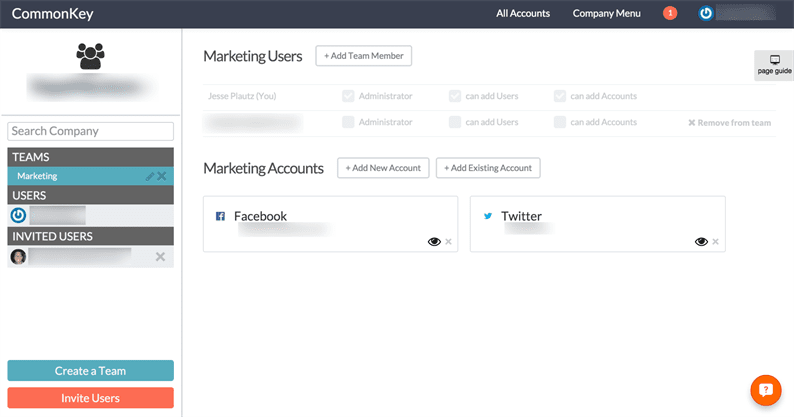
With CommonKey, password management in business is real and easy to implement for large and small teams alike. As a cloud storage, CommonKay works great through browser extensions for Safari, Chrome and Firefox.
Separate folders for passwords for different purposes allow you to conveniently organize work in the company by dividing employees into groups. If necessary, you can always add a user to a particular group and then revoke access. It's as easy as sending an email invitation.
However, CommonKey can also be used as a personal password manager. Team members can themselves add “locks” to the database from their personal accounts, and give access to them through the same interface. But you can rest assured. Personal and work passwords will be separated, and important company data will not fall into the wrong hands.
The browser extension will immediately save passwords when you go online. When registering new accounts, the password generator will immediately start working, so that new profiles will be reliably protected in the very first seconds. And you no longer have to come up with an “access code” yourself.
Best Project Management Service
Project management services can greatly simplify the interaction between employees in an enterprise if you make the right choice. But finding a truly high-quality and reliable product can take a lot of time. That is why we decided to make it easier for you and made our own rating. To find the best project management service, we compared products on criteria such as security, pricing, and functionality. As a result, we got the top 3, which includes the following services.
Password managers. Personal use
• Dashlane
Monitor and change passwords in one click. Support: iOS, Mac, Windows, Android, Web. Cost: Free for a single device, $ 39.99 / year for a premium account.
• Splikity
A simple tool for working with passwords. Support: iOS, Chrome, Android, Firefox, Safari. Cost: $ 4.99 per month or $ 49.99 per year.
• LastPass
Easy and convenient cross-platform access to your passwords from any browser. Support: Web, Mac, iOS, Android, Windows. Cost: Free for one device; $ 12 per year premium.
• Onesafe
your own safe with passwords. Support: iOS, Mac, Windows, Android. Cost: $ 19.99 for PC, $ 4.99 for mobile.
•1Password
Convenient password manager. Support: iOS, Mac, Windows, Android. Cost: $ 49.99.
• iCloud Keychain Multi-
platform software for Apple users. Support: iOS, Mac. Cost: Free.
Password managers. Corporate use
• CommonKey An
accessible password manager for teamwork. Support: Web, Chrome. Cost: free for groups of up to 3 users; $ 2 per user per month.
• Zoho Vault
Convenient manager for remote work. Support: Chrome, Firefox. Cost: from $ 1 per month per user.
• Meldium
Convenient password manager. Support: Firefox, Safari, Chrome. Cost: from $ 24 per month for 20 users.
• Vaultier
Convenient software for it-companies and larger management. Support: Web, Ubuntu. Cost: $ 99 per month for cloud storage.
• SimpleSafe
One-time access to passwords by reference. Support: hosting a web application on local servers. Cost: $ 90.
• Passwork
Maximum password protection for team work with the ability to install on your server. Supplied with open source code for auditing. Support: Web, Android, iOS, Chrome, Windows. Cost: $ 1.5 per month per user (or 25 rubles per month per user for Russia).
1Password (support Mac, iOS, Android, Windows)
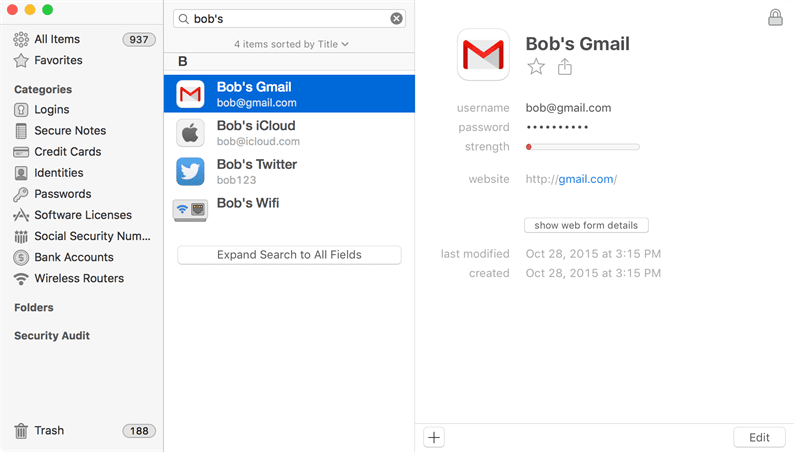
1Password is one of the most popular password managers out there today. It works both online and offline. It can sync via wifi, icloud or even dropbox without any problems, which means that syncing your data is completely under your control.
You can separate passwords in your “vault” into personal and work passwords to avoid confusion and overlapping areas of interest. And then you can share the “safe” through Dropbox, if you need to share data with colleagues, without worrying whether you have made the same password available. The manager has a very useful “watchtower” function that constantly monitors hacking attempts and tracks hacked sites. So, if you need to change your password, you will be the first to know about it.
Of course, the manager has a mobile app. It has good functionality that allows you to easily enter the desired profiles, enable unlocking “storage” via iPhone`s Touch ID, etc.
1Password allows you to save not only passwords. You can enter delivery addresses, phone and credit card numbers, driver's license and other important data in the “safe”.
Best messenger
Oddly enough, almost all modern instant messengers look more or less the same. Finding differences in how these services work is not easy. Nevertheless, we took the risk of comparing several of them to choose the best messenger. From products such as Viber, Telegram, Facebook Messenger, Whatsapp and Skype
LastPass (support Web, Mac, iOS, Android, Windows)
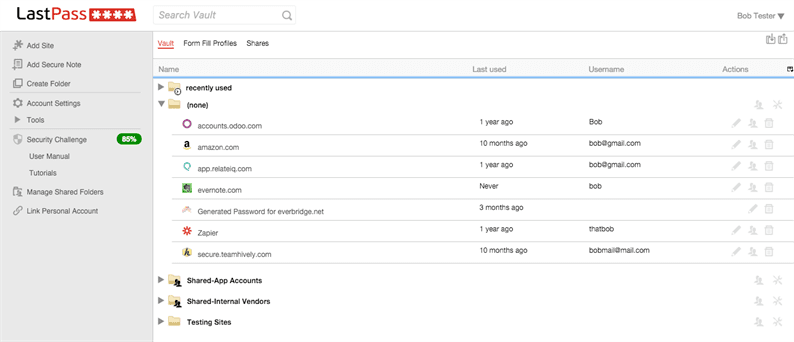
What is LastPass and what is it served with? This password manager will work anywhere. You heard right. It really works all over the place. There are extensions for all popular Internet browsers, an application for Windows on PC, Linux and Mac. It will not be a problem to find an option for Android, iOS, Windows Phone, Blackberry in mobile app stores. In addition, when used on one device, the program is free, which makes it very attractive for ordinary users.
The premium version of the program allows you to synchronize it with as many devices as you can think of. In the mobile application, you can paste the required password into the required field using the usual copy-paste method. Apple owners can get instant access to the application through the Touch ID function. In general, the developers took care of everyone.
LastPass does a great job of storing credit card numbers, bank accounts, so you can access that data from anywhere. If necessary, you can create access to a particular folder with passwords for other users.
On a larger scale, LastPass Enterprise empowers business owners to manage company-wide passwords through an extension in their web browser. That is, you can monitor the status of the passwords of any member of the group and make adjustments in time if necessary.
Dashlane (Web, Mac, iOS, Android, Windows)
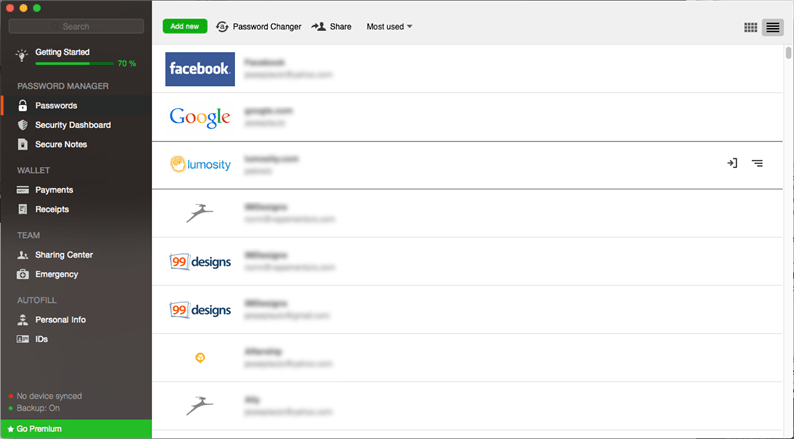
This manager stands up for fresh data. Once installed, Dashlane scans your entire database for weak, damaged or duplicate passwords. Then he will politely offer to change them from time to time to maintain the proper level of security. If suddenly the site you are using is hacked, the manager will immediately warn you about the danger so that you can quickly change the “lock”.
By the way, changing your password is quick and completely painless here. You can carry out the procedure in a couple of clicks. Dashlane also made the transition from another manager easy and enjoyable. The program will simply scan your applications and computer for passwords, and then import them into its database.
Great news for those who often make purchases in online stores: the manager not only saves bank card and account numbers, but also receipts from stores, makes details of expenses. The latter can be a good help for those who are used to keeping records of the family budget. After all, everyone is interested in the question, where does the salary go so long before the next one?
oneSafe (Mac, iOS, Android, Windows)
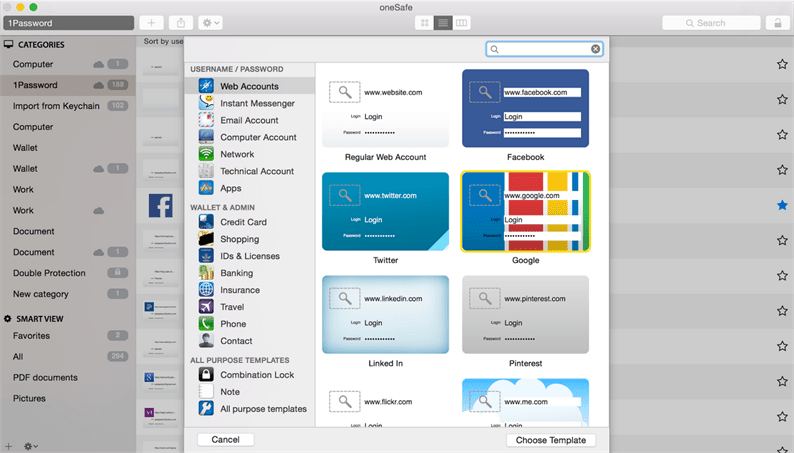
This manager was originally conceived by the developers as something more. That is, not just a safe for passwords, but also a reliable storage for files of various types. You can easily password-protect files on your own computer, and then easily make backups to any storage device.
Secret videos and photos on your mobile phone, pictures of your bank cards, your insurance policy, or even the code for your gym locker. OneSafe will reliably hide all this from prying eyes. Another cool feature is Decoy Safe. This feature allows you to create a phantom, that is, fake data for potential thieves. And let them hack a non-existent account … A convenient navigation system makes it easy and simple to find all the necessary data.
The program is also good in that you can independently choose the way of entering: from swipe and Touch ID to a pin code or the newly introduced Tri-Pin technology. Another plus is cross-platform support, so synchronization of all involved devices will not cause any problems.
You no longer need to remember passwords
Try to remember how many accounts you have in different Internet services. E-mail (or even more than one), cloud storage, social networks, streaming services … There is no way to list them all. Only people with really outstanding memory can keep so many logins and passwords in their heads.
Many users solve the problem simply: they create the same password for several services. But this creates a dangerous security hole, because if one account is hacked, the rest will suffer. And the data from the Have I Been Pwned website eloquently demonstrates how often information leaks occur even with the most reliable services.
With a password manager, you don't need to remember a ton of login information. The program will do everything for you. It will be enough to keep in mind only one master password, which encrypts the entire database. And this is much easier.
Your passwords will be complex and unique
All managers are equipped with built-in tools for generating unique codewords. They cannot be guessed using a dictionary because they are random sets of letters, numbers, and symbols. Naturally, this greatly improves safety. It can take a million or two years to find such a generated password – you can find out the exact number using the How Long to Hack my Password service.
In addition, it is very convenient to use the password generator: you do not need to rack your brains while writing a phrase that is easy to remember, but resistant to hacking. The program will come up with everything, write it down and, if necessary, substitute it in the required field for you. And no more duplicate codes.
Automatic login saves time
It takes a long time to enter authorization data manually. Especially if you didn't manage to get the right combination on the first try. This is annoying and time-consuming.
Password managers speed up logging into websites or mobile apps. They are equipped with an auto-login function and themselves substitute the appropriate username and password in the appropriate fields. No more manual dialing – convenient!
The function of automatic password entry is available in all modern browsers. But it has a couple of drawbacks. First, if you use Firefox on your computer and Chrome on your mobile phone, passwords will not sync between them. Secondly, if you are not alone at the computer, overly curious individuals can spy on your password, hidden by asterisks, using a special extension or digging into the settings.
So the burden of storing and automatically entering credentials can be shifted onto the shoulders of a password manager. And in the browser, it is better to disable this function completely.
Password manager – sync
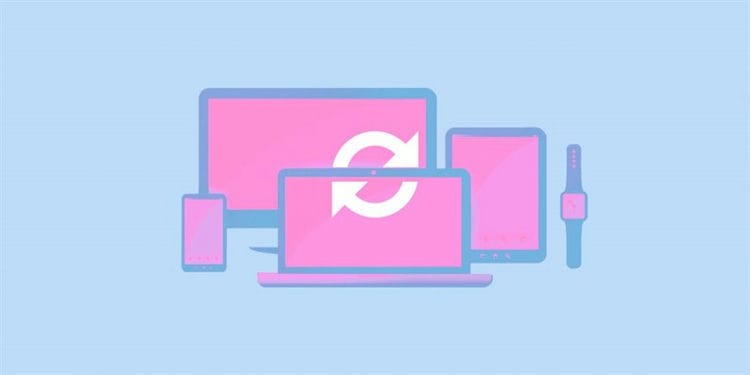
Data synchronization can be considered the most important function for people who freely work with multiple devices. That is, after saving your Facebook account data in the program on your computer, you will find this data in your password manager for Android or iOS, and you will be able to use it.
If this function is absent, this will further affect the convenience of using programs from various devices.
Automatic password update
Quite a convenient and useful function, which takes place in all password managers, but is supported only by a few. It allows you to automatically update access codes for sites that have been hacked.
A special algorithm scans the database of compromised sites, compares them with those where you have accounts, and if matches are found, informs you about the need to change the password for the compromised profile.
Password manager – usability

The key to good software is ease of use. For a password manager, this convenience is:
- Autofill forms for authorization in the browser when visiting the site. The function is considered to be protective, as it can protect against phishing (spoofing of pages to steal the entered information).
- Browser add-ons that provide online security and comfortable work with your data outside the main application.
- Management, autofill and protection of data entered into applications for smartphones with Android and iOS operating systems.
- An e-wallet option that allows you to store credit card payment details in a secure form and pay for purchases online without the need to display all personal information on the screen.
- A team or family subscription grants access to certain sections of your profiles to those to whom you share it.
Sources used and useful links on the topic: https://pclegko.ru/it-servisy/menedzher-parolej.html https://habr.com/ru/post/225053/ https://sravni.cc/sravnenie/luchshij -menedzher-parolej / https://ichip.ru/sovety/vybiraem-luchshijj-menedzher-parolejj-226822 https://habr.com/ru/post/357192/ https://Lifehacker.ru/nuzhen-menedzher- parolej /
Post source: lastici.ru